



Question: 12 steps Description Pts Your Score 1 1 4 1 3 2 1. Using your editor, open the cw_class_txt.html and cw_styles_txt.css files from the html02
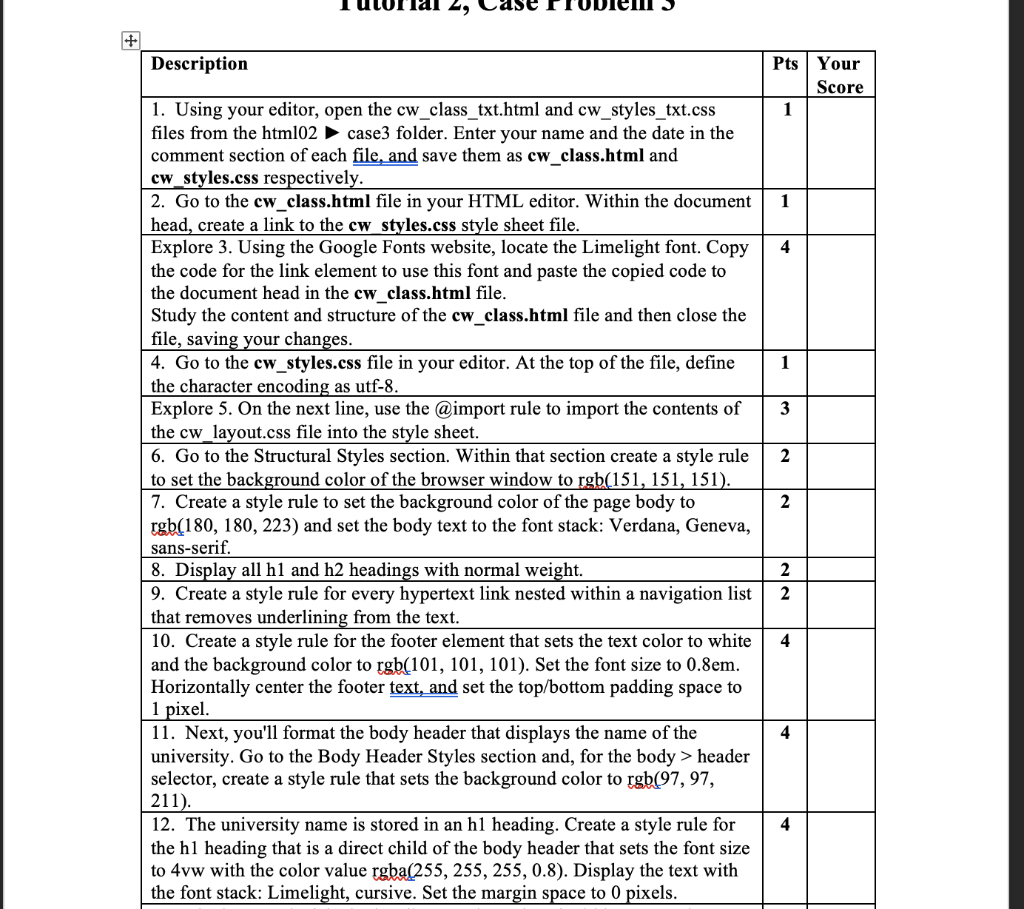
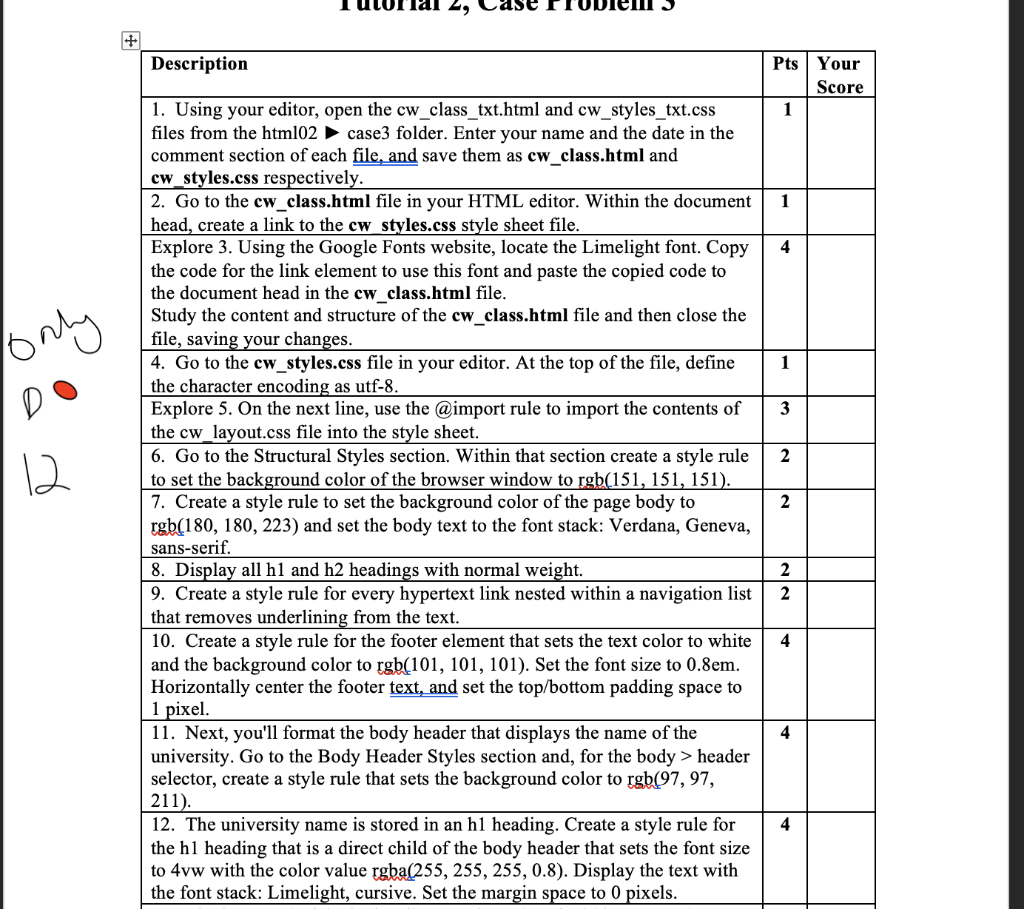
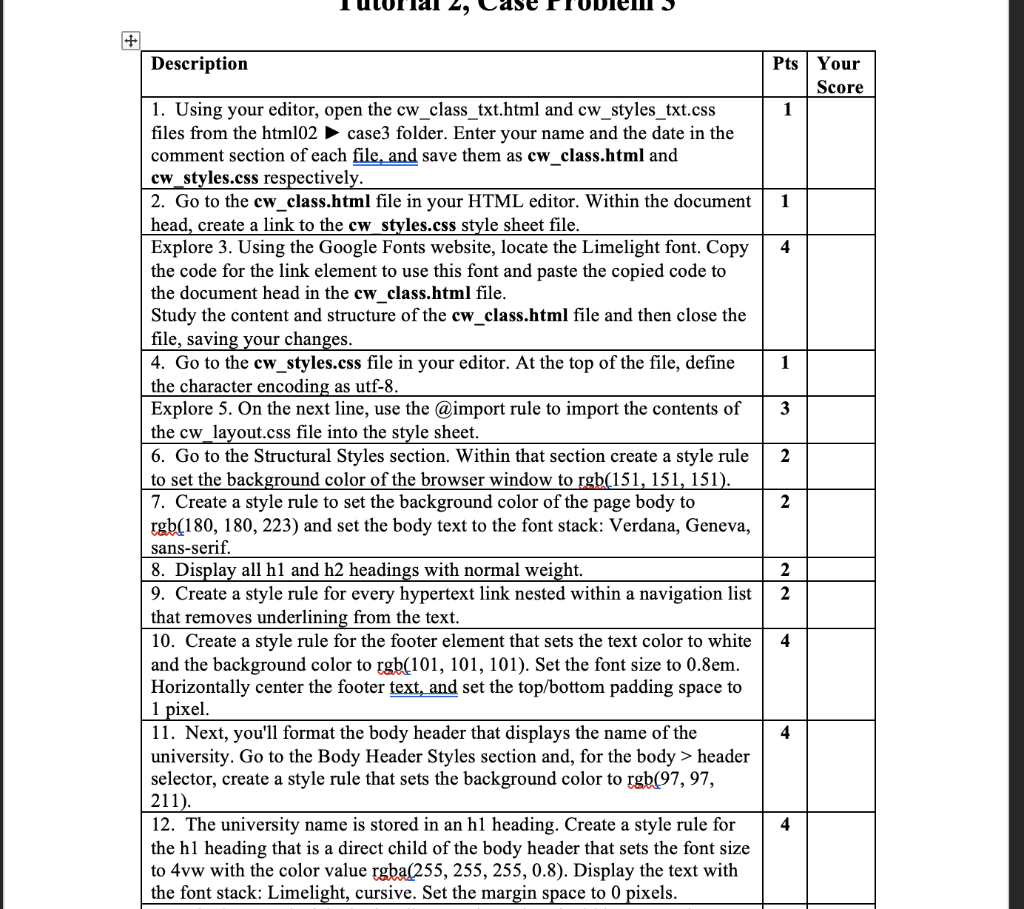
Description Pts Your Score 1 1 4 1 3 2 1. Using your editor, open the cw_class_txt.html and cw_styles_txt.css files from the html02 case3 folder. Enter your name and the date in the comment section of each file, and save them as cw_class.html and cw_styles.css respectively. 2. Go to the cw_class.html file in your HTML editor. Within the document head, create a link to the cw_styles.css style sheet file. Explore 3. Using the Google Fonts website, locate the Limelight font. Copy the code for the link element to use this font and paste the copied code to the document head in the cw_class.html file. Study the content and structure of the cw_class.html file and then close the file, saving your changes. 4. Go to the cw_styles.css file in your editor. At the top of the file, define the character encoding as utf-8. Explore 5. On the next line, use the @import rule to import the contents of the cw_layout.css file into the style sheet. 6. Go to the Structural Styles section. Within that section create a style rule to set the background color of the browser window to rgb(151, 151, 151). 7. Create a style rule to set the background color of the page body to rgb(180, 180, 223) and set the body text to the font stack: Verdana, Geneva, sans-serif. 8. Display all h1 and h2 headings with normal weight. 9. Create a style rule for every hypertext link nested within a navigation list that removes underlining from the text. 10. Create a style rule for the footer element that sets the text color to white and the background color to rgb(101, 101, 101). Set the font size to 0.8em. Horizontally center the footer text, and set the top/bottom padding space to 1 pixel. 11. Next, you'll format the body header that displays the name of the university. Go to the Body Header Styles section and, for the body > header selector, create a style rule that sets the background color to rgb(97, 97, 211). 12. The university name is stored in an h1 heading. Create a style rule for the h1 heading that is a direct child of the body header that sets the font size to 4vw with the color value rgba(255, 255, 255, 0.8). Display the text with the font stack: Limelight, cursive. Set the margin space to 0 pixels. 2 2 2 4 4 4 Description Pts Your Score 1 1 4 only 1 3 2 2 1. Using your editor, open the cw_class_txt.html and cw_styles_txt.css files from the html02 case3 folder. Enter your name and the date in the comment section of each file, and save them as cw_class.html and cw_styles.css respectively. 2. Go to the cw_class.html file in your HTML editor. Within the document head, create a link to the cw_styles.css style sheet file. Explore 3. Using the Google Fonts website, locate the Limelight font. Copy the code for the link element to use this font and paste the copied code to the document head in the cw_class.html file. Study the content and structure of the cw_class.html file and then close the file, saving your changes. 4. Go to the cw_styles.css file in your editor. At the top of the file, define the character encoding as utf-8. Explore 5. On the next line, use the @import rule to import the contents of the cw_layout.css file into the style sheet. 6. Go to the Structural Styles section. Within that section create a style rule to set the background color of the browser window to rgb(151, 151, 151). 7. Create a style rule to set the background color of the page body to rgb(180, 180, 223) and set the body text to the font stack: Verdana, Geneva, sans-serif. 8. Display all h1 and h2 headings with normal weight. 9. Create a style rule for every hypertext link nested within a navigation list that removes underlining from the text. 10. Create a style rule for the footer element that sets the text color to white and the background color to rgb(101, 101, 101). Set the font size to 0.8em. Horizontally center the footer text, and set the top/bottom padding space to 1 pixel. 11. Next, you'll format the body header that displays the name of the university. Go to the Body Header Styles section and, for the body > header selector, create a style rule that sets the background color to rgb(97, 97, 211). 12. The university name is stored in an h1 heading. Create a style rule for the h1 heading that is a direct child of the body header that sets the font size to 4vw with the color value rgba(255, 255, 255, 0.8). Display the text with the font stack: Limelight, cursive. Set the margin space to 0 pixels. 2 2 2 4 4 4 Description Pts Your Score 1 1 4 1 3 2 1. Using your editor, open the cw_class_txt.html and cw_styles_txt.css files from the html02 case3 folder. Enter your name and the date in the comment section of each file, and save them as cw_class.html and cw_styles.css respectively. 2. Go to the cw_class.html file in your HTML editor. Within the document head, create a link to the cw_styles.css style sheet file. Explore 3. Using the Google Fonts website, locate the Limelight font. Copy the code for the link element to use this font and paste the copied code to the document head in the cw_class.html file. Study the content and structure of the cw_class.html file and then close the file, saving your changes. 4. Go to the cw_styles.css file in your editor. At the top of the file, define the character encoding as utf-8. Explore 5. On the next line, use the @import rule to import the contents of the cw_layout.css file into the style sheet. 6. Go to the Structural Styles section. Within that section create a style rule to set the background color of the browser window to rgb(151, 151, 151). 7. Create a style rule to set the background color of the page body to rgb(180, 180, 223) and set the body text to the font stack: Verdana, Geneva, sans-serif. 8. Display all h1 and h2 headings with normal weight. 9. Create a style rule for every hypertext link nested within a navigation list that removes underlining from the text. 10. Create a style rule for the footer element that sets the text color to white and the background color to rgb(101, 101, 101). Set the font size to 0.8em. Horizontally center the footer text, and set the top/bottom padding space to 1 pixel. 11. Next, you'll format the body header that displays the name of the university. Go to the Body Header Styles section and, for the body > header selector, create a style rule that sets the background color to rgb(97, 97, 211). 12. The university name is stored in an h1 heading. Create a style rule for the h1 heading that is a direct child of the body header that sets the font size to 4vw with the color value rgba(255, 255, 255, 0.8). Display the text with the font stack: Limelight, cursive. Set the margin space to 0 pixels. 2 2 2 4 4 4 Description Pts Your Score 1 1 4 1 3 2 1. Using your editor, open the cw_class_txt.html and cw_styles_txt.css files from the html02 case3 folder. Enter your name and the date in the comment section of each file, and save them as cw_class.html and cw_styles.css respectively. 2. Go to the cw_class.html file in your HTML editor. Within the document head, create a link to the cw_styles.css style sheet file. Explore 3. Using the Google Fonts website, locate the Limelight font. Copy the code for the link element to use this font and paste the copied code to the document head in the cw_class.html file. Study the content and structure of the cw_class.html file and then close the file, saving your changes. 4. Go to the cw_styles.css file in your editor. At the top of the file, define the character encoding as utf-8. Explore 5. On the next line, use the @import rule to import the contents of the cw_layout.css file into the style sheet. 6. Go to the Structural Styles section. Within that section create a style rule to set the background color of the browser window to rgb(151, 151, 151). 7. Create a style rule to set the background color of the page body to rgb(180, 180, 223) and set the body text to the font stack: Verdana, Geneva, sans-serif. 8. Display all h1 and h2 headings with normal weight. 9. Create a style rule for every hypertext link nested within a navigation list that removes underlining from the text. 10. Create a style rule for the footer element that sets the text color to white and the background color to rgb(101, 101, 101). Set the font size to 0.8em. Horizontally center the footer text, and set the top/bottom padding space to 1 pixel. 11. Next, you'll format the body header that displays the name of the university. Go to the Body Header Styles section and, for the body > header selector, create a style rule that sets the background color to rgb(97, 97, 211). 12. The university name is stored in an h1 heading. Create a style rule for the h1 heading that is a direct child of the body header that sets the font size to 4vw with the color value rgba(255, 255, 255, 0.8). Display the text with the font stack: Limelight, cursive. Set the margin space to 0 pixels. 2 2 2 4 4 4 Description Pts Your Score 1 1 4 only 1 3 2 2 1. Using your editor, open the cw_class_txt.html and cw_styles_txt.css files from the html02 case3 folder. Enter your name and the date in the comment section of each file, and save them as cw_class.html and cw_styles.css respectively. 2. Go to the cw_class.html file in your HTML editor. Within the document head, create a link to the cw_styles.css style sheet file. Explore 3. Using the Google Fonts website, locate the Limelight font. Copy the code for the link element to use this font and paste the copied code to the document head in the cw_class.html file. Study the content and structure of the cw_class.html file and then close the file, saving your changes. 4. Go to the cw_styles.css file in your editor. At the top of the file, define the character encoding as utf-8. Explore 5. On the next line, use the @import rule to import the contents of the cw_layout.css file into the style sheet. 6. Go to the Structural Styles section. Within that section create a style rule to set the background color of the browser window to rgb(151, 151, 151). 7. Create a style rule to set the background color of the page body to rgb(180, 180, 223) and set the body text to the font stack: Verdana, Geneva, sans-serif. 8. Display all h1 and h2 headings with normal weight. 9. Create a style rule for every hypertext link nested within a navigation list that removes underlining from the text. 10. Create a style rule for the footer element that sets the text color to white and the background color to rgb(101, 101, 101). Set the font size to 0.8em. Horizontally center the footer text, and set the top/bottom padding space to 1 pixel. 11. Next, you'll format the body header that displays the name of the university. Go to the Body Header Styles section and, for the body > header selector, create a style rule that sets the background color to rgb(97, 97, 211). 12. The university name is stored in an h1 heading. Create a style rule for the h1 heading that is a direct child of the body header that sets the font size to 4vw with the color value rgba(255, 255, 255, 0.8). Display the text with the font stack: Limelight, cursive. Set the margin space to 0 pixels. 2 2 2 4 4 4 Description Pts Your Score 1 1 4 1 3 2 1. Using your editor, open the cw_class_txt.html and cw_styles_txt.css files from the html02 case3 folder. Enter your name and the date in the comment section of each file, and save them as cw_class.html and cw_styles.css respectively. 2. Go to the cw_class.html file in your HTML editor. Within the document head, create a link to the cw_styles.css style sheet file. Explore 3. Using the Google Fonts website, locate the Limelight font. Copy the code for the link element to use this font and paste the copied code to the document head in the cw_class.html file. Study the content and structure of the cw_class.html file and then close the file, saving your changes. 4. Go to the cw_styles.css file in your editor. At the top of the file, define the character encoding as utf-8. Explore 5. On the next line, use the @import rule to import the contents of the cw_layout.css file into the style sheet. 6. Go to the Structural Styles section. Within that section create a style rule to set the background color of the browser window to rgb(151, 151, 151). 7. Create a style rule to set the background color of the page body to rgb(180, 180, 223) and set the body text to the font stack: Verdana, Geneva, sans-serif. 8. Display all h1 and h2 headings with normal weight. 9. Create a style rule for every hypertext link nested within a navigation list that removes underlining from the text. 10. Create a style rule for the footer element that sets the text color to white and the background color to rgb(101, 101, 101). Set the font size to 0.8em. Horizontally center the footer text, and set the top/bottom padding space to 1 pixel. 11. Next, you'll format the body header that displays the name of the university. Go to the Body Header Styles section and, for the body > header selector, create a style rule that sets the background color to rgb(97, 97, 211). 12. The university name is stored in an h1 heading. Create a style rule for the h1 heading that is a direct child of the body header that sets the font size to 4vw with the color value rgba(255, 255, 255, 0.8). Display the text with the font stack: Limelight, cursive. Set the margin space to 0 pixels. 2 2 2 4 4 4
Step by Step Solution
There are 3 Steps involved in it

Get step-by-step solutions from verified subject matter experts