Question: 1.Use the org data to build a Pivot table on a separate Sheet Called Pivot Org provide Slicers and Dynamic Chart 2. Use the Adv
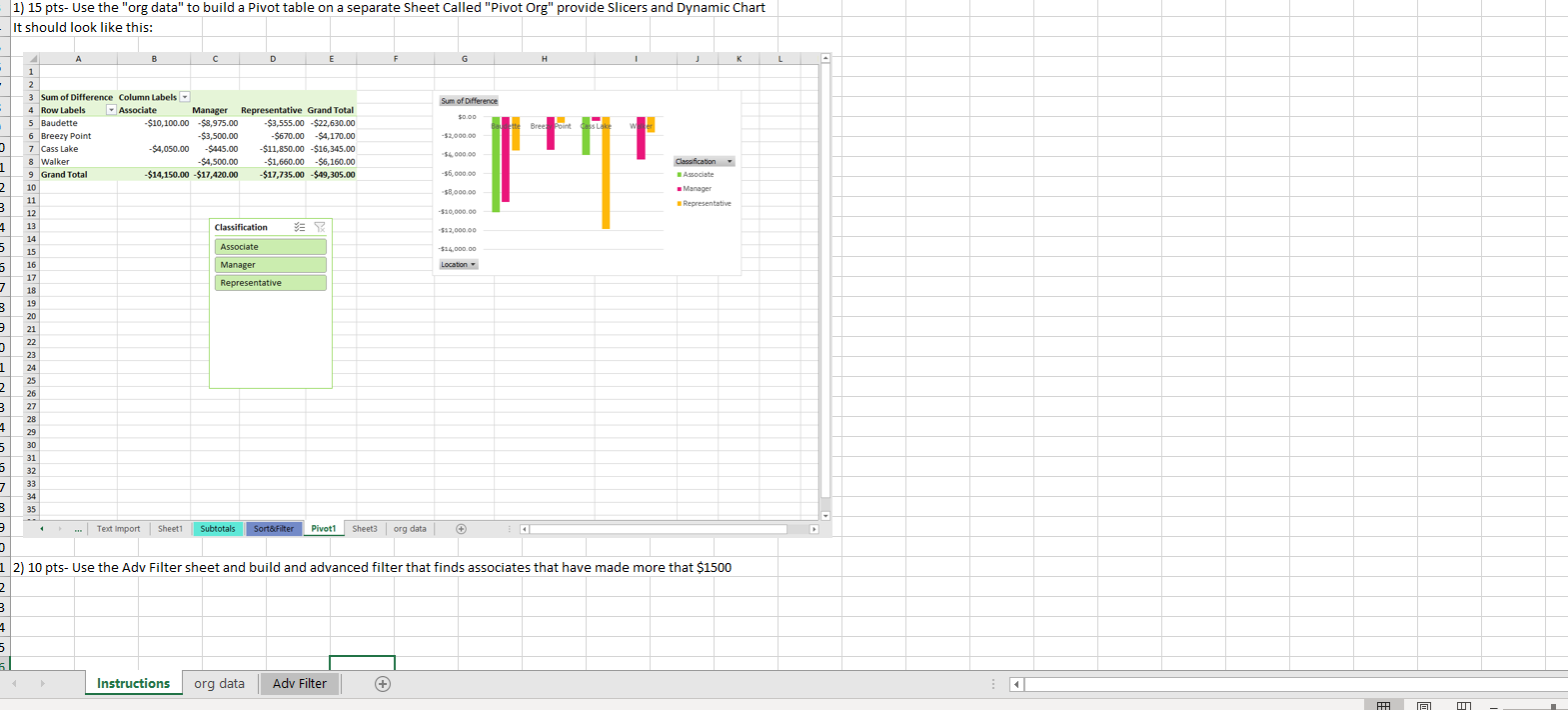
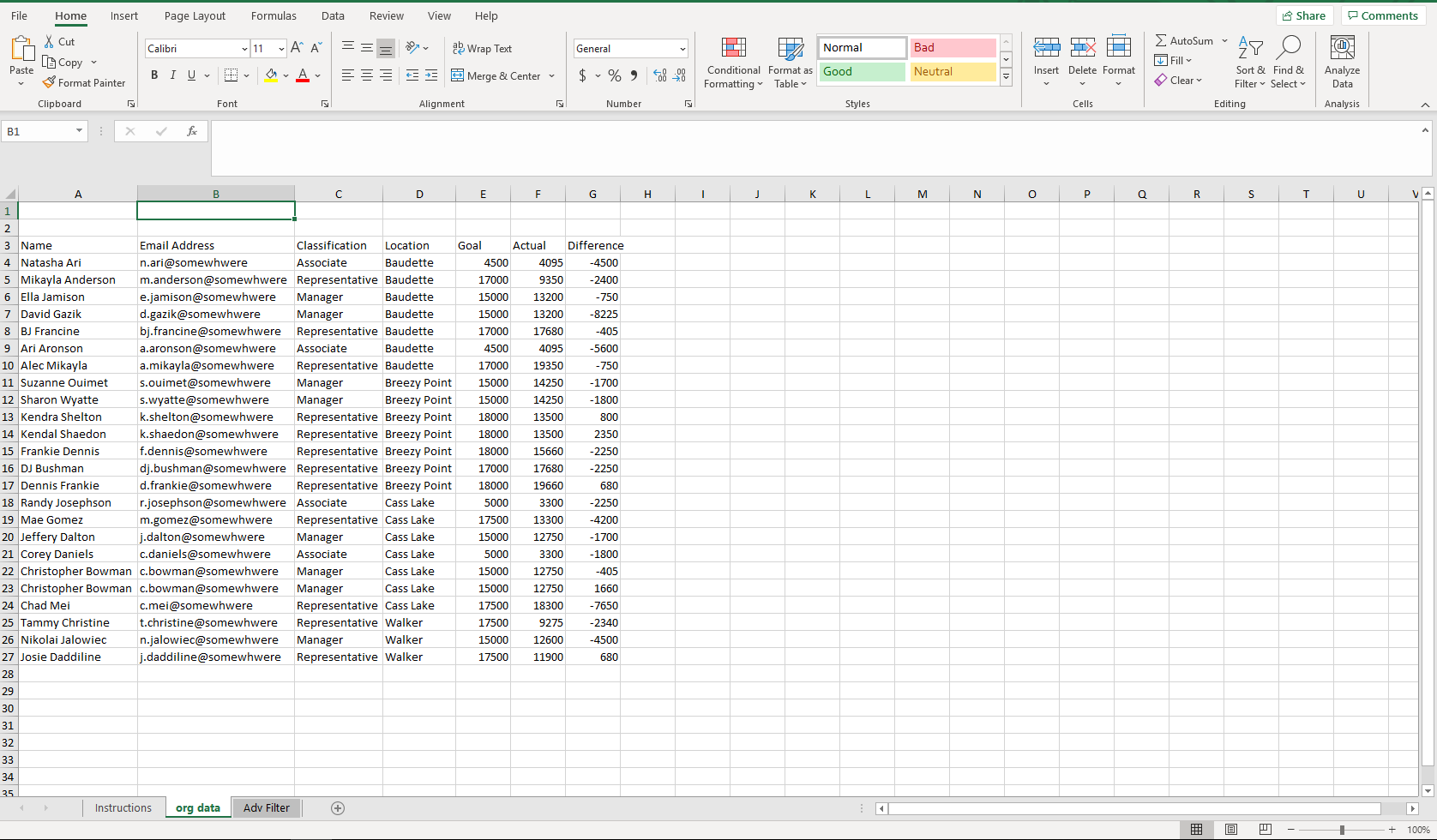
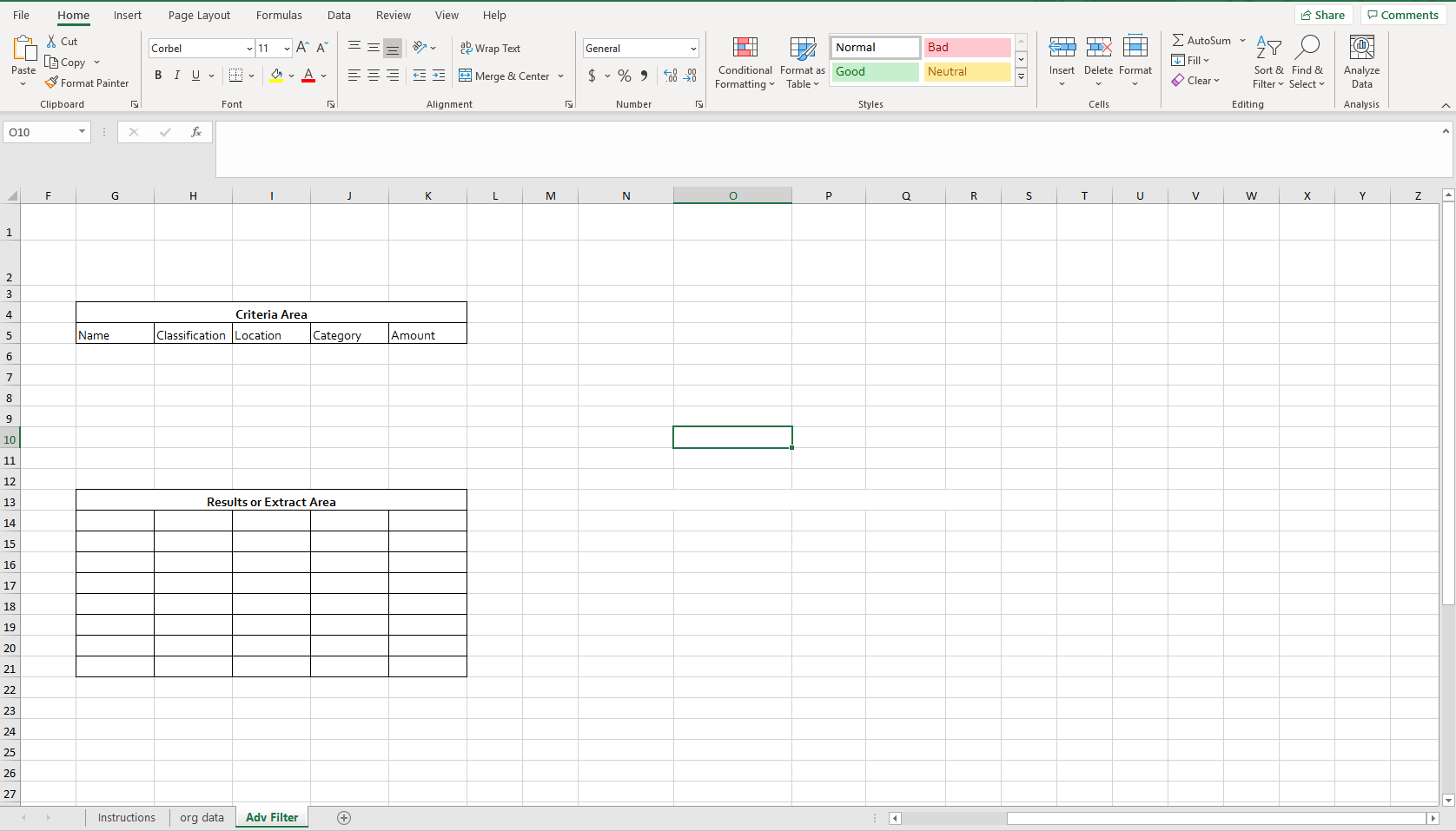
1.Use the "org data" to build a Pivot table on a separate Sheet Called "Pivot Org" provide Slicers and Dynamic Chart 2. Use the Adv Filter sheet and build and advanced filter that finds associates that have made more that $1500
 2. Use the Adv Filter sheet and build and advanced filter that finds associates that have made more that $1500
1) 15 pts. Use the "org data" to build a Pivot table on a separate Sheet Called "Pivot Org" provide Slicers and Dynamic Chart It should look like this: H J K L - Sum of Difference $0.00 Bree Point Lake w -$2,000.00 -16.000.00 1 1 -36,000.00 Classification - Associate - Manager Representative 2 -$8.000.00 3 $10.000 1 -$12,000.00 $ -$14,000.00 5 5 Location - 7 D E 1 2 3 Sum of Difference Column Labels 4 Row Labels Associate Manager Representative Grand Total 5 Baudette -$10,100.00 $8,975.00 -$3,555.00 $22,630.00 6 Breezy Point -$3,500.00 -$670.00 $4,170.00 7 Cass Lake -$4,050.00 -$445.00 -$11,850.00 $16,345.00 8 Walker -$4,500.00 -$1,660.00 -$6,160.00 9 Grand Total -$14,150.00 $17,420.00 $17,735.00 $19,305.00 10 11 12 13 Classification YES 14 15 Associate 16 Manager 17 Representative 18 19 20 21 22 23 24 25 26 27 28 29 30 31 32 33 34 35 3 . 1 2 3 1 4 5 5 7 3 3 ...Text Import Sheet1 Subtotals Sort&Filter Pivot Sheet3 org data 1 2) 10 pts. Use the Adv Filter sheet and build and advanced filter that finds associates that have made more that $1500 2 3 4 5 Instructions org data Adv Filter + A File Home Insert Page Layout Formulas Data Review View Help 3 Share Comments AutoSum 2 Calibri 11 AA == General Normal Bad YX AY FO X Cut LECopy Paste Format Painter Clipboard 2 Wrap Text Merge & Center BIU CA $ %, 8 Neutral Insert Delete Format Clear Conditional Format as Good Formatting Table Styles Sort & Find & Filter Select Editing Analyze Data Font Alignment Number Cells Analysis B1 fic H 1 J L M N O P Q R S T U A B D E F 1 2 3 Name Email Address Classification Location Goal Actual Difference 4 Natasha Ari n.ari@somewhwere Associate Baudette 4500 4095 -4500 5 Mikayla Anderson m.anderson@somewhwere Representative Baudette 17000 9350 -2400 6 Ella Jamison e.jamison@somewhwere Manager Baudette 15000 13200 -750 7 David Gazik d.gazik@somewhwere Manager Baudette 15000 13200 -8225 8 BJ Francine bj.francine@somewhwere Representative Baudette 17000 17680 -405 9 Ari Aronson a.aronson@somewhwere Associate Baudette 4500 4095 -5600 10 Alec Mikayla a.mikayla@somewhwere Representative Baudette 17000 19350 -750 11 Suzanne Ouimet s.Ouimet@somewhwere Manager Breezy Point 15000 14250 -1700 12 Sharon Wyatte s.wyatte@somewhwere Manager Breezy Point 15000 14250 -1800 13 Kendra Shelton k.shelton@somewhwere Representative Breezy Point 18000 13500 800 14 Kendal Shaedon k.shaedon@somewhwere Representative Breezy Point 18000 13500 2350 15 Frankie Dennis f.dennis@somewhwere Representative Breezy Point 18000 15660 -2250 16 DJ Bushman dj.bushman@somewhwere Representative Breezy Point 17000 17680 -2250 17 Dennis Frankie d.frankie@somewhwere Representative Breezy Point 18000 19660 680 18 Randy Josephson r.josephson@somewhwere Associate Cass Lake 5000 3300 -2250 19 Mae Gomez m.gomez@somewhwere Representative Cass Lake 17500 13300 -4200 20 Jeffery Dalton j.dalton@somewhwere Manager Cass Lake 15000 12750 -1700 21 Corey Daniels c.daniels@somewhwere Associate Cass Lake 5000 3300 -1800 22 Christopher Bowman c.bowman@somewhwere Manager Cass Lake 15000 12750 -405 23 Christopher Bowman c.bowman@somewhwere Manager Cass Lake 15000 12750 1660 24 Chad Mei c.mei@somewhwere Representative Cass Lake 17500 18300 -7650 25 Tammy Christine t.christine@somewhwere Representative Walker 17500 9275 -2340 26 Nikolai Jalowiec n.jalowiec@somewhwere Manager Walker 15000 12600 -4500 27 Josie Daddiline j.daddiline@somewhwere Representative Walker 17500 11900 680 28 29 30 31 32 33 34 35 Instructions Adv Filter + org data 100% File Home Insert Page Layout Formulas Data Review View Help Share Comments AutoSum Corbel 11 AA == ab Wrap Text General DA Normal Bad N TIX AY X Cut L6 Copy & Format Painter Fill Paste BIU MA IEEE 2 Merge & Center $ % Neutral Insert Delete Format Conditional Format as Good Formatting Table Clear Sort & Find & Filter Select Editing @ Analyze Data Analysis Clipboard Font Alignment Number Styles Cells 010 X f F G H J L M N 0 P Q s T U V w Y Z 1 2 3 4 Criteria Area Classification Location 5 Name Category Amount 6 7 8 9 10 11 12 13 Results or Extract Area 14 15 16 17 18 19 20 21 22 23 24 25 26 27 Instructions org data Adv Filter + 1) 15 pts. Use the "org data" to build a Pivot table on a separate Sheet Called "Pivot Org" provide Slicers and Dynamic Chart It should look like this: H J K L - Sum of Difference $0.00 Bree Point Lake w -$2,000.00 -16.000.00 1 1 -36,000.00 Classification - Associate - Manager Representative 2 -$8.000.00 3 $10.000 1 -$12,000.00 $ -$14,000.00 5 5 Location - 7 D E 1 2 3 Sum of Difference Column Labels 4 Row Labels Associate Manager Representative Grand Total 5 Baudette -$10,100.00 $8,975.00 -$3,555.00 $22,630.00 6 Breezy Point -$3,500.00 -$670.00 $4,170.00 7 Cass Lake -$4,050.00 -$445.00 -$11,850.00 $16,345.00 8 Walker -$4,500.00 -$1,660.00 -$6,160.00 9 Grand Total -$14,150.00 $17,420.00 $17,735.00 $19,305.00 10 11 12 13 Classification YES 14 15 Associate 16 Manager 17 Representative 18 19 20 21 22 23 24 25 26 27 28 29 30 31 32 33 34 35 3 . 1 2 3 1 4 5 5 7 3 3 ...Text Import Sheet1 Subtotals Sort&Filter Pivot Sheet3 org data 1 2) 10 pts. Use the Adv Filter sheet and build and advanced filter that finds associates that have made more that $1500 2 3 4 5 Instructions org data Adv Filter + A File Home Insert Page Layout Formulas Data Review View Help 3 Share Comments AutoSum 2 Calibri 11 AA == General Normal Bad YX AY FO X Cut LECopy Paste Format Painter Clipboard 2 Wrap Text Merge & Center BIU CA $ %, 8 Neutral Insert Delete Format Clear Conditional Format as Good Formatting Table Styles Sort & Find & Filter Select Editing Analyze Data Font Alignment Number Cells Analysis B1 fic H 1 J L M N O P Q R S T U A B D E F 1 2 3 Name Email Address Classification Location Goal Actual Difference 4 Natasha Ari n.ari@somewhwere Associate Baudette 4500 4095 -4500 5 Mikayla Anderson m.anderson@somewhwere Representative Baudette 17000 9350 -2400 6 Ella Jamison e.jamison@somewhwere Manager Baudette 15000 13200 -750 7 David Gazik d.gazik@somewhwere Manager Baudette 15000 13200 -8225 8 BJ Francine bj.francine@somewhwere Representative Baudette 17000 17680 -405 9 Ari Aronson a.aronson@somewhwere Associate Baudette 4500 4095 -5600 10 Alec Mikayla a.mikayla@somewhwere Representative Baudette 17000 19350 -750 11 Suzanne Ouimet s.Ouimet@somewhwere Manager Breezy Point 15000 14250 -1700 12 Sharon Wyatte s.wyatte@somewhwere Manager Breezy Point 15000 14250 -1800 13 Kendra Shelton k.shelton@somewhwere Representative Breezy Point 18000 13500 800 14 Kendal Shaedon k.shaedon@somewhwere Representative Breezy Point 18000 13500 2350 15 Frankie Dennis f.dennis@somewhwere Representative Breezy Point 18000 15660 -2250 16 DJ Bushman dj.bushman@somewhwere Representative Breezy Point 17000 17680 -2250 17 Dennis Frankie d.frankie@somewhwere Representative Breezy Point 18000 19660 680 18 Randy Josephson r.josephson@somewhwere Associate Cass Lake 5000 3300 -2250 19 Mae Gomez m.gomez@somewhwere Representative Cass Lake 17500 13300 -4200 20 Jeffery Dalton j.dalton@somewhwere Manager Cass Lake 15000 12750 -1700 21 Corey Daniels c.daniels@somewhwere Associate Cass Lake 5000 3300 -1800 22 Christopher Bowman c.bowman@somewhwere Manager Cass Lake 15000 12750 -405 23 Christopher Bowman c.bowman@somewhwere Manager Cass Lake 15000 12750 1660 24 Chad Mei c.mei@somewhwere Representative Cass Lake 17500 18300 -7650 25 Tammy Christine t.christine@somewhwere Representative Walker 17500 9275 -2340 26 Nikolai Jalowiec n.jalowiec@somewhwere Manager Walker 15000 12600 -4500 27 Josie Daddiline j.daddiline@somewhwere Representative Walker 17500 11900 680 28 29 30 31 32 33 34 35 Instructions Adv Filter + org data 100% File Home Insert Page Layout Formulas Data Review View Help Share Comments AutoSum Corbel 11 AA == ab Wrap Text General DA Normal Bad N TIX AY X Cut L6 Copy & Format Painter Fill Paste BIU MA IEEE 2 Merge & Center $ % Neutral Insert Delete Format Conditional Format as Good Formatting Table Clear Sort & Find & Filter Select Editing @ Analyze Data Analysis Clipboard Font Alignment Number Styles Cells 010 X f F G H J L M N 0 P Q s T U V w Y Z 1 2 3 4 Criteria Area Classification Location 5 Name Category Amount 6 7 8 9 10 11 12 13 Results or Extract Area 14 15 16 17 18 19 20 21 22 23 24 25 26 27 Instructions org data Adv Filter +









 Study Help