Question: 2 / 2 100% + Excerca Sensitivity Analysis Practice Exercise Directions: 16. Make sure that you downloaded the incomestatement file from Blackboard 17. Upload it
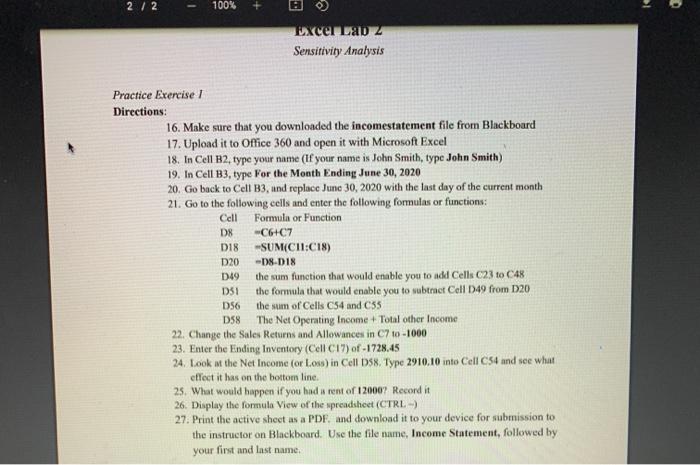
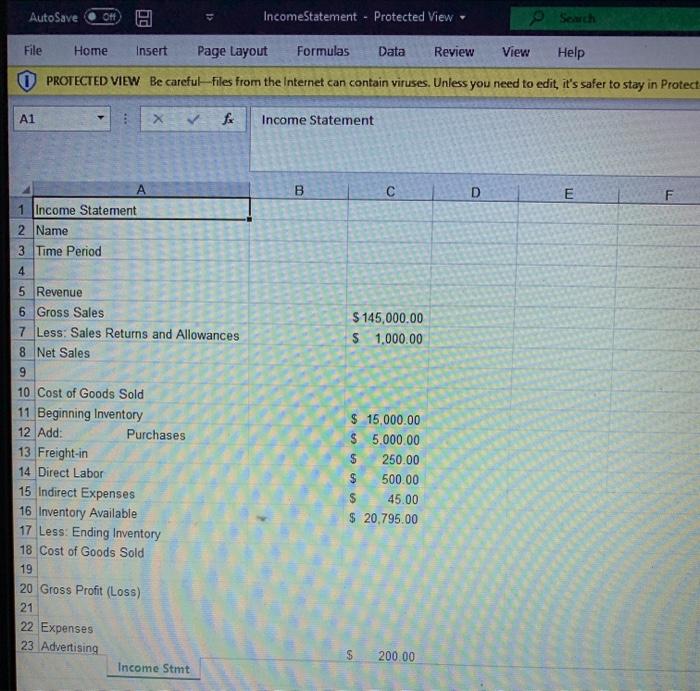
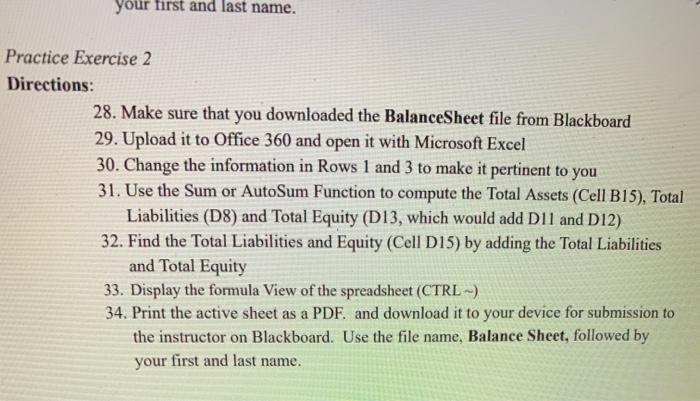
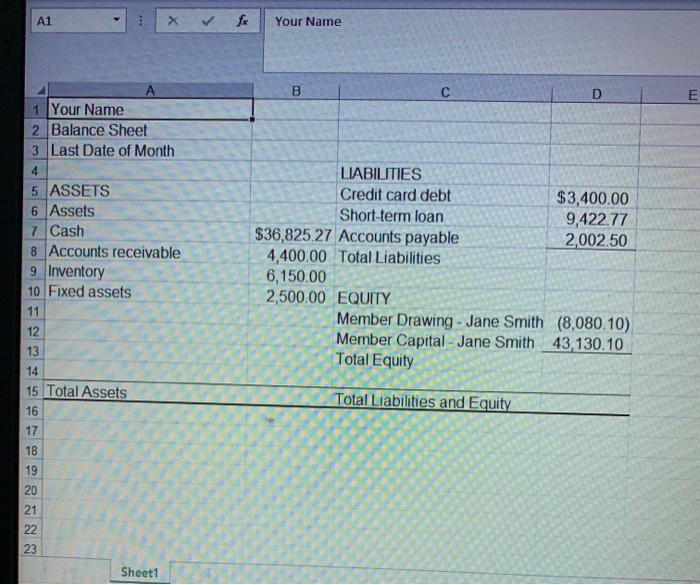
2 / 2 100% + Excerca Sensitivity Analysis Practice Exercise Directions: 16. Make sure that you downloaded the incomestatement file from Blackboard 17. Upload it to Office 360 and open it with Microsoft Excel 18. In Cell B2, type your name (If your name is John Smith, type John Smith) 19. In Cell B3, type For the Month Ending June 30, 2020 20. Go back to Cell B3, and replace June 30, 2020 with the last day of the current month 21. Go to the following cells and enter the following formulas or functions: Cell Formula or Function DS -C6 C7 D18 SUM(CII:C18) D20 -08-18 D49 the sum function that would enable you to add Cells C23 to C48 D51 the formula that would enable you to subtract Cell 149 from 120 the sum of Cells C54 and C55 D58 The Net Operating Income + Total other Income 22. Change the sales Returns and Allowances in C to -1000 23. Enter the Ending Inventory (Cell C17) of -1728.45 24. Look at the Net Income (or Loss) in Cell DS8. Type 2910.10 into Cell C 54 and see what effect it has on the bottom line. 25. What would happen if you had a rent of 120007 Record it 26. Display the formula View of the spreadsheet (CTRL-> 27. Print the active sheet as a PDF. and download it to your device for submission to the instructor on Blackboard. Use the file name, Income Statement, followed by your first and last name, D56 AutoSave OH IncomeStatement Protected View p Search File Home Insert Page Layout Formulas Data Review View Help PROTECTED VIEW Be careful files from the Internet can contain viruses. Unless you need to edit, it's safer to stay in Protect A1 Income Statement A B E F 1 Income Statement 2 Name 3 Time Period $ 145,000.00 $ 1.000.00 9 4 5 Revenue 6 Gross Sales 7 Less: Sales Returns and Allowances 8 Net Sales 9 10 Cost of Goods Sold 11 Beginning Inventory 12 Add: Purchases 13 Freight-in 14 Direct Labor 15 Indirect Expenses 16 Inventory Available 17 Less: Ending Inventory 18 Cost of Goods Sold 19 20 Gross Profit (Loss) 21 22 Expenses 23 Advertising Income Stmt $ 15,000.00 $ 5.000.00 $ 250.00 $ 500.00 $ 45.00 $ 20.795.00 $ 200.00 your first and last name. Practice Exercise 2 Directions: 28. Make sure that you downloaded the Balance Sheet file from Blackboard 29. Upload it to Office 360 and open it with Microsoft Excel 30. Change the information in Rows 1 and 3 to make it pertinent to you 31. Use the Sum or AutoSum Function to compute the Total Assets (Cell B15), Total Liabilities (D8) and Total Equity (D13, which would add DII and D12) 32. Find the Total Liabilities and Equity (Cell D15) by adding the Total Liabilities and Total Equity 33. Display the formula View of the spreadsheet (CTRL -) 34. Print the active sheet as a PDF. and download it to your device for submission to the instructor on Blackboard. Use the file name, Balance Sheet, followed by your first and last name. A1 Your Name B D E 1 Your Name 2 Balance Sheet 3 Last Date of Month 4 5 ASSETS 6 Assets 7 Cash 8 Accounts receivable 9 Inventory 10 Fixed assets 11 12 13 14 15 Total Assets 16 LIABILITIES Credit card debt $3,400.00 Short-term loan 9,422.77 $36,825.27 Accounts payable 2.002.50 4,400.00 Total Liabilities 6,150.00 2,500.00 EQUITY Member Drawing - Jane Smith (8,080.10) Member Capital - Jane Smith 43,130.10 Total Equity Total Liabilities and Equity 17 18 19 20 21 22 23 Sheet1 2 / 2 100% + Excerca Sensitivity Analysis Practice Exercise Directions: 16. Make sure that you downloaded the incomestatement file from Blackboard 17. Upload it to Office 360 and open it with Microsoft Excel 18. In Cell B2, type your name (If your name is John Smith, type John Smith) 19. In Cell B3, type For the Month Ending June 30, 2020 20. Go back to Cell B3, and replace June 30, 2020 with the last day of the current month 21. Go to the following cells and enter the following formulas or functions: Cell Formula or Function DS -C6 C7 D18 SUM(CII:C18) D20 -08-18 D49 the sum function that would enable you to add Cells C23 to C48 D51 the formula that would enable you to subtract Cell 149 from 120 the sum of Cells C54 and C55 D58 The Net Operating Income + Total other Income 22. Change the sales Returns and Allowances in C to -1000 23. Enter the Ending Inventory (Cell C17) of -1728.45 24. Look at the Net Income (or Loss) in Cell DS8. Type 2910.10 into Cell C 54 and see what effect it has on the bottom line. 25. What would happen if you had a rent of 120007 Record it 26. Display the formula View of the spreadsheet (CTRL-> 27. Print the active sheet as a PDF. and download it to your device for submission to the instructor on Blackboard. Use the file name, Income Statement, followed by your first and last name, D56 AutoSave OH IncomeStatement Protected View p Search File Home Insert Page Layout Formulas Data Review View Help PROTECTED VIEW Be careful files from the Internet can contain viruses. Unless you need to edit, it's safer to stay in Protect A1 Income Statement A B E F 1 Income Statement 2 Name 3 Time Period $ 145,000.00 $ 1.000.00 9 4 5 Revenue 6 Gross Sales 7 Less: Sales Returns and Allowances 8 Net Sales 9 10 Cost of Goods Sold 11 Beginning Inventory 12 Add: Purchases 13 Freight-in 14 Direct Labor 15 Indirect Expenses 16 Inventory Available 17 Less: Ending Inventory 18 Cost of Goods Sold 19 20 Gross Profit (Loss) 21 22 Expenses 23 Advertising Income Stmt $ 15,000.00 $ 5.000.00 $ 250.00 $ 500.00 $ 45.00 $ 20.795.00 $ 200.00 your first and last name. Practice Exercise 2 Directions: 28. Make sure that you downloaded the Balance Sheet file from Blackboard 29. Upload it to Office 360 and open it with Microsoft Excel 30. Change the information in Rows 1 and 3 to make it pertinent to you 31. Use the Sum or AutoSum Function to compute the Total Assets (Cell B15), Total Liabilities (D8) and Total Equity (D13, which would add DII and D12) 32. Find the Total Liabilities and Equity (Cell D15) by adding the Total Liabilities and Total Equity 33. Display the formula View of the spreadsheet (CTRL -) 34. Print the active sheet as a PDF. and download it to your device for submission to the instructor on Blackboard. Use the file name, Balance Sheet, followed by your first and last name. A1 Your Name B D E 1 Your Name 2 Balance Sheet 3 Last Date of Month 4 5 ASSETS 6 Assets 7 Cash 8 Accounts receivable 9 Inventory 10 Fixed assets 11 12 13 14 15 Total Assets 16 LIABILITIES Credit card debt $3,400.00 Short-term loan 9,422.77 $36,825.27 Accounts payable 2.002.50 4,400.00 Total Liabilities 6,150.00 2,500.00 EQUITY Member Drawing - Jane Smith (8,080.10) Member Capital - Jane Smith 43,130.10 Total Equity Total Liabilities and Equity 17 18 19 20 21 22 23 Sheet1









 Study Help