







Question: 2. Go to the ph pay.html file in your editor. Directly above the closing tag, insert a script element that links the page to the
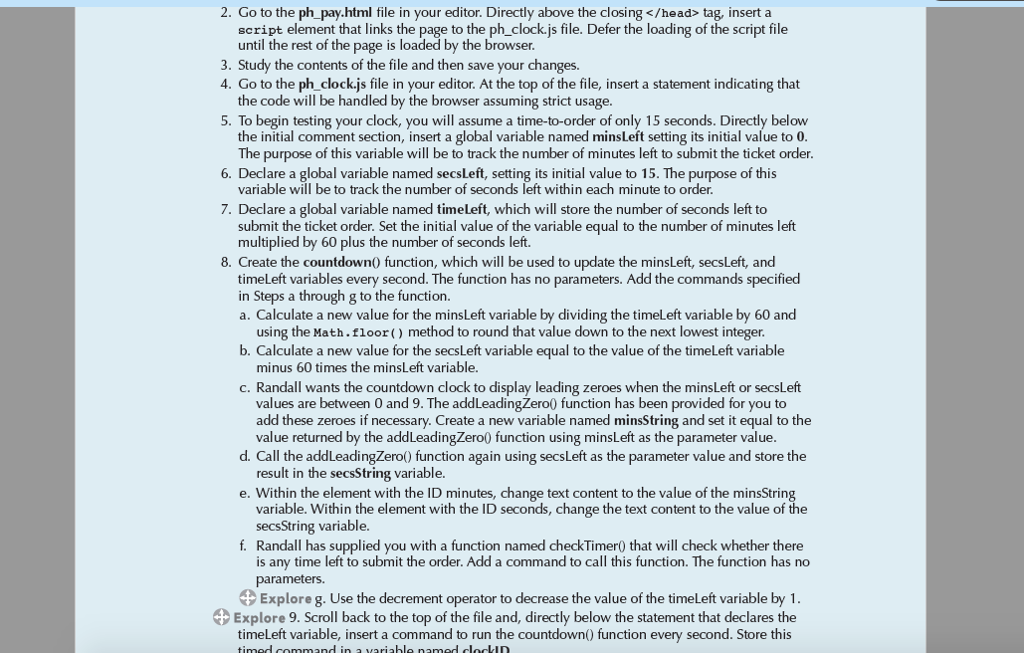
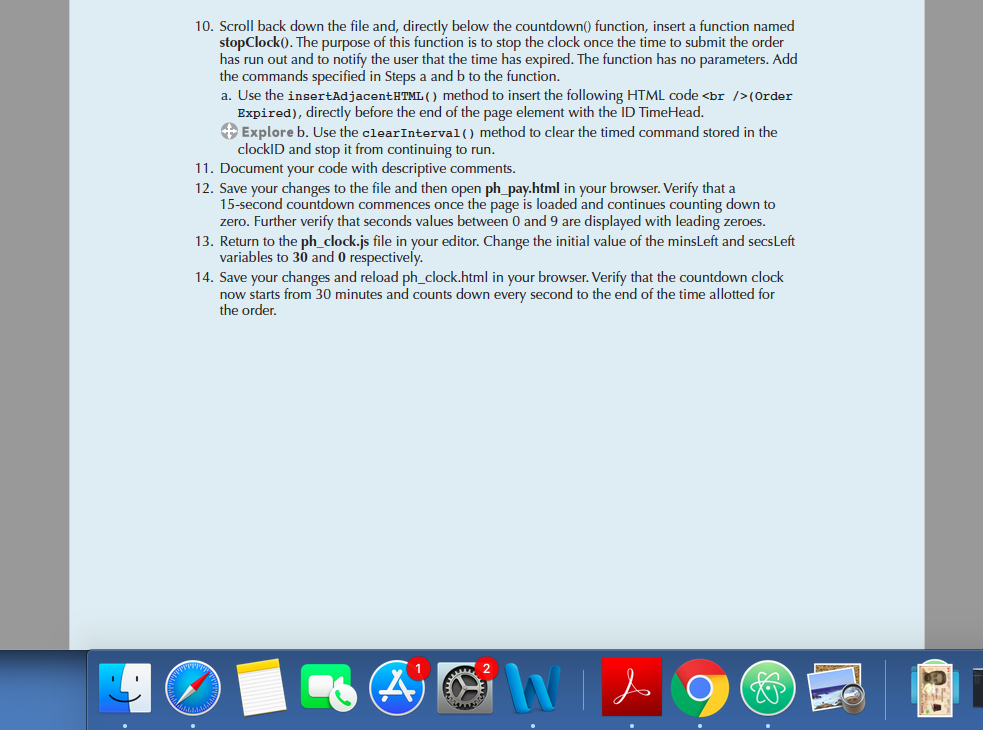
2. Go to the ph pay.html file in your editor. Directly above the closing tag, insert a script element that links the page to the ph_clock.js file. Defer the loading of the script file until the rest of the page is loaded by the browser 3. Study the contents of the file and then save your changes. 4. Go to the ph_clock.js file in your editor. At the top of the file, insert a statement indicating that 5. To begin testing your clock, you will assume a time-to-order of only 15 seconds. Directly below 6. Declare a global variable named secsLeft, setting its initial value to 15. The purpose of this 7. Declare a global variable named timeLeft, which will store the number of seconds left to the code will be handled by the browser assuming strict usage the initial comment section, insert a global variable named minsLeft setting its initial value to 0 The purpose of this variable will be to track the number of minutes left to submit the ticket order variable will be to track the number of seconds left within each minute to order submit the ticket order. Set the initial value of the variable equal to the number of minutes left multiplied by 60 plus the number of seconds left. 8. Create the countdown0 function, which will be used to update the minsLeft, secsLeft, and timeLeft variables every in Steps a through g to the function. a. Calculate a new value for the minsLeft variable by dividing the timeLeft variable by 60 and second. The function has no parameters. Add the commands specified using the Math.floor) method to round that value down to the next lowest integer b. Calculate a new value for the secsLeft variable equal to the value of the timeLeft variable minus 60 times the minsLeft variable. c. Randall wants the countdown clock to display leading zeroes when the minsLeft or secsLeft values are between 0 and 9. The addLeadingZero0 function has been provided for you to add these zeroes if necessary. Create a new variable named minsString and set it equal to the value returned by the addLeadingZero0 function using minsLeft as the parameter value d. Call the addLeadingZero0) function again using secsLeft as the parameter value and store the result in the secsString variable. e. Within the element with the ID minutes, change text content to the value of the minsString variable. Within the element with the ID seconds, change the text content to the value of the secsString variable f. Randall has supplied you with a function named checkTimer0 that will check whether there is any time left to submit the order. Add a command to call this function. The function has no parameters. Explore g. Use the decrement operator to decrease the value of the timeLeft variable by1 Explore 9. Scroll back to the top of the file and, directly below the statement that declares the timeLeft variable, insert a command to run the countdown) function every second. Store this 2. Go to the ph pay.html file in your editor. Directly above the closing tag, insert a script element that links the page to the ph_clock.js file. Defer the loading of the script file until the rest of the page is loaded by the browser 3. Study the contents of the file and then save your changes. 4. Go to the ph_clock.js file in your editor. At the top of the file, insert a statement indicating that 5. To begin testing your clock, you will assume a time-to-order of only 15 seconds. Directly below 6. Declare a global variable named secsLeft, setting its initial value to 15. The purpose of this 7. Declare a global variable named timeLeft, which will store the number of seconds left to the code will be handled by the browser assuming strict usage the initial comment section, insert a global variable named minsLeft setting its initial value to 0 The purpose of this variable will be to track the number of minutes left to submit the ticket order variable will be to track the number of seconds left within each minute to order submit the ticket order. Set the initial value of the variable equal to the number of minutes left multiplied by 60 plus the number of seconds left. 8. Create the countdown0 function, which will be used to update the minsLeft, secsLeft, and timeLeft variables every in Steps a through g to the function. a. Calculate a new value for the minsLeft variable by dividing the timeLeft variable by 60 and second. The function has no parameters. Add the commands specified using the Math.floor) method to round that value down to the next lowest integer b. Calculate a new value for the secsLeft variable equal to the value of the timeLeft variable minus 60 times the minsLeft variable. c. Randall wants the countdown clock to display leading zeroes when the minsLeft or secsLeft values are between 0 and 9. The addLeadingZero0 function has been provided for you to add these zeroes if necessary. Create a new variable named minsString and set it equal to the value returned by the addLeadingZero0 function using minsLeft as the parameter value d. Call the addLeadingZero0) function again using secsLeft as the parameter value and store the result in the secsString variable. e. Within the element with the ID minutes, change text content to the value of the minsString variable. Within the element with the ID seconds, change the text content to the value of the secsString variable f. Randall has supplied you with a function named checkTimer0 that will check whether there is any time left to submit the order. Add a command to call this function. The function has no parameters. Explore g. Use the decrement operator to decrease the value of the timeLeft variable by1 Explore 9. Scroll back to the top of the file and, directly below the statement that declares the timeLeft variable, insert a command to run the countdown) function every second. Store this
Step by Step Solution
There are 3 Steps involved in it

Get step-by-step solutions from verified subject matter experts
 Study Help