







Question: . . . 2. Save the document as default.htm 3. Add the following global HTML structural elements that you learned about this week: DOCTYPE (for
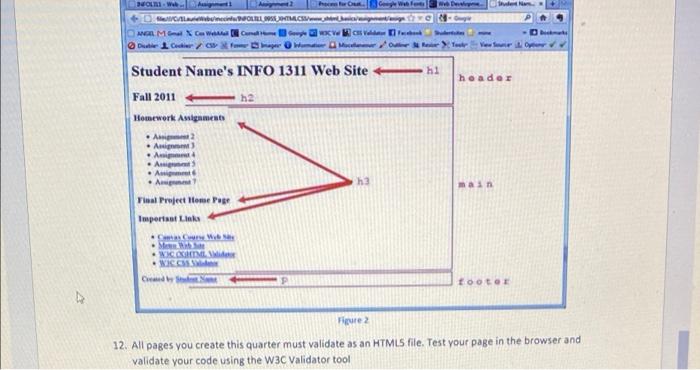
. . . 2. Save the document as default.htm 3. Add the following global HTML structural elements that you learned about this week: DOCTYPE (for html) html with the attribute lang and the value of "en" head body 4. Add the following HTML elements between the opening and closing head tags: meta with the attribute charset and value of "utf-8" title with the content Student Name's INFO 1311 Home Page (replace Student Name with your first and last name). 5. Somewhere near the beginning of your document add an HTML comment that includes the following information: Your Name Name of the file Course Number and Section (example: 1311 WW) Date the document was created *All of your HTML documents this quarter are required to have an HTML comment with this information as explained in the Style Guide in Module 1. 6. Use the HTMLS structural elements
Step by Step Solution
There are 3 Steps involved in it

Get step-by-step solutions from verified subject matter experts
 Study Help