





Question: 2. Use Visio or Lucidchart to create an Entity Relationship Diagram for your database project. (Make an E-A-R). Be sure to view the grading standards
2. Use Visio or Lucidchart to create an Entity
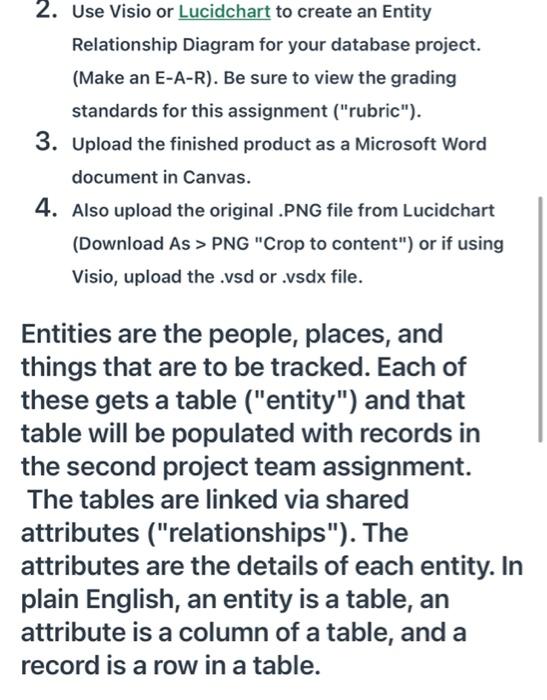
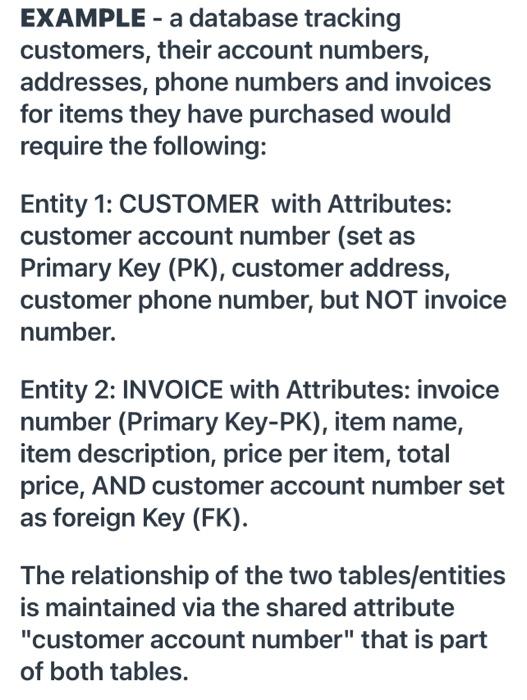
2. Use Visio or Lucidchart to create an Entity Relationship Diagram for your database project. (Make an E-A-R). Be sure to view the grading standards for this assignment ("rubric"). 3. Upload the finished product as a Microsoft Word document in Canvas. 4. Also upload the original .PNG file from Lucidchart (Download As > PNG "Crop to content") or if using Visio, upload the .vsd or .vsdx file. Entities are the people, places, and things that are to be tracked. Each of these gets a table ("entity") and that table will be populated with records in the second project team assignment. The tables are linked via shared attributes ("relationships"). The attributes are the details of each entity. In plain English, an entity is a table, an attribute is a column of a table, and a record is a row in a table. EXAMPLE - a database tracking customers, their account numbers, addresses, phone numbers and invoices for items they have purchased would require the following: Entity 1: CUSTOMER with Attributes: customer account number (set as Primary key (PK), customer address, customer phone number, but NOT invoice number. Entity 2: INVOICE with Attributes: invoice number (Primary key-PK), item name, item description, price per item, total price, AND customer account number set as foreign Key (FK). The relationship of the two tables/entities is maintained via the shared attribute "customer account number" that is part of both tables

Step by Step Solution

There are 3 Steps involved in it

1 Expert Approved Answer
Step: 1 Unlock blur-text-image

Question Has Been Solved by an Expert!

Get step-by-step solutions from verified subject matter experts

Step: 2 Unlock
Step: 3 Unlock

Students Have Also Explored These Related General Management Questions!