







Question: 20 Ensure the Sales worksheet is active. Enter a function in cell B8 to create a custom transaction number. The transaction number should be comprised
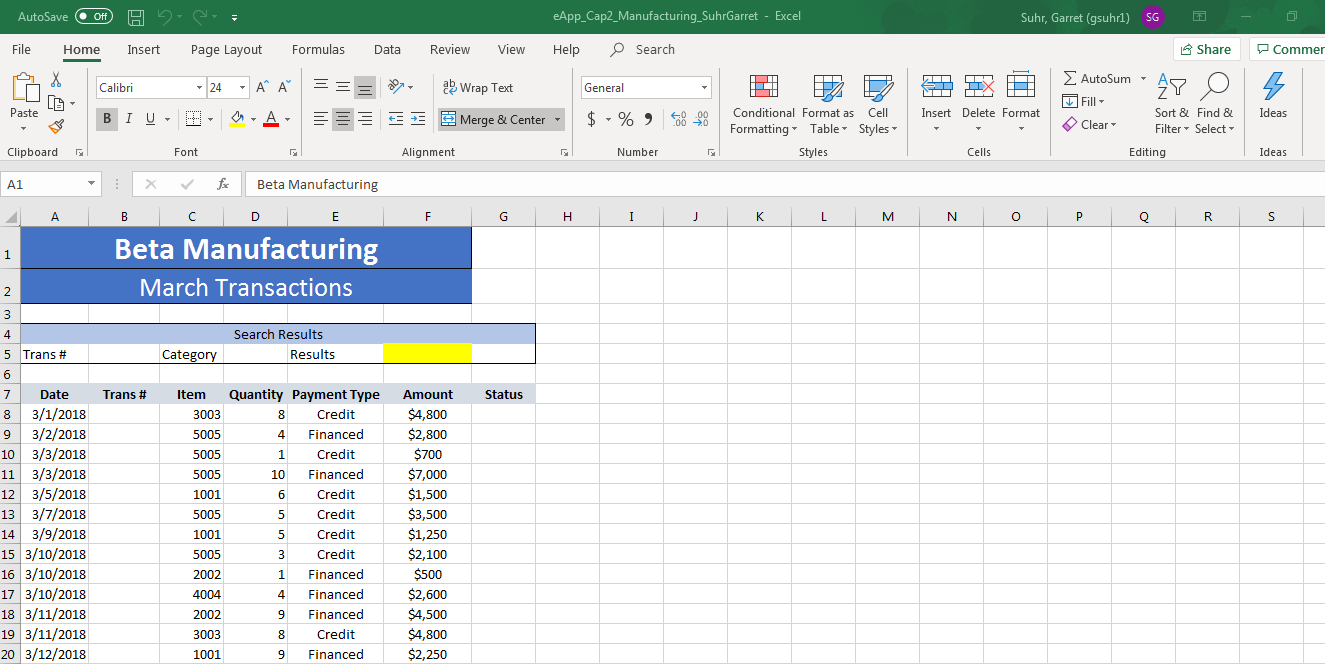
20 Ensure the Sales worksheet is active. Enter a function in cell B8 to create a custom transaction number. The transaction number should be comprised of the item number listed in cell C8 combined with the quantity in cell D8 and the first initial of the payment type in cell E8. Use Auto Fill to copy the function down, completing the data in column B.
21 Enter a nested function in cell G8 that displays the word Flag if the Payment Type is Credit and the Amount is greater than or equal to $4000. Otherwise, the function will display a blank cell. Use Auto Fill to copy the function down, completing the data in column G.
22 Create a data validation list in cell D5 that displays Quantity, Payment Type, and Amount.
23 Type the Trans# 30038C in cell B5, and select Quantity from the validation list in cell D5.
24 Enter a nested lookup function in cell F5 that evaluates the Trans # in cell B5 as well as the Category in cell D5, and returns the results based on the data in the range A8:F32.
25 Create a PivotTable based on the range A7:G32. Place the PivotTable in cell I17 on the current worksheet. Place Payment Type in the Rows box and Amount in the Values box. Format the Amount with Accounting Number Format.
26 Insert a PivotChart using the Pie chart type based on the data. Place the upper-left corner of the chart inside cell I22. Format the Legend of the chart to appear at the bottom of the chart area. Format the Data Labels to appear on the Outside end of the chart.
27 Insert a Slicer based on Date. Place the upper-left corner of the Slicer inside cell L8.
AutoSave of D r eApp_Cap2_Manufacturing SuhrGarret - Excel Suhr, Garret (gsuhrl) SG - O File Home Insert Page Layout Formulas Data Review View Help Search Share Commer Calibri . General EX 47 Wrap Text Merge & Center - AutoSum Fill Clear 0 Paste LG - $ -% -8 Insert Delete Format Ideas Conditional Format as Formatting Table Styles Cell Styles Sort & Filter Find & Select Alignment Number Cells Editing Ideas Clipboard A1 2 A 24 - A A === BIU - - - A- E Font : fix Beta Manufacturing B C D E Beta Manufacturing March Transactions F G H I J K L M N O P Q R S Search Results Results 5 Trans # Category Trans # Status 7 Date 8 3/1/2018 9 3/2/2018 10 3/3/2018 11 3/3/2018 12 3/5/2018 13 3/7/2018 14 3/9/2018 15 3/10/2018 16 3/10/2018 17 3/10/2018 18 3/11/2018 19 3/11/2018 20 3/12/2018 Item Quantity Payment Type 3003 8 Credit 5005 4 Financed 5005 1 Credit 5005 10 Financed 1001 Credit 5005 Credit 1001 Credit 5005 3 Credit 2002 1 Financed 4004 4 Financed 2002 9 Financed 3003 8 Credit 1001 9 Financed Amount $4,800 $2,800 $700 $7,000 $1,500 $3,500 $1,250 $2,100 $500 $2,600 $4,500 $4,800 $2,250
Step by Step Solution
There are 3 Steps involved in it

Get step-by-step solutions from verified subject matter experts
 Study Help