







Question: 20 Save the workbook, exit Excel, and then submit your file as directed by your instructor. Step On the CallCenterReport worksheet, add formulas that will
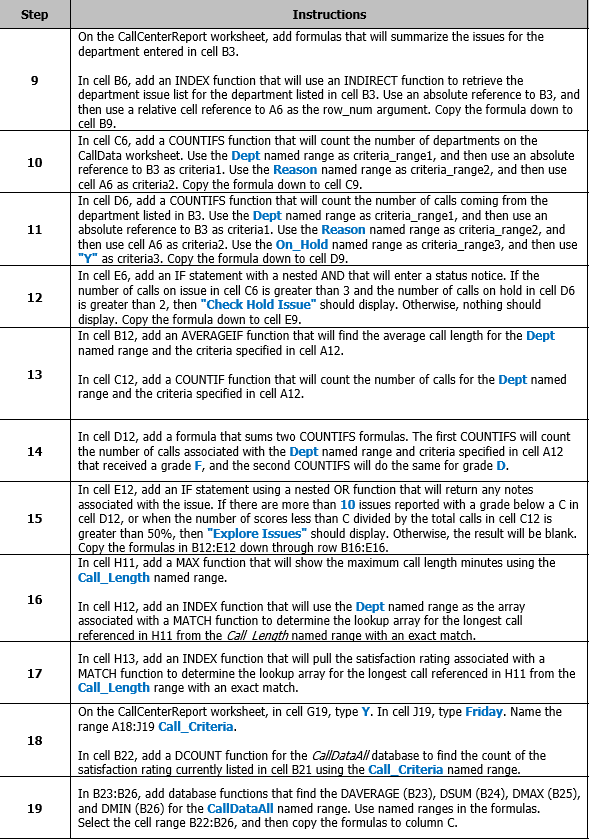
| 20 | Save the workbook, exit Excel, and then submit your file as directed by your instructor. |
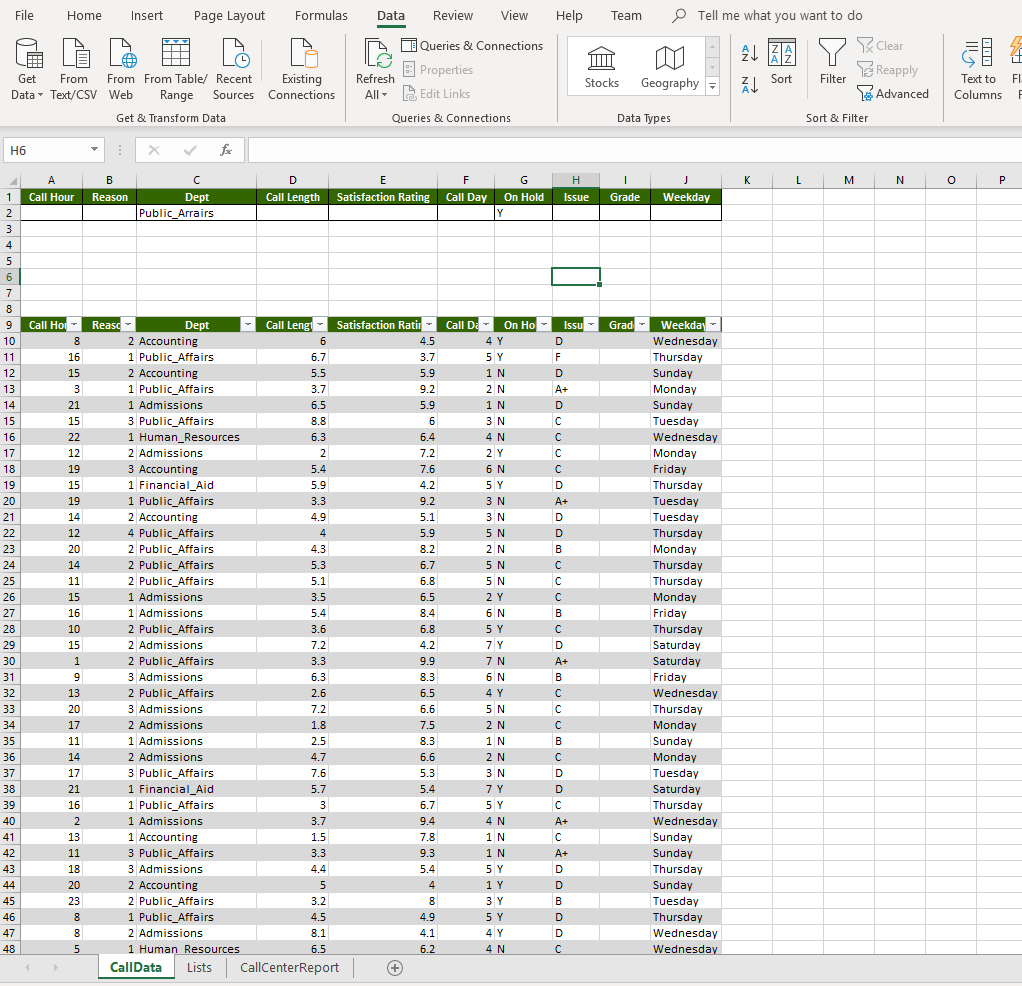
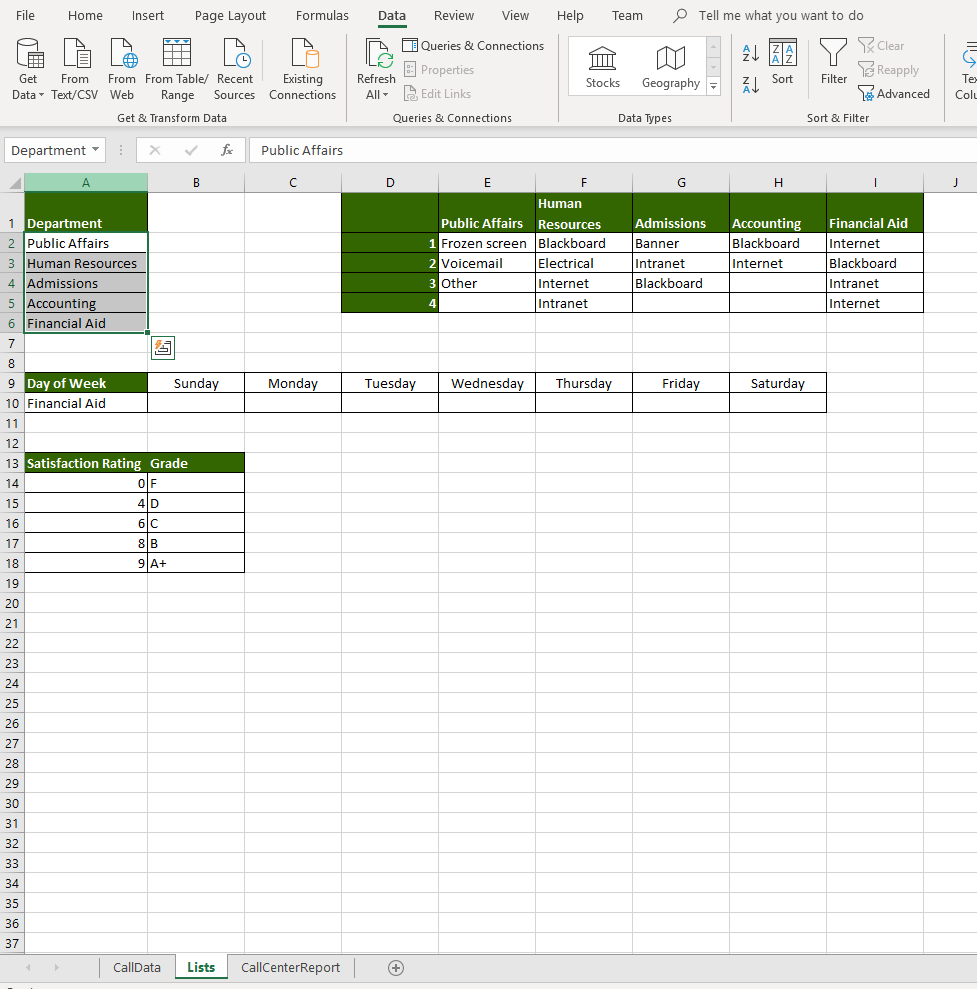
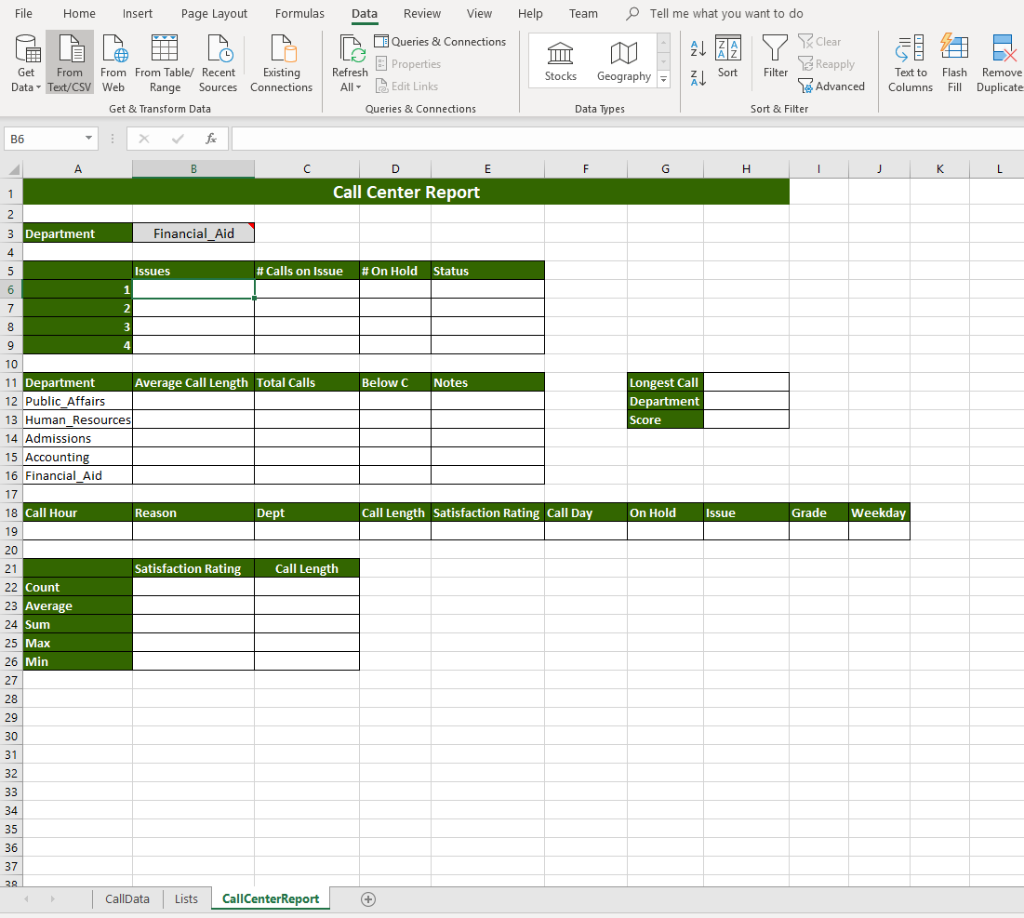
Step On the CallCenterReport worksheet, add formulas that will summarize the issues for the department entered in cell B3 In cell B6, add an INDEX function that will use an INDIRECT function to retrieve the department issue list for the department listed in cell B3. Use an absolute reference to B3, and then use a relative cell reference to A6 as the row_num argument. Copy the formula down to cell B9 In cell C6, add a COUNTIFS function that will count the number of departments on the CallData worksheet. Use the Dept named range as criteria_rangel, and then use an absolute reference to B3 as criteria1. Use the Reason named range as criteria_range2, and then use cell A6 as criteria2. Copy the formula down to cell C9 In cell D6, add a COUNTIFS function that will count the number of calls coming from the department listed in B3. Use the Dept named range as criteria_range1, and then use an absolute reference to B3 as criteria1. Use the Reason named range as criteria range2, and then use cell A6 as criteria2. Use the On_Hold named range as criteria_range, and then use "Y"as criteria3. Copy the formula down to cell D9 In cell E6, add an IF statement with a nested AND that will enter a status notice. If the number of calls on issue in cell C6 is greater than 3 and the number of calls on hold in cell D is greater than 2, then "Check Hold Issue" should display. Otherwise, nothing should display. Copy the formula down to cell E9 In cell B12, add an AVERAGEIF function that will find the average call length for the Dept named range and the criteria specified in cell A12. 9 10 12 13 In cell C12, add a COUNTIF function that will count the number of calls for the Dept named range and the criteria specified in cell A12. In cell D12, add a formula that sums two COUNTIFS formulas. The first COUNTIFS will count the number of calls associated with the Dept named range and criteria specified in cell A12 that received a grade F, and the second COUNTIFS will do the same for grade D 14 In cell E12, add an IF statement using a nested OR function that will return any notes associated with the issue. If there are more than 10 issues reported with a grade below a C in 15cell D12, or when the number of scores less than C divided by the total calls in cell C12 is greater than 50%, then "Explore issues" should display. Otherwise, the result will be blank. Copy the formulas in B12:E12 down through row B16:E16 In cell H11, add a MAX function that will show the maximum call length minutes using the Call_Length named range. 16 In cell H12, add an INDEX function that will use the Dept named range as the array associated with a MATCH function to determine the lookup array for the longest call referenc H1 enath name an an exact matc In cell H13, add an INDEX function that will pull the satisfaction rating associated with a MATCH function to determine the lookup array for the longest call referenced in H11 from the Call_Length range with an exact match. 17 On the CallCenterReport worksheet, in cell G19, type Y. In cell J19, type Friday. Name the range A18:319 Call_Criteria 18 In cell B22, add a DCOUNT function for the CallDataA database to find the count of the satisfaction rating curr listed in cell B21 using the CallCriteria named range In B23:B26, add database functions that find the DAVERAGE (B23), DSUM (B24), DMAX (B25), 19and DMIN (B26) for the CallDataAll named range. Use named ranges in the formulas. Select the cell range B22:B26, and then copy the formulas to column C. File Home Insert Page Layout Formulas Data View Help Team Tell me what you want to do Queries & Connections Clear Properties Text to FI Get From From From Table/ Recent Exsting Data Text/CSV Web Range Sources ConnectionslEdit Links res ort Advanced Columns Get & Transform Data Queries & Connections Data Types Sort & Filter Call Hour Call Length Satisfaction Rating Call Day On Hold Issue Grade Weekday Public Arrairs Satisfaction Rati Grad Weekda Wednesday Thursday Sunday Monday Sunday 2 Accounting 1 Public Affairs 2 Accounting 1 Public Affairs 1 Admissions 3 Public Affairs 1 Human_Resources 2 Admissions 3 Accounting 1 Financial Aid 1 Public_Affairs 2 Accounting 4 Public_Affairs 2 Public Affairs 2 Public_Affairs 2 Public Affairs 1 Admissions 1 Admissions 2 Public_Affairs 2 Admissions 2 Public_Affairs 3 Admissions 2 Public_Affairs 3 Admissions 2 Admissions 1 Admissions 2 Admissions 3 Public Affairs 1 Financial_Aid 1 Public Affairs 1 Admissions 1 Accounting 3 Public_Affairs 3 Admissions 2 Accounting 2 Public Affairs 1 Public_Affairs 2 Admissions 1 Human Resources6.56.24NCWednesda 15 Wednesday Monday 19 15 19 Thursday Tuesda Thursday Monday Thursday Thursday Monday Friday Thursday Saturday Saturday Friday Wednesday Thursday Monday Sunday Monday 25 29 15 32 Saturday Thursday Wednesday Sunday Sunday Thursday Sunday Thursday Wednesday CallDataCallCenterReport File Home Insert Page Layout Formulas Review View Help Team Tell me what you want to do Clear Queries & Connections Properties Edit Links Get From From From Table/ Recent xisting Data Text/CSV Web Range Sources Connections All Refresh Stocks Geography FZ Sort Filter Reapply Advanced Colu Get & Transform Data Queries & Connections Data Types Sort & Filter DepartmentXfPublic Affairs Human Department 2 Public Affairs 3 lHuman Resources 4 Admissions 5 Accountin 6 Financial Aid Public Affairs Resources Frozen screenBlackboard Voicemail Other Admissions Accounting Financial Aid Banner Intranet Blackboard Blackboard Internet Internet Electrical Internet Intranet Blackboard Intranet Internet Day of Week 10 Financial Aid Sunda Monda Tuesda Wednesda Thursda Frida Saturda 12 Satisfaction Rating Grade 0 F 4 D 6 C 8 B 9A+ 18 19 21 23 25 26 27 30 31 32 34 35 36 37 | callData Lists CallcenterReport 1 File Home nsert Page Layout Formulasta Review View Help Team Tell me what you want to do EQueries & Connections Clear Recent Existing Refresh Properties Web Range Sources ConnectionsAEdit Links Sort Fitereapply to Flash Remove Advanced Columns Fill Duplicate From From From Table/ Stocks Geography Data- All Get & Transform Data Queries & Connections Data Types Sort & Filter B6 Call Center Report Department Financial Aid Issues # Calls on Issue # On Hold Status 10 Department Average Call Length Total Calls Below C Notes Longest Call Department 12 Public Affairs 13 Human Resources 14 Admissions 5 Accountin 16 Financial Aid 17 18 19 20 Call Hour Reason Dept Call Length Satisfaction Rating Call Day On HoldIssue Grade Weekday Satisfaction Rating Call Length 2 Count 23 24 25 26 Average Min 28 29 31 32 35 36 37 CallData CallCenterReport Step On the CallCenterReport worksheet, add formulas that will summarize the issues for the department entered in cell B3 In cell B6, add an INDEX function that will use an INDIRECT function to retrieve the department issue list for the department listed in cell B3. Use an absolute reference to B3, and then use a relative cell reference to A6 as the row_num argument. Copy the formula down to cell B9 In cell C6, add a COUNTIFS function that will count the number of departments on the CallData worksheet. Use the Dept named range as criteria_rangel, and then use an absolute reference to B3 as criteria1. Use the Reason named range as criteria_range2, and then use cell A6 as criteria2. Copy the formula down to cell C9 In cell D6, add a COUNTIFS function that will count the number of calls coming from the department listed in B3. Use the Dept named range as criteria_range1, and then use an absolute reference to B3 as criteria1. Use the Reason named range as criteria range2, and then use cell A6 as criteria2. Use the On_Hold named range as criteria_range, and then use "Y"as criteria3. Copy the formula down to cell D9 In cell E6, add an IF statement with a nested AND that will enter a status notice. If the number of calls on issue in cell C6 is greater than 3 and the number of calls on hold in cell D is greater than 2, then "Check Hold Issue" should display. Otherwise, nothing should display. Copy the formula down to cell E9 In cell B12, add an AVERAGEIF function that will find the average call length for the Dept named range and the criteria specified in cell A12. 9 10 12 13 In cell C12, add a COUNTIF function that will count the number of calls for the Dept named range and the criteria specified in cell A12. In cell D12, add a formula that sums two COUNTIFS formulas. The first COUNTIFS will count the number of calls associated with the Dept named range and criteria specified in cell A12 that received a grade F, and the second COUNTIFS will do the same for grade D 14 In cell E12, add an IF statement using a nested OR function that will return any notes associated with the issue. If there are more than 10 issues reported with a grade below a C in 15cell D12, or when the number of scores less than C divided by the total calls in cell C12 is greater than 50%, then "Explore issues" should display. Otherwise, the result will be blank. Copy the formulas in B12:E12 down through row B16:E16 In cell H11, add a MAX function that will show the maximum call length minutes using the Call_Length named range. 16 In cell H12, add an INDEX function that will use the Dept named range as the array associated with a MATCH function to determine the lookup array for the longest call referenc H1 enath name an an exact matc In cell H13, add an INDEX function that will pull the satisfaction rating associated with a MATCH function to determine the lookup array for the longest call referenced in H11 from the Call_Length range with an exact match. 17 On the CallCenterReport worksheet, in cell G19, type Y. In cell J19, type Friday. Name the range A18:319 Call_Criteria 18 In cell B22, add a DCOUNT function for the CallDataA database to find the count of the satisfaction rating curr listed in cell B21 using the CallCriteria named range In B23:B26, add database functions that find the DAVERAGE (B23), DSUM (B24), DMAX (B25), 19and DMIN (B26) for the CallDataAll named range. Use named ranges in the formulas. Select the cell range B22:B26, and then copy the formulas to column C. File Home Insert Page Layout Formulas Data View Help Team Tell me what you want to do Queries & Connections Clear Properties Text to FI Get From From From Table/ Recent Exsting Data Text/CSV Web Range Sources ConnectionslEdit Links res ort Advanced Columns Get & Transform Data Queries & Connections Data Types Sort & Filter Call Hour Call Length Satisfaction Rating Call Day On Hold Issue Grade Weekday Public Arrairs Satisfaction Rati Grad Weekda Wednesday Thursday Sunday Monday Sunday 2 Accounting 1 Public Affairs 2 Accounting 1 Public Affairs 1 Admissions 3 Public Affairs 1 Human_Resources 2 Admissions 3 Accounting 1 Financial Aid 1 Public_Affairs 2 Accounting 4 Public_Affairs 2 Public Affairs 2 Public_Affairs 2 Public Affairs 1 Admissions 1 Admissions 2 Public_Affairs 2 Admissions 2 Public_Affairs 3 Admissions 2 Public_Affairs 3 Admissions 2 Admissions 1 Admissions 2 Admissions 3 Public Affairs 1 Financial_Aid 1 Public Affairs 1 Admissions 1 Accounting 3 Public_Affairs 3 Admissions 2 Accounting 2 Public Affairs 1 Public_Affairs 2 Admissions 1 Human Resources6.56.24NCWednesda 15 Wednesday Monday 19 15 19 Thursday Tuesda Thursday Monday Thursday Thursday Monday Friday Thursday Saturday Saturday Friday Wednesday Thursday Monday Sunday Monday 25 29 15 32 Saturday Thursday Wednesday Sunday Sunday Thursday Sunday Thursday Wednesday CallDataCallCenterReport File Home Insert Page Layout Formulas Review View Help Team Tell me what you want to do Clear Queries & Connections Properties Edit Links Get From From From Table/ Recent xisting Data Text/CSV Web Range Sources Connections All Refresh Stocks Geography FZ Sort Filter Reapply Advanced Colu Get & Transform Data Queries & Connections Data Types Sort & Filter DepartmentXfPublic Affairs Human Department 2 Public Affairs 3 lHuman Resources 4 Admissions 5 Accountin 6 Financial Aid Public Affairs Resources Frozen screenBlackboard Voicemail Other Admissions Accounting Financial Aid Banner Intranet Blackboard Blackboard Internet Internet Electrical Internet Intranet Blackboard Intranet Internet Day of Week 10 Financial Aid Sunda Monda Tuesda Wednesda Thursda Frida Saturda 12 Satisfaction Rating Grade 0 F 4 D 6 C 8 B 9A+ 18 19 21 23 25 26 27 30 31 32 34 35 36 37 | callData Lists CallcenterReport 1 File Home nsert Page Layout Formulasta Review View Help Team Tell me what you want to do EQueries & Connections Clear Recent Existing Refresh Properties Web Range Sources ConnectionsAEdit Links Sort Fitereapply to Flash Remove Advanced Columns Fill Duplicate From From From Table/ Stocks Geography Data- All Get & Transform Data Queries & Connections Data Types Sort & Filter B6 Call Center Report Department Financial Aid Issues # Calls on Issue # On Hold Status 10 Department Average Call Length Total Calls Below C Notes Longest Call Department 12 Public Affairs 13 Human Resources 14 Admissions 5 Accountin 16 Financial Aid 17 18 19 20 Call Hour Reason Dept Call Length Satisfaction Rating Call Day On HoldIssue Grade Weekday Satisfaction Rating Call Length 2 Count 23 24 25 26 Average Min 28 29 31 32 35 36 37 CallData CallCenterReport
Step by Step Solution
There are 3 Steps involved in it

Get step-by-step solutions from verified subject matter experts
 Study Help