







Question: 203 Part 11, Chapter 12. Excel Regression Procedure Return to the data by selecting the Sheet 1 tab. To run the regression select Add-Ins, then
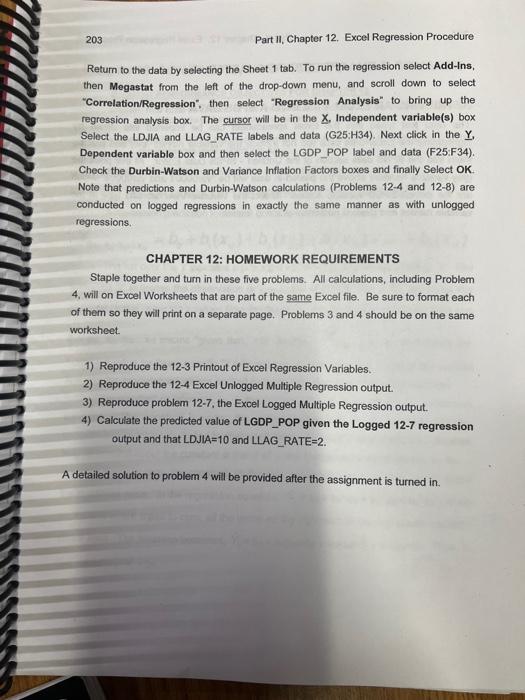
203 Part 11, Chapter 12. Excel Regression Procedure Return to the data by selecting the Sheet 1 tab. To run the regression select Add-Ins, then Megastat from the left of the drop-down menu, and scroll down to select "Correlation/Regression", then select "Regression Analysis" to bring up the regression analysis box. The cursor will be in the X, Independent variable(s) box Select the LDJA and LLAG_RATE labels and data (G25:H34). Next click in the Y, Dependent variable box and then select the LGDP_POP label and data (F25:F34). Check the Durbin-Watson and Variance Inflation Factors boxes and finally Select OK. Note that predictions and Durbin-Watson calculations (Problems 12-4 and 12-8) are conducted on logged regressions in exactly the same manner as with unlogged regressions. CHAPTER 12: HOMEWORK REQUIREMENTS Staple together and turn in these five problems. All calculations, including Problem 4. will on Excel Worksheets that are part of the same Excel file. Be sure to format each of them so they will print on a separate page. Problems 3 and 4 should be on the same worksheet. 1) Reproduce the 12-3 Printout of Excel Regression Variables. 2) Reproduce the 12-4 Excel Unlogged Multiple Regression output. 3) Reproduce problem 12-7, the Excel Logged Multiple Regression output. 4) Calculate the predicted value of LGDP_POP given the Logged 12-7 regression output and that LDJLA=10 and LLAG_RATE=2. A detailed solution to problem 4 will be provided after the assignment is turned in
Step by Step Solution
There are 3 Steps involved in it

Get step-by-step solutions from verified subject matter experts
 Study Help