



Question: 21. (10 pts) Format all columns (even the ones that you didn't create formulas for!) on all hve worksheets so that your entire submission has
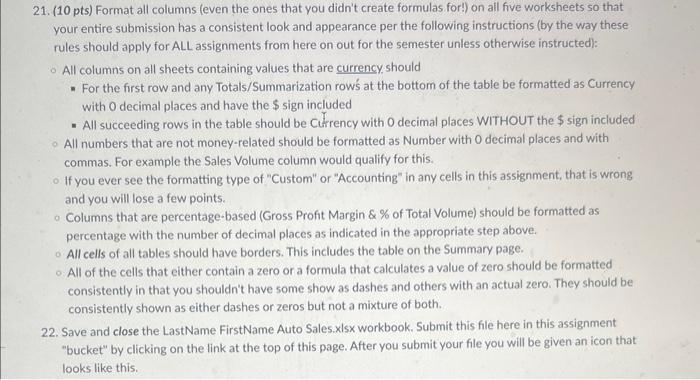
21. (10 pts) Format all columns (even the ones that you didn't create formulas for!) on all hve worksheets so that your entire submission has a consistent look and appearance per the following instructions (by the way these rules should apply for ALL assignments from here on out for the semester unless otherwise instructed): All columns on all sheets containing values that are currency, should - For the first row and any Totals/Summarization row at the bottom of the table be formatted as Currency with 0 decimal places and have the $ sign included - All succeeding rows in the table should be CArency with O decimal places WITHOUT the $ sign included All numbers that are not money-related should be formatted as Number with 0 decimal places and with commas. For example the Sales Volume column would qualify for this. If you ever see the formatting type of "Custom" or "Accounting" in any cells in this assignment, that is wrong and you will lose a few points. Columns that are percentage-based (Gross Profit Margin \& \% of Total Volume) should be formatted as percentage with the number of decimal places as indicated in the appropriate step above. All cells of all tables should have borders. This includes the table on the Summary page. All of the cells that either contain a zero or a formula that calculates a value of zero should be formatted consistently in that you shouldn't have some show as dashes and others with an actual zero. They should be consistently shown as either dashes or zeros but not a mixture of both. 22. Save and close the LastName FirstName Auto Sales.xlsx workbook. Submit this file here in this assignment "bucket" by clicking on the link at the top of this page. After you submit your file you will be given an icon that looks like this
Step by Step Solution
There are 3 Steps involved in it

Get step-by-step solutions from verified subject matter experts