







Question: 22. which a. text-align: right Skills Review an embedded style sheet. Create a. Open the file HTMC.3html in your text editor from the Unit C/Review
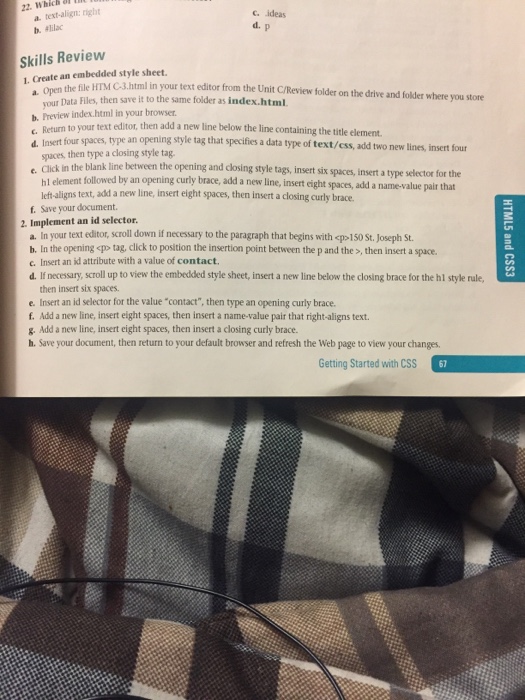
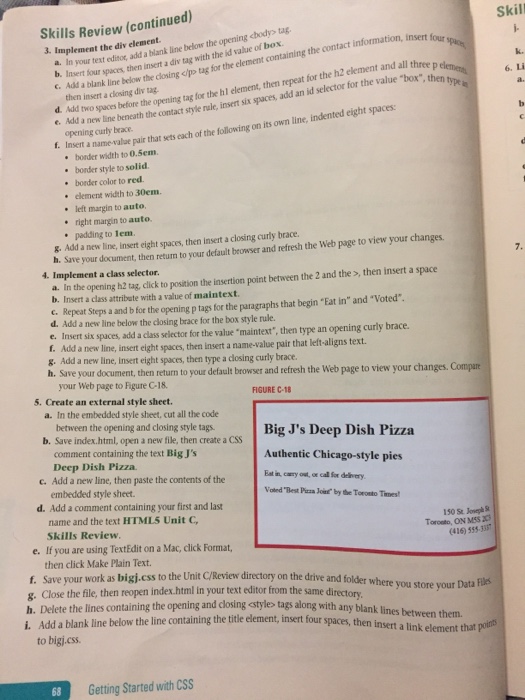
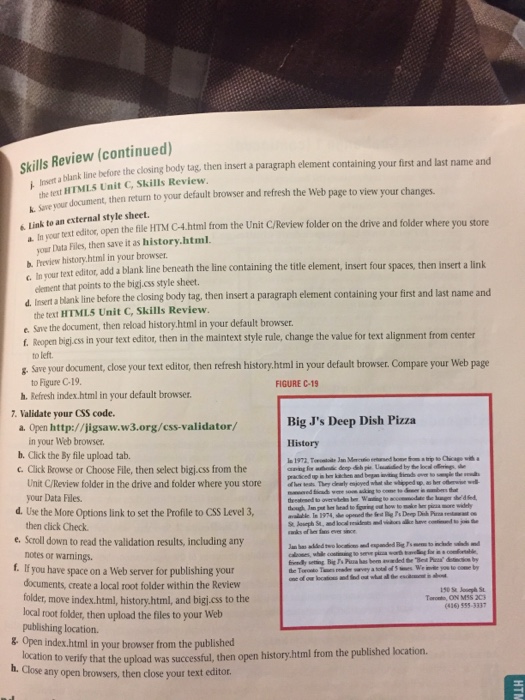
22. which a. text-align: right Skills Review an embedded style sheet. Create a. Open the file HTMC.3html in your text editor from the Unit C/Review folder on the drive and folder where you store Data Files, then save it to the same folder as index.html Preview in in your browser. c. Return to your text editor, then add a new line below the line containing the element. title Insert four spaces, type an opening style tag that specifies a data type of text/css, add two new lines, insert four spaces, then type a closing style tag. click in blank line between the opening and closing style tags, insert six spaces, insert a type selector for the the hl element followed by an opening curly brace, add a new line, insert eight spaces, add a name-value pair that lef-aligns text, add a new line, insert eight spaces, then insert a closing curly brace. f Save your document. 2. Implement an id selector. a in your text editor, scroll down if necessary to the paragraph that begins with cp 150 st Joseph St. b. In the opening
tag, click to position the insertion point between the p and the then insert a space. Insert an id attribute with a value of contact, d. If necessary, scroll up to view the embedded style sheet, insert a new line below the closing brace for the hl style rule, then insert six spaces. e. Insert an id selector for the value "contact", then type an opening curly brace. f, Add a new line, insert eight spaces, then insert a name-value pair that right-aligns text. g. Add a new line, insert eight spaces, then insert a closing curly brace. h. Save your document, then return to your default browser and refresh the Web page to view your changes. Getting Started with CSS 22. which a. text-align: right Skills Review an embedded style sheet. Create a. Open the file HTMC.3html in your text editor from the Unit C/Review folder on the drive and folder where you store Data Files, then save it to the same folder as index.html Preview in in your browser. c. Return to your text editor, then add a new line below the line containing the element. title Insert four spaces, type an opening style tag that specifies a data type of text/css, add two new lines, insert four spaces, then type a closing style tag. click in blank line between the opening and closing style tags, insert six spaces, insert a type selector for the the hl element followed by an opening curly brace, add a new line, insert eight spaces, add a name-value pair that lef-aligns text, add a new line, insert eight spaces, then insert a closing curly brace. f Save your document. 2. Implement an id selector. a in your text editor, scroll down if necessary to the paragraph that begins with cp 150 st Joseph St. b. In the opening
tag, click to position the insertion point between the p and the then insert a space. Insert an id attribute with a value of contact, d. If necessary, scroll up to view the embedded style sheet, insert a new line below the closing brace for the hl style rule, then insert six spaces. e. Insert an id selector for the value "contact", then type an opening curly brace. f, Add a new line, insert eight spaces, then insert a name-value pair that right-aligns text. g. Add a new line, insert eight spaces, then insert a closing curly brace. h. Save your document, then return to your default browser and refresh the Web page to view your changes. Getting Started with CSS
Step by Step Solution
There are 3 Steps involved in it

Get step-by-step solutions from verified subject matter experts
 Study Help