







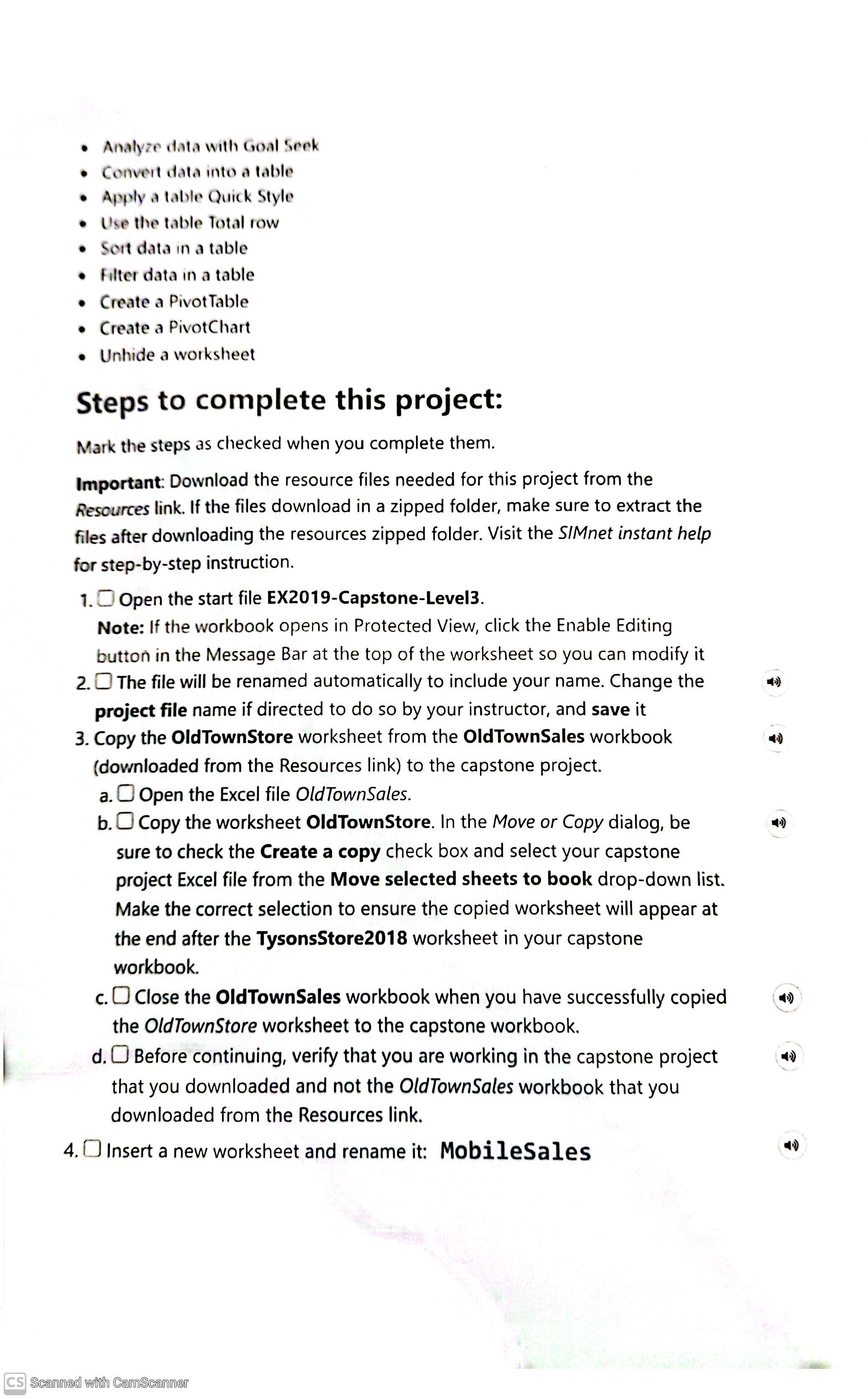
Question: 3 6 5 / 2 0 1 9 capstone level 3 working with sales dataAnalyze data with Goal Seek Convert data into a table Apply
capstone level working with sales dataAnalyze data with Goal Seek
Convert data into a table
Apply a table Quick Style
Use the table Total row
Sort data in a table
Filter data in a table
Create a PivotTable
Create a PivotChart
Unhide a worksheet
Steps to complete this project:
Mark the steps as checked when you complete them.
Important: Download the resource files needed for this project from the
Resources link. If the files download in a zipped folder, make sure to extract the
files after downloading the resources zipped folder. Visit the SIMnet instant help
for stepbystep instruction.
Open the start file EXCapstoneLevel
Note: If the workbook opens in Protected View, click the Enable Editing
button in the Message Bar at the top of the worksheet so you can modify it
The file will be renamed automatically to include your name. Change the
project file name if directed to do so by your instructor, and save it
Copy the OldTownStore worksheet from the OldTownSales workbook
downloaded from the Resources link to the capstone project.
a Open the Excel file OldTownSales.
b Copy the worksheet OldTownStore. In the Move or Copy dialog, be
sure to check the Create a copy check box and select your capstone
project Excel file from the Move selected sheets to book dropdown list.
Make the correct selection to ensure the copied worksheet will appear at
the end after the TysonsStore worksheet in your capstone
workbook.
c Close the OldTownSales workbook when you have successfully copied
the OldTownStore worksheet to the capstone workbook.
d Before continuing, verify that you are working in the capstone project
that you downloaded and not the OldTownSales workbook that you
downloaded from the Resources link.
Insert a new worksheet and rename it: MobileSales
Step by Step Solution
There are 3 Steps involved in it
1 Expert Approved Answer
Step: 1 Unlock

Question Has Been Solved by an Expert!
Get step-by-step solutions from verified subject matter experts
Step: 2 Unlock
Step: 3 Unlock
 Study Help