







Question: 3. Create defined names by selection for each column by selecting B12:L14. Use the same method to create define names for the K39:L41. 4. Select
3. Create defined names by selection for each column by selecting B12:L14. Use the same method to create define names for the K39:L41.
4. Select the required ranges and set up the The following Validation Rules:
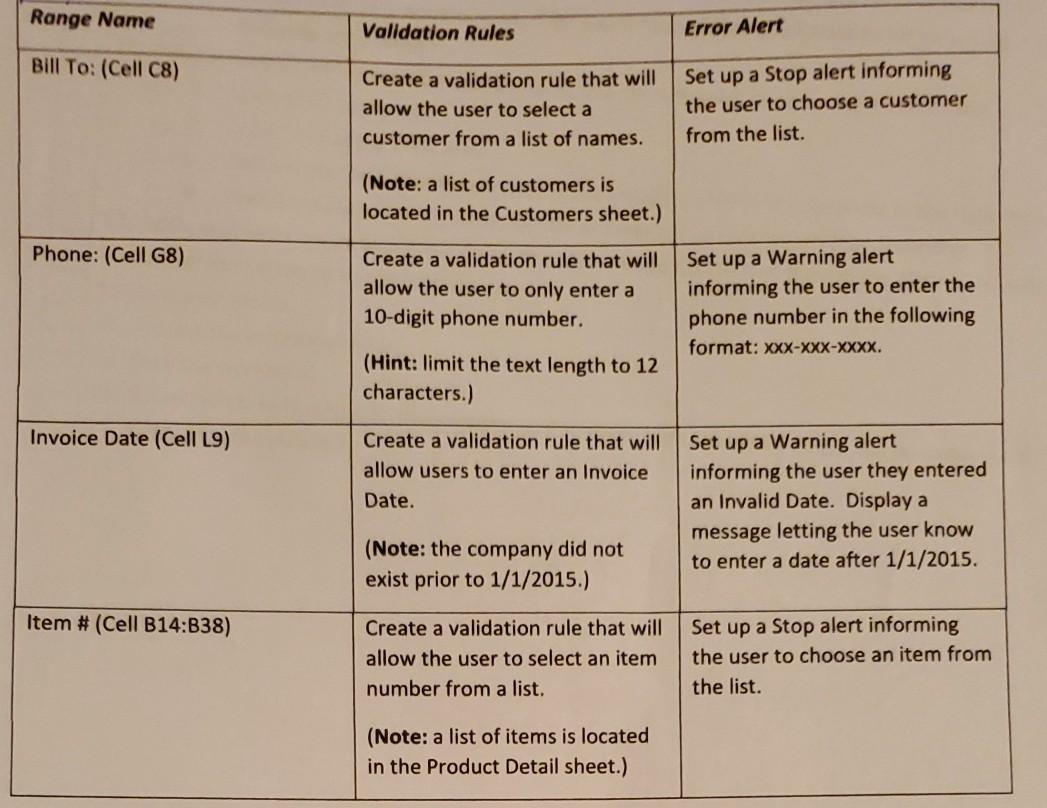
Range Name Validation Rules Error Alert Bill To: (Cell C8) Create a validation rule that will allow the user to select a customer from a list of names. Set up a Stop alert informing the user to choose a customer from the list. (Note: a list of customers is located in the Customers sheet.) Phone: (Cell G8) Create a validation rule that will allow the user to only enter a 10-digit phone number. Set up a Warning alert informing the user to enter the phone number in the following format: XXX-XXX-XXXX. (Hint: limit the text length to 12 characters.) Invoice Date (Cell L9) Create a validation rule that will allow users to enter an Invoice Date. Set up a Warning alert informing the user they entered an Invalid Date. Display a message letting the user know to enter a date after 1/1/2015. (Note: the company did not exist prior to 1/1/2015.) Item # (Cell B14:B38) Create a validation rule that will allow the user to select an item number from a list. Set up a Stop alert informing the user to choose an item from the list. (Note: a list of items is located in the Product Detail sheet.) Range Name Validation Rules Error Alert Bill To: (Cell C8) Create a validation rule that will allow the user to select a customer from a list of names. Set up a Stop alert informing the user to choose a customer from the list. (Note: a list of customers is located in the Customers sheet.) Phone: (Cell G8) Create a validation rule that will allow the user to only enter a 10-digit phone number. Set up a Warning alert informing the user to enter the phone number in the following format: XXX-XXX-XXXX. (Hint: limit the text length to 12 characters.) Invoice Date (Cell L9) Create a validation rule that will allow users to enter an Invoice Date. Set up a Warning alert informing the user they entered an Invalid Date. Display a message letting the user know to enter a date after 1/1/2015. (Note: the company did not exist prior to 1/1/2015.) Item # (Cell B14:B38) Create a validation rule that will allow the user to select an item number from a list. Set up a Stop alert informing the user to choose an item from the list. (Note: a list of items is located in the Product Detail sheet.)
Step by Step Solution
There are 3 Steps involved in it

Get step-by-step solutions from verified subject matter experts
 Study Help