







Question: Assignment Instructions 2 Create range namnes based on the left columns in the ranges A4:39. A20:B20, and A30-B30. Hint Range names can be created using
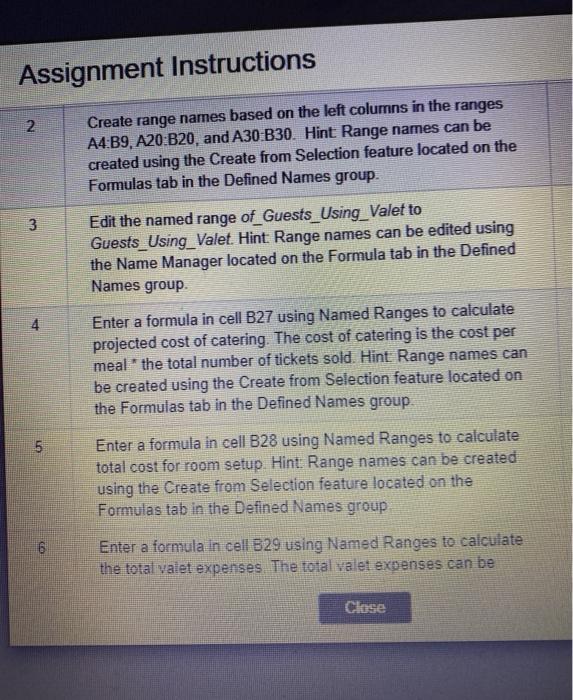
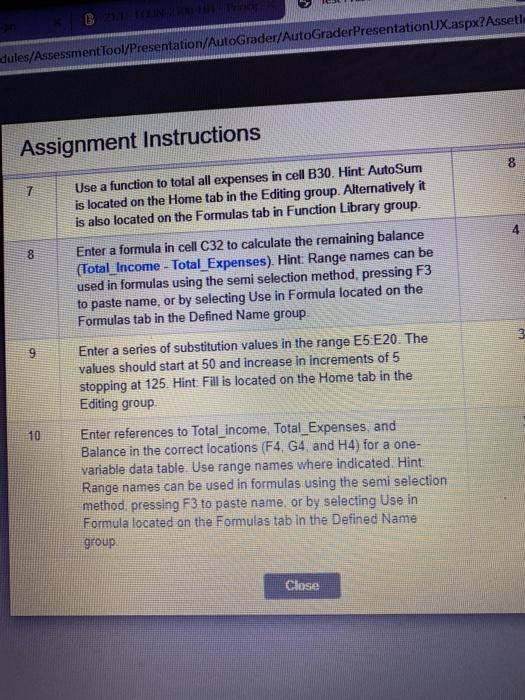
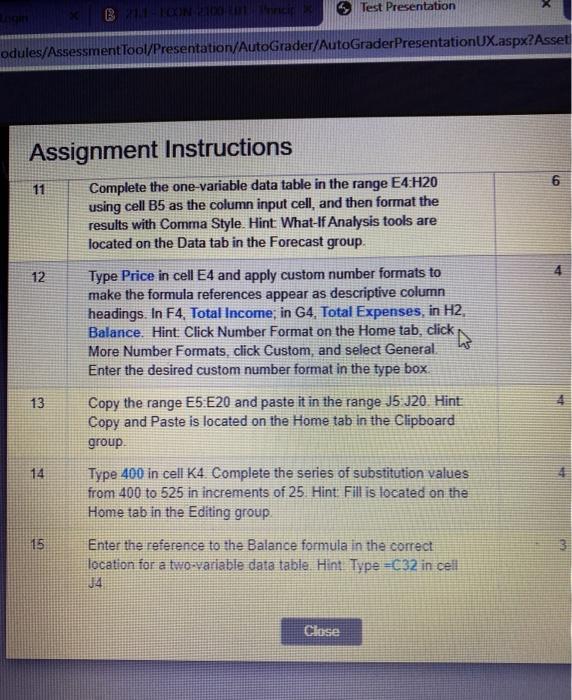
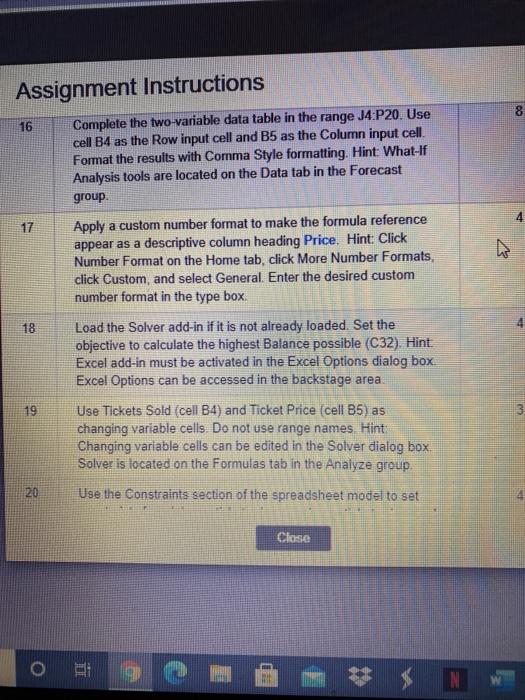
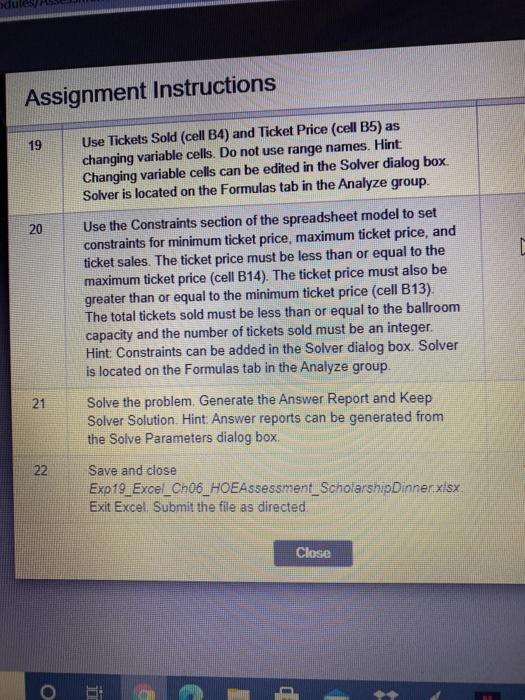
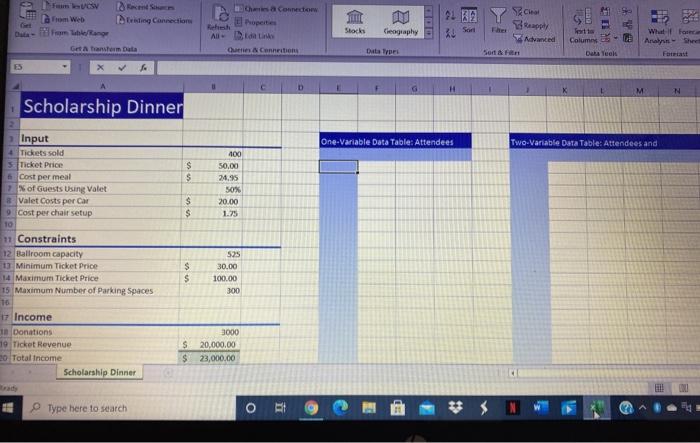
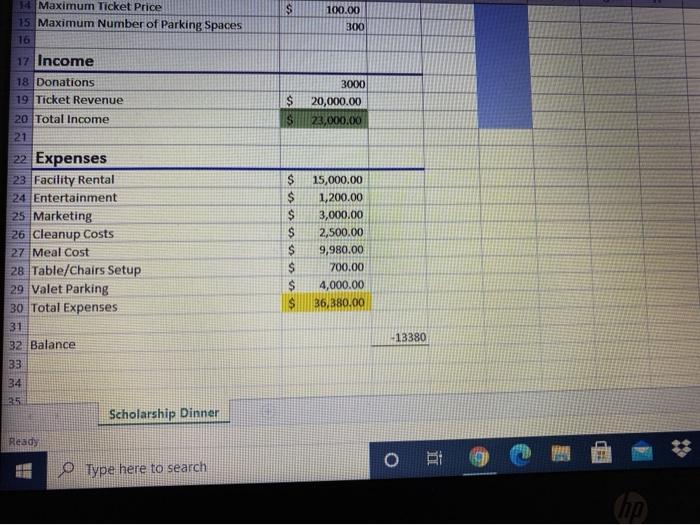
Assignment Instructions 2 Create range namnes based on the left columns in the ranges A4:39. A20:B20, and A30-B30. Hint Range names can be created using the Create from Selection feature located on the Formulas tab in the Defined Names group. 3 Edit the named range of_Guests_Using_Valet to Guests_Using_Valet . Hint Range names can be edited using the Name Manager located on the Formula tab in the Defined Names group Enter a formula in cell B27 using Named Ranges to calculate projected cost of catering. The cost of catering is the cost per meal" the total number of tickets sold. Hint Range names can be created using the Create from Selection feature located on the Formulas tab in the Defined Names group 4 5 Enter a formula in cell B28 using Named Ranges to calculate total cost for room setup. Hint: Range names can be created using the Create from Selection feature located on the Formulas tab in the Defined Names group OD Enter a formula in cell B29 using Named Ranges to calculate the total valet expenses. The total valet expenses can be B IN dules/Assessment Tool/Presentation/AutoGrader/AutoGraderPresentationUX.aspx?Asset Assignment Instructions 8 7 Use a function to total all expenses in cell B30. Hint AutoSum is located on the Home tab in the Editing group. Alternatively it is also located on the Formulas tab in Function Library group 4 8 Enter a formula in cell C32 to calculate the remaining balance (Total_Income - Total_Expenses). Hint Range names can be used in formulas using the semi selection method, pressing F3 to paste name, or by selecting Use in Formula located on the Formulas tab in the Defined Name group 9 10 Enter a series of substitution values in the range E5E20. The values should start at 50 and increase in increments of 5 stopping at 125. Hint. Fill is located on the Home tab in the Editing group Enter references to Total_income Total_Expenses, and Balance in the correct locations (F4, G4, and H4) for a one- variable data table Use range names where indicated. Hint Range names can be used in formulas using the semi selection method, pressing F3 to paste name, or by selecting Use in Formula located on the Formulas tab in the Defined Name group Close Test Presentation B odules/Assessment Tool/Presentation/AutoGrader/AutoGraderPresentationUX.aspx?Asset Assignment Instructions Complete the one-variable data table in the range E4:H20 using cell B5 as the column input cell, and then format the results with Comma Style. Hint: What If Analysis tools are located on the Data tab in the Forecast group. 12 Type Price in cell E4 and apply custom number formats to make the formula references appear as descriptive column headings. In F4, Total Income; in G4, Total Expenses, in H2 Balance. Hint. Click Number Format on the Home tab, click More Number Formats, click Custom, and select General Enter the desired custom number format in the type box. W 13 Copy the range E5 E20 and paste it in the range J5 J20 Hint Copy and paste is located on the Home tab in the Clipboard group Type 400 in cell K4. Complete the series of substitution values from 400 to 525 in increments of 25. Hint Fill is located on the Home tab in the Editing group 14 15 Enter the reference to the Balance formula in the correct location for a two-variable data table Hint Type =C32 in cell 4 Close Assignment Instructions 8 16 Complete the two-variable data table in the range J4:P20. Use cell B4 as the Row input cell and B5 as the Column input cell Format the results with Comma Style formatting. Hint What If Analysis tools are located on the Data tab in the Forecast group 4 17 Apply a custom number format to make the formula reference appear as a descriptive column heading Price. Hint: Click Number Format on the Home tab, click More Number Formats, click Custom, and select General. Enter the desired custom number format in the type box 18 Load the Solver add-in if it is not already loaded. Set the objective to calculate the highest Balance possible (C32). Hint Excel add-in must be activated in the Excel Options dialog box Excel Options can be accessed in the backstage area. 19 Use Tickets Sold (cell B4) and Ticket Price (cell B5 as changing variable cells. Do not use range names Hint Changing variable cells can be edited in the Solver dialog box Solver is located on the Formulas tab in the Analyze group 20 Use the Constraints section of the spreadsheet model to set Close * $ Assignment Instructions 19 Use Tickets Sold (cell B4) and Ticket Price (cell B5) as changing variable cells. Do not use range names. Hint: Changing variable cells can be edited in the Solver dialog box. Solver is located on the Formulas tab in the Analyze group. 20 Use the Constraints section of the spreadsheet model to set constraints for minimum ticket price, maximum ticket price, and ticket sales. The ticket price must be less than or equal to the maximum ticket price (cell B14). The ticket price must also be greater than or equal to the minimum ticket price (cell B13). The total tickets sold must be less than or equal to the ballroom capacity and the number of tickets sold must be an integer. Hint: Constraints can be added in the Solver dialog box. Solver is located on the Formulas tab in the Analyze group. 21 Solve the problem. Generate the Answer Report and keep Solver Solution. Hint: Answer reports can be generated from the Solve Parameters dialog box, 22 Save and dose Exp19_Excel_Ch06_HOEAssessment_ScholarshipDinner.xlsx Exit Excel Submit the file as directed Close Chesa Comedo IR It Connection Tom Web 916 Stocks ieography Son Rehest All die O Cennetion Bappy wed fort to Column What Force Gastom Data Date TPE Dalek Fotiast D M N Scholarship Dinner One-Variable Data Table:Attendees Two-Variable Data Table: Attendees and $ $ 100 50.00 24.95 50% 20.00 1.25 $ $ Input 4 Tickets sold 5 Ticket Price Cost per meal of Guests Using Valet 8 Valet Costs per Car 9 Cost per chair setup 10 11 Constraints 12 Ballroom capacity 1 Minimum Ticket Price 14 Maximum Ticket Price 15 Maximum Number of Parking Spaces 16 17 Income 10 Donations 19 Ticket Revenue 20 Total Income Scholarship Dinner $ $ 525 30.00 100.00 300 3000 $ 20,000.00 $ 23,000.00 ELL Type here to search S 100.00 300 $ $ 3000 20,000.00 23,000.00 14 Maximum Ticket Price 15 Maximum Number of Parking Spaces 16 17 Income 18 Donations 19 Ticket Revenue 20 Total Income 21 22 Expenses 23 Facility Rental 24 Entertainment 25 Marketing 26 Cleanup Costs 27 Meal Cost 28 Table/Chairs Setup 29 Valet Parking 30 Total Expenses 31 32 Balance 133 34 V V V V V V C 15,000.00 1,200.00 3,000.00 2,500.00 9,980.00 700.00 4,000.00 36,380.00 13380 25 Scholarship Dinner Ready O BI O Type here to search Assignment Instructions 2 Create range namnes based on the left columns in the ranges A4:39. A20:B20, and A30-B30. Hint Range names can be created using the Create from Selection feature located on the Formulas tab in the Defined Names group. 3 Edit the named range of_Guests_Using_Valet to Guests_Using_Valet . Hint Range names can be edited using the Name Manager located on the Formula tab in the Defined Names group Enter a formula in cell B27 using Named Ranges to calculate projected cost of catering. The cost of catering is the cost per meal" the total number of tickets sold. Hint Range names can be created using the Create from Selection feature located on the Formulas tab in the Defined Names group 4 5 Enter a formula in cell B28 using Named Ranges to calculate total cost for room setup. Hint: Range names can be created using the Create from Selection feature located on the Formulas tab in the Defined Names group OD Enter a formula in cell B29 using Named Ranges to calculate the total valet expenses. The total valet expenses can be B IN dules/Assessment Tool/Presentation/AutoGrader/AutoGraderPresentationUX.aspx?Asset Assignment Instructions 8 7 Use a function to total all expenses in cell B30. Hint AutoSum is located on the Home tab in the Editing group. Alternatively it is also located on the Formulas tab in Function Library group 4 8 Enter a formula in cell C32 to calculate the remaining balance (Total_Income - Total_Expenses). Hint Range names can be used in formulas using the semi selection method, pressing F3 to paste name, or by selecting Use in Formula located on the Formulas tab in the Defined Name group 9 10 Enter a series of substitution values in the range E5E20. The values should start at 50 and increase in increments of 5 stopping at 125. Hint. Fill is located on the Home tab in the Editing group Enter references to Total_income Total_Expenses, and Balance in the correct locations (F4, G4, and H4) for a one- variable data table Use range names where indicated. Hint Range names can be used in formulas using the semi selection method, pressing F3 to paste name, or by selecting Use in Formula located on the Formulas tab in the Defined Name group Close Test Presentation B odules/Assessment Tool/Presentation/AutoGrader/AutoGraderPresentationUX.aspx?Asset Assignment Instructions Complete the one-variable data table in the range E4:H20 using cell B5 as the column input cell, and then format the results with Comma Style. Hint: What If Analysis tools are located on the Data tab in the Forecast group. 12 Type Price in cell E4 and apply custom number formats to make the formula references appear as descriptive column headings. In F4, Total Income; in G4, Total Expenses, in H2 Balance. Hint. Click Number Format on the Home tab, click More Number Formats, click Custom, and select General Enter the desired custom number format in the type box. W 13 Copy the range E5 E20 and paste it in the range J5 J20 Hint Copy and paste is located on the Home tab in the Clipboard group Type 400 in cell K4. Complete the series of substitution values from 400 to 525 in increments of 25. Hint Fill is located on the Home tab in the Editing group 14 15 Enter the reference to the Balance formula in the correct location for a two-variable data table Hint Type =C32 in cell 4 Close Assignment Instructions 8 16 Complete the two-variable data table in the range J4:P20. Use cell B4 as the Row input cell and B5 as the Column input cell Format the results with Comma Style formatting. Hint What If Analysis tools are located on the Data tab in the Forecast group 4 17 Apply a custom number format to make the formula reference appear as a descriptive column heading Price. Hint: Click Number Format on the Home tab, click More Number Formats, click Custom, and select General. Enter the desired custom number format in the type box 18 Load the Solver add-in if it is not already loaded. Set the objective to calculate the highest Balance possible (C32). Hint Excel add-in must be activated in the Excel Options dialog box Excel Options can be accessed in the backstage area. 19 Use Tickets Sold (cell B4) and Ticket Price (cell B5 as changing variable cells. Do not use range names Hint Changing variable cells can be edited in the Solver dialog box Solver is located on the Formulas tab in the Analyze group 20 Use the Constraints section of the spreadsheet model to set Close * $ Assignment Instructions 19 Use Tickets Sold (cell B4) and Ticket Price (cell B5) as changing variable cells. Do not use range names. Hint: Changing variable cells can be edited in the Solver dialog box. Solver is located on the Formulas tab in the Analyze group. 20 Use the Constraints section of the spreadsheet model to set constraints for minimum ticket price, maximum ticket price, and ticket sales. The ticket price must be less than or equal to the maximum ticket price (cell B14). The ticket price must also be greater than or equal to the minimum ticket price (cell B13). The total tickets sold must be less than or equal to the ballroom capacity and the number of tickets sold must be an integer. Hint: Constraints can be added in the Solver dialog box. Solver is located on the Formulas tab in the Analyze group. 21 Solve the problem. Generate the Answer Report and keep Solver Solution. Hint: Answer reports can be generated from the Solve Parameters dialog box, 22 Save and dose Exp19_Excel_Ch06_HOEAssessment_ScholarshipDinner.xlsx Exit Excel Submit the file as directed Close Chesa Comedo IR It Connection Tom Web 916 Stocks ieography Son Rehest All die O Cennetion Bappy wed fort to Column What Force Gastom Data Date TPE Dalek Fotiast D M N Scholarship Dinner One-Variable Data Table:Attendees Two-Variable Data Table: Attendees and $ $ 100 50.00 24.95 50% 20.00 1.25 $ $ Input 4 Tickets sold 5 Ticket Price Cost per meal of Guests Using Valet 8 Valet Costs per Car 9 Cost per chair setup 10 11 Constraints 12 Ballroom capacity 1 Minimum Ticket Price 14 Maximum Ticket Price 15 Maximum Number of Parking Spaces 16 17 Income 10 Donations 19 Ticket Revenue 20 Total Income Scholarship Dinner $ $ 525 30.00 100.00 300 3000 $ 20,000.00 $ 23,000.00 ELL Type here to search S 100.00 300 $ $ 3000 20,000.00 23,000.00 14 Maximum Ticket Price 15 Maximum Number of Parking Spaces 16 17 Income 18 Donations 19 Ticket Revenue 20 Total Income 21 22 Expenses 23 Facility Rental 24 Entertainment 25 Marketing 26 Cleanup Costs 27 Meal Cost 28 Table/Chairs Setup 29 Valet Parking 30 Total Expenses 31 32 Balance 133 34 V V V V V V C 15,000.00 1,200.00 3,000.00 2,500.00 9,980.00 700.00 4,000.00 36,380.00 13380 25 Scholarship Dinner Ready O BI O Type here to search
Step by Step Solution
There are 3 Steps involved in it

Get step-by-step solutions from verified subject matter experts
 Study Help