







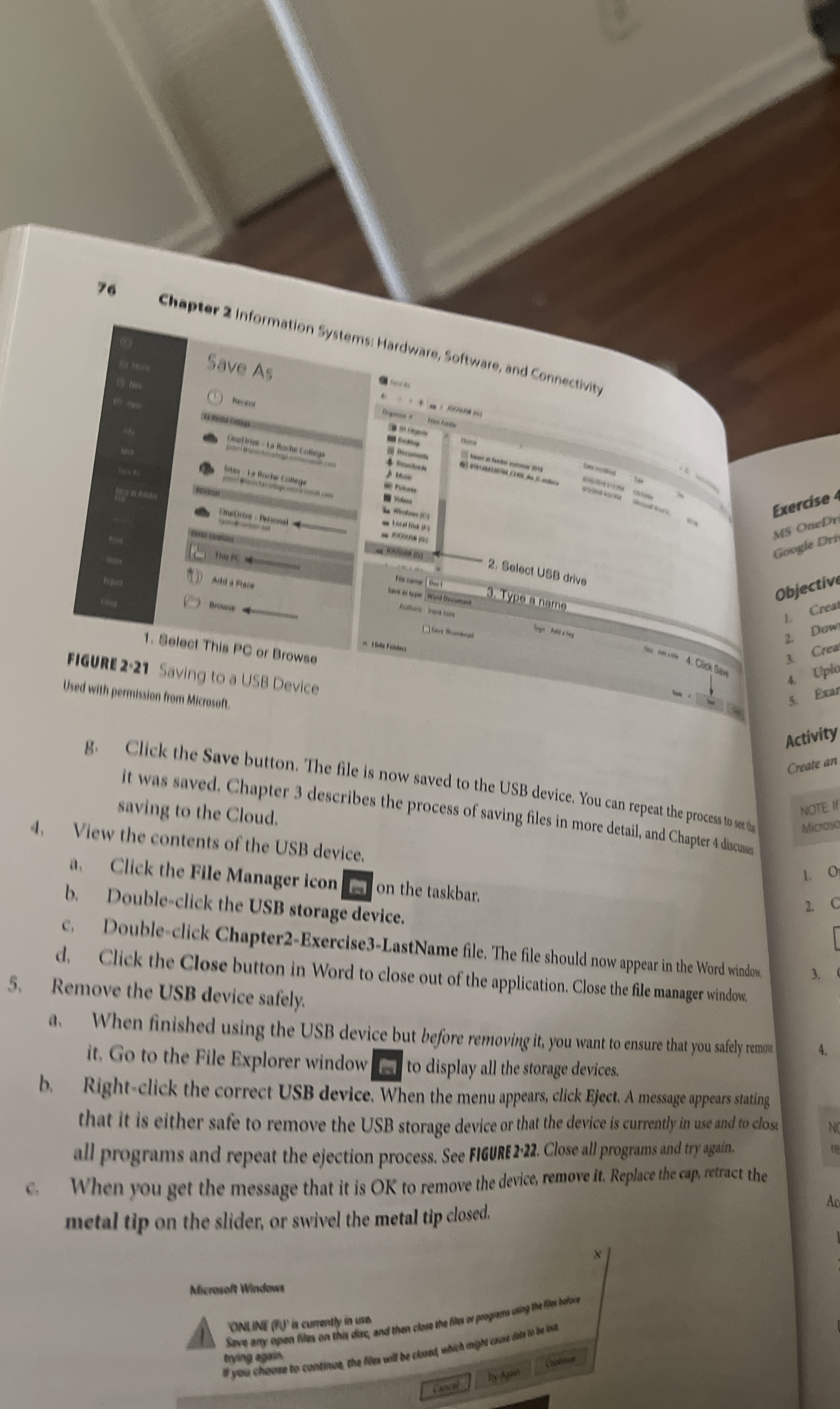
Question: 7 6 Chapter 2 information systems: Hardware, Software, and connectivity Belect This PC or Browse FIGunt 2 - 2 1 Saving to a USB Device
Chapter information systems: Hardware, Software, and connectivity
Belect This PC or Browse
FIGunt Saving to a USB Device
Used with perminstion toen Microsoft.
Click the Save button. The file is now saved to the USB device. You can repeat the process to seeticy It was saved, Chapter describes the process of saving files in more detail, and Chapter discosise saving to the Cloud.
View the contents of the USB device.
a Click the File Manager icon
b Doubleclick the USB storage device.
c Doubleclick ChapterExerciseLastName file. The file should now appear in the Word windom
d Click the Close button in Word to close out of the application. Close the file manager window.
Remove the USB device safely.
a When finished using the USB device but before removing it you want to ensure that you safely remon it Go to the File Explorer window to display all the storage devices.
b Rightclick the correct USB device. When the menu appears, click Eject. A message appears stating that it is either safe to remove the USB storage device or that the device is currently in use and to clost all programs and repeat the ejection process. See FIGURE Close all programs and try again.
When you get the message that it is OK to remove the device, remove it Replace the cap, retract the metal tip on the slider, or swivel the metal tip closed.
Misroseft Windows
DNINI Py is curently in us
Step by Step Solution
There are 3 Steps involved in it
1 Expert Approved Answer
Step: 1 Unlock

Question Has Been Solved by an Expert!
Get step-by-step solutions from verified subject matter experts
Step: 2 Unlock
Step: 3 Unlock
 Study Help