







Question: 7. Add a data validation to cells C9:C35 that only allow values from a list with the source data from cells B6:B23 on the ListData
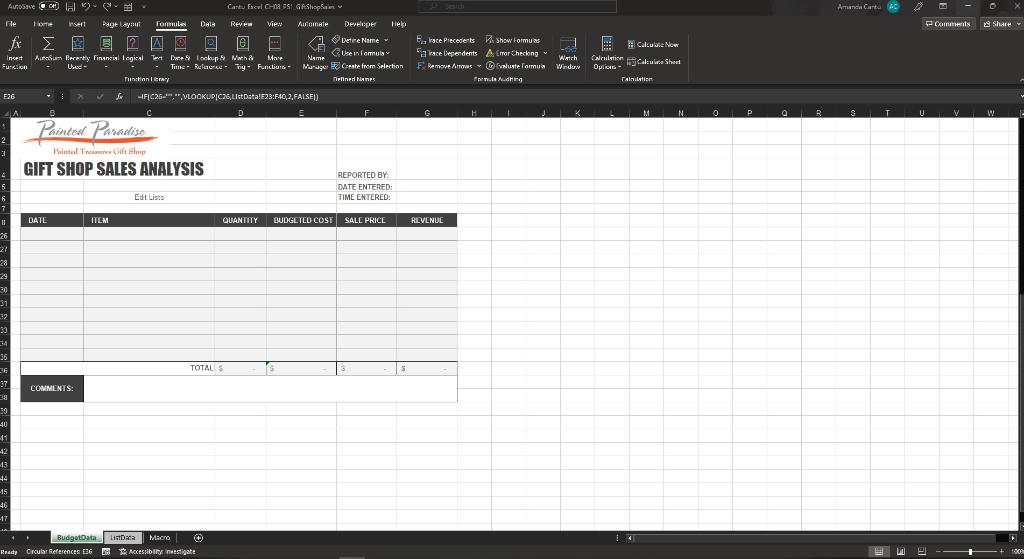
7. Add a data validation to cells C9:C35 that only allow values from a list with the source data from cells B6:B23 on the ListData worksheet. The Input Message should have a title Choose Item and the Input message Choose an item from the list. (Include the period.) The Error Alert should have the Stop title Error and the Error message Please choose an item from the list. (Include the period.)
8. To quickly navigate between worksheets, you will create two hyperlinks between the BudgetData and the ListData worksheets. Insert a hyperlink in cell C6 on the BudgetData worksheet that links to cell E1 on the ListData worksheet. Enter the screen tip Go to ListData
9. Insert a hyperlink in cell E1 on the ListData worksheet that links to cell C6 the BudgetData worksheet. Enter a screen tip Go to BudgetData Test the hyperlink to return to the BudgetData worksheet.
10. Since the BudgetData form will be used often, you want to create a macro that clears the form after each use. If necessary, add the Developer tab to the ribbon. Create an absolute macro that will clear the contents of all cells that data is entered into the BudgetData worksheet by the user. Name the macro ClearContents and assign the capital letter C as the shortcut key to the current workbook only. To record the macro, follow these steps in order:
* Select cells G4:G6, press and hold CTRL, and then selected B9:D35, and C37. * Clear the contents of the selected cells. * Select cell G4 to make it the active cell before you stop recording.
Step by Step Solution
There are 3 Steps involved in it

Get step-by-step solutions from verified subject matter experts
 Study Help