







Question: 9. In the appropriate cell, use a function and structured references to determine the average number of post-secondary years for students who have been elected.
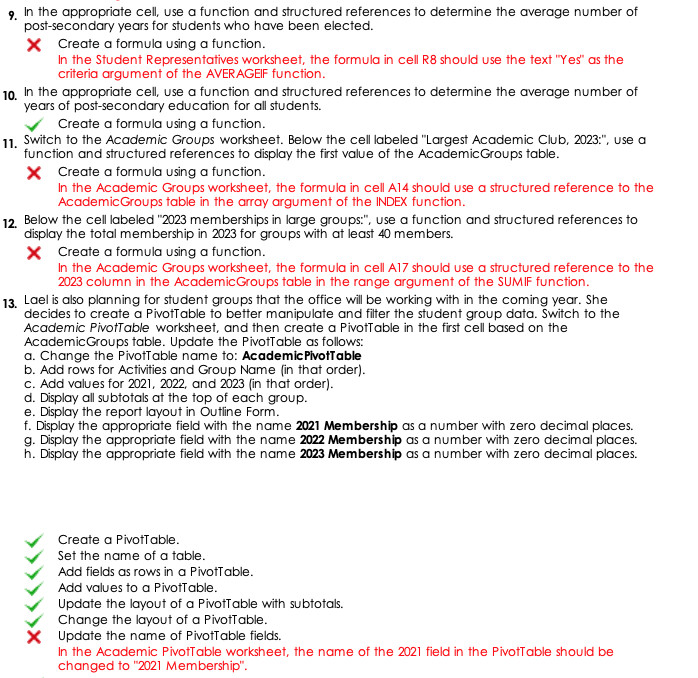
9. In the appropriate cell, use a function and structured references to determine the average number of post-secondary years for students who have been elected. Create a formula using a function. In the Student Representatives worksheet, the formula in cell R8 should use the text "Yes" as the criteria argument of the AVERAGEIF function. 10. In the appropriate cell, use a function and structured references to determine the average number of years of post-secondary education for all students. Create a formula using a function. 11. Switch to the Academic Groups worksheet. Below the cell labeled "Largest Academic Club, 2023:", use a function and structured references to display the first value of the Academic Groups table. Create a formula using a function. In the Academic Groups worksheet, the formula in cell A14 should use a structured reference to the AcademicGroups table in the array argument of the INDEX function. 12. Below the cell labeled "2023 memberships in large groups:", use a function and structured references to display the total membership in 2023 for groups with at least 40 members. Create a formula using a function. In the Academic Groups worksheet, the formula in cell A17 should use a structured reference to the 2023 column in the AcademicGroups table in the range argument of the SUMIF function. 13. Lael is also planning for student groups that the office will be working with in the coming year. She decides to create a PivotTable to better manipulate and filter the student group data. Switch to the Academic PivotTable worksheet, and then create a PivotTable in the first cell based on the Academic Groups table. Update the PivotTable as follows: a. Change the PivotTable name to: AcademicPivotTable b. Add rows for Activities and Group Name (in that order). c. Add values for 2021, 2022, and 2023 (in that order). d. Display all subtotals at the top of each group. e. Display the report layout in Outline Form. f. Display the appropriate field with the name 2021 Membership as a number with zero decimal places. g. Display the appropriate field with the name 2022 Membership as a number with zero decimal places. h. Display the appropriate field with the name 2023 Membership as a number with zero decimal places. Create a PivotTable. Set the name of a table. Add fields as rows in a PivotTable. Add values to a PivotTable. Update the layout of a PivotTable with subtotals. Change the layout of a PivotTable. X Update the name of PivotTable fields. In the Academic PivotTable worksheet, the name of the 2021 field in the PivotTable should be changed to "2021 Membership". 9. In the appropriate cell, use a function and structured references to determine the average number of post-secondary years for students who have been elected. Create a formula using a function. In the Student Representatives worksheet, the formula in cell R8 should use the text "Yes" as the criteria argument of the AVERAGEIF function. 10. In the appropriate cell, use a function and structured references to determine the average number of years of post-secondary education for all students. Create a formula using a function. 11. Switch to the Academic Groups worksheet. Below the cell labeled "Largest Academic Club, 2023:", use a function and structured references to display the first value of the Academic Groups table. Create a formula using a function. In the Academic Groups worksheet, the formula in cell A14 should use a structured reference to the AcademicGroups table in the array argument of the INDEX function. 12. Below the cell labeled "2023 memberships in large groups:", use a function and structured references to display the total membership in 2023 for groups with at least 40 members. Create a formula using a function. In the Academic Groups worksheet, the formula in cell A17 should use a structured reference to the 2023 column in the AcademicGroups table in the range argument of the SUMIF function. 13. Lael is also planning for student groups that the office will be working with in the coming year. She decides to create a PivotTable to better manipulate and filter the student group data. Switch to the Academic PivotTable worksheet, and then create a PivotTable in the first cell based on the Academic Groups table. Update the PivotTable as follows: a. Change the PivotTable name to: AcademicPivotTable b. Add rows for Activities and Group Name (in that order). c. Add values for 2021, 2022, and 2023 (in that order). d. Display all subtotals at the top of each group. e. Display the report layout in Outline Form. f. Display the appropriate field with the name 2021 Membership as a number with zero decimal places. g. Display the appropriate field with the name 2022 Membership as a number with zero decimal places. h. Display the appropriate field with the name 2023 Membership as a number with zero decimal places. Create a PivotTable. Set the name of a table. Add fields as rows in a PivotTable. Add values to a PivotTable. Update the layout of a PivotTable with subtotals. Change the layout of a PivotTable. X Update the name of PivotTable fields. In the Academic PivotTable worksheet, the name of the 2021 field in the PivotTable should be changed to "2021 Membership
Step by Step Solution
There are 3 Steps involved in it

Get step-by-step solutions from verified subject matter experts
 Study Help