







Question: Access : Hello, Can you help me with steps 2 to 7? Thank you Step 1: Create a new, blank database file and name it
Access:
Hello,
Can you help me with steps 2 to 7? Thank you
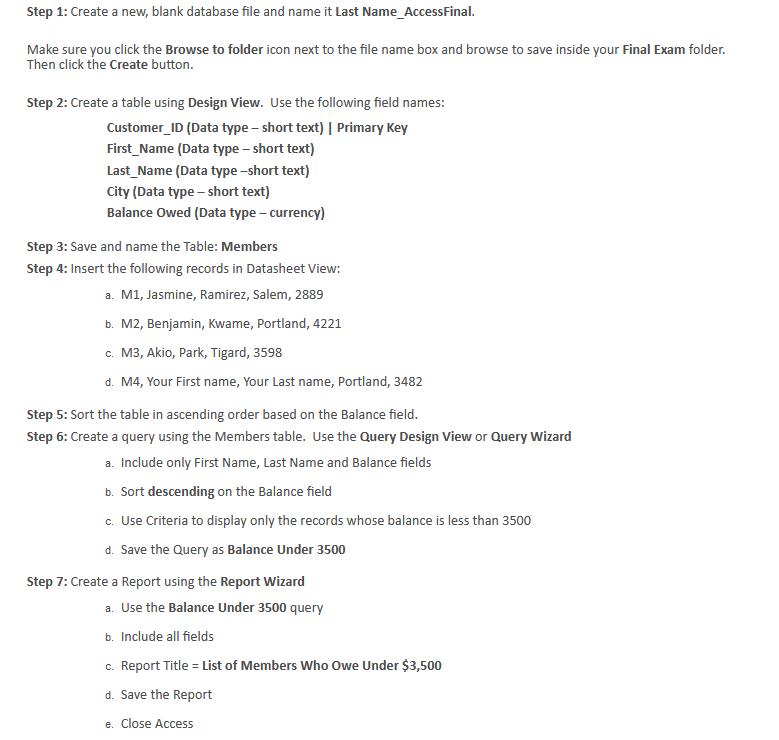
Step 1: Create a new, blank database file and name it Last Name_AccessFinal. Make sure you click the Browse to folder icon next to the file name box and browse to save inside your Final Exam folder. Then click the Create button. Step 2: Create a table using Design View. Use the following field names: Customer_ID (Data type - short text) | Primary Key First_Name (Data type - short text) Last_Name (Data type-short text) City (Data type - short text) Balance Owed (Data type-currency) Step 3: Save and name the Table: Members Step 4: Insert the following records in Datasheet View: a. M1, Jasmine, Ramirez, Salem, 2889 b. M2, Benjamin, Kwame, Portland, 4221 c. M3, Akio, Park, Tigard, 3598 d. M4, Your First name, Your Last name, Portland, 3482 Step 5: Sort the table in ascending order based on the Balance field. Step 6: Create a query using the Members table. Use the Query Design View or Query Wizard a. Include only First Name, Last Name and Balance fields b. Sort descending on the Balance field c. Use Criteria to display only the records whose balance is less than 3500 d. Save the Query as Balance Under 3500 Step 7: Create a Report using the Report Wizard a. Use the Balance Under 3500 query b. Include all fields c. Report Title = List of Members Who Owe Under $3,500 d. Save the Report e. Close Access
Step by Step Solution
There are 3 Steps involved in it

Get step-by-step solutions from verified subject matter experts
 Study Help