







Question: Activity 4-2: Exploring the Kate Text Editor Objective: Learn features of the Kate text editor. 1. Start VMware Player, and start an openSUSE virtual machine
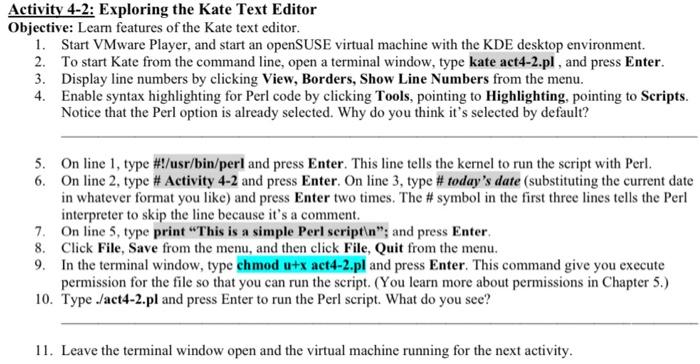
Activity 4-2: Exploring the Kate Text Editor Objective: Learn features of the Kate text editor. 1. Start VMware Player, and start an openSUSE virtual machine with the KDE desktop environment. 2. To start Kate from the command line, open a terminal window, type kate act4-2.pl, and press Enter. 3. Display line numbers by clicking View, Borders, Show Line Numbers from the menu. 4. Enable syntax highlighting for Perl code by clicking Tools, pointing to Highlighting, pointing to Scripts. Notice that the Perl option is already selected. Why do you think it's selected by default? 5. On line 1, type \#!/usr/bin/perl and press Enter. This line tells the kernel to run the script with Perl. 6. On line 2, type \# Activity 4-2 and press Enter. On line 3, type \# today's date (substituting the current date in whatever format you like) and press Enter two times. The \# symbol in the first three lines tells the Perl interpreter to skip the line because it's a comment. 7. On line 5, type print "This is a simple Perl seriptln"; and press Enter. 8. Click File, Save from the menu, and then click File, Quit from the menu. 9. In the terminal window, type chmod u+x act4-2.pl and press Enter. This command give you execute permission for the file so that you can run the script. (You learn more about permissions in Chapter 5.) 10. Type ./act4-2.pl and press Enter to run the Perl script. What do you see? 11. Leave the terminal window open and the virtual machine running for the next activity
Step by Step Solution
There are 3 Steps involved in it

Get step-by-step solutions from verified subject matter experts
 Study Help