







Question: ALL INSTRUCTIONS BELOW PLEASE DO EVERYTHING AFTER 6! Part I: Configure the Network 1. The three laptops in all the printer will all connect to
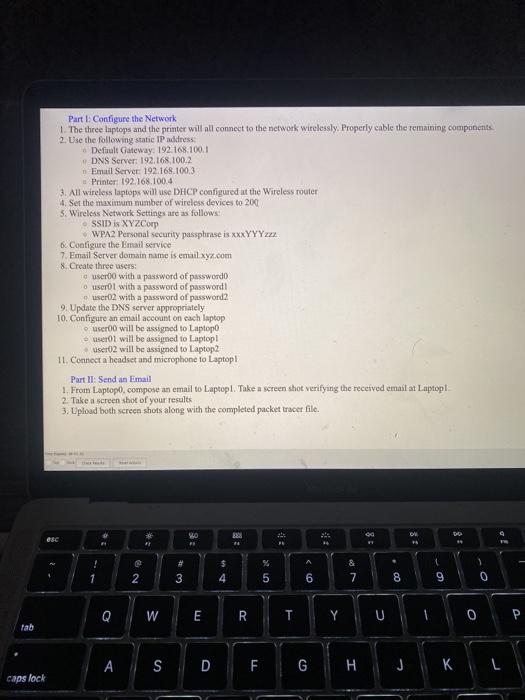
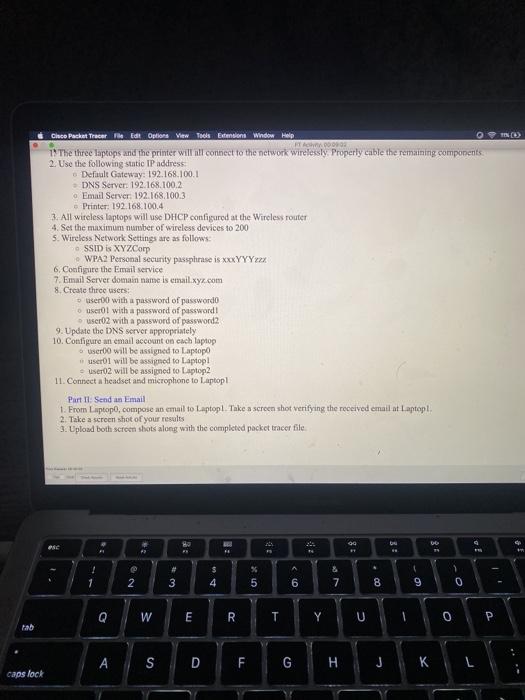
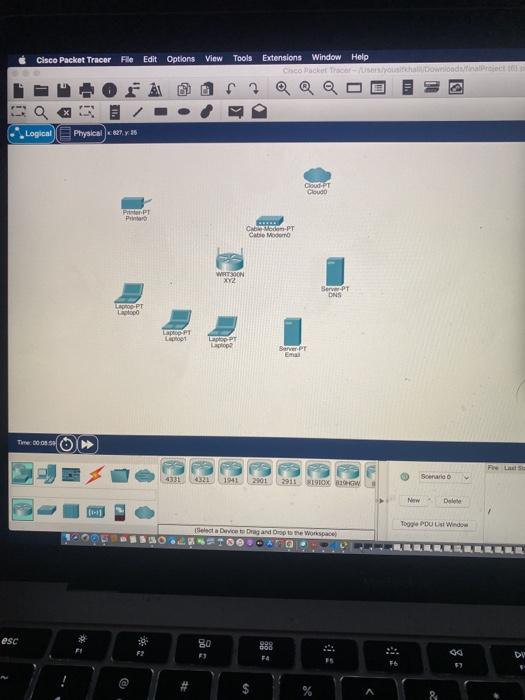
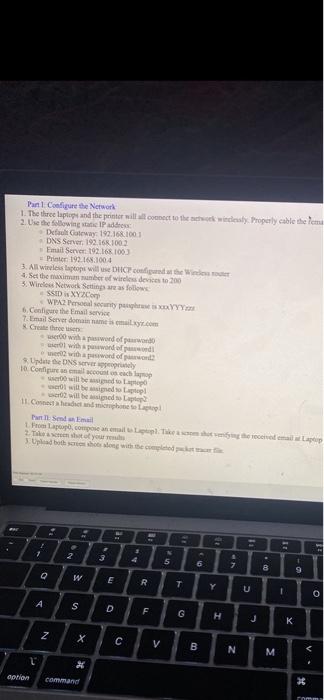
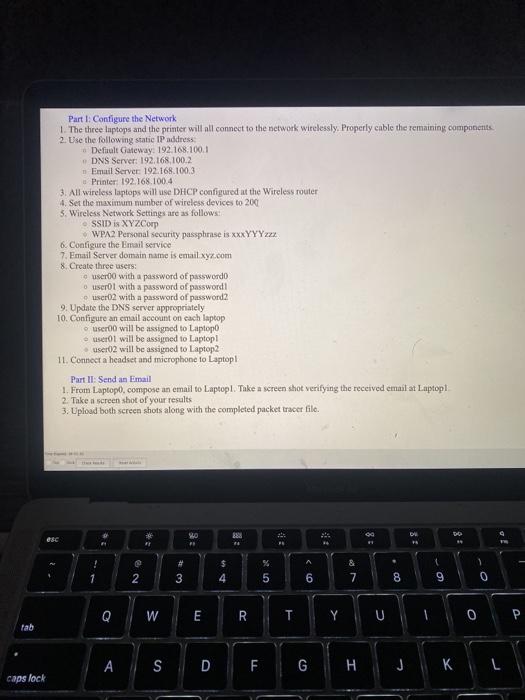
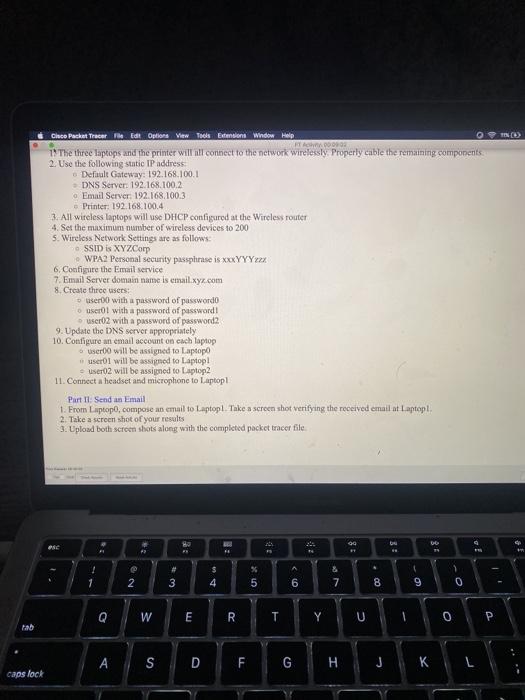
Part 1: Configure the Network 1. The three luptops and the printer will all connect to the network wirelessly. Properly cable the remaining components 2. Use the following static IP address Definult Gateway: 192.168.100.1 DNS Server: 192.168.100.2 Email Server 192.168.100.3 Printer: 192.168.100.4 3. All wireless laptops will use DHCP configured at the Wireless router 4. Set the maximum number of wireless devices to 200 5. Wireless Network Settings are as follows: SSID is XYZCorp WPA2 Personal security passphrase is xxxYYYzxx 6. Configure the Email service 7. Email Server domain name is email.xyz.com 8 Create three users: user with a password of password userot with a password of password o user02 with a password of password? 9. Update the DNS server appropriately 10. Configute an email account on each laptop o user will be assigned to Laptop ser01 will be assigned to Laptop user02 will be assigned to Laptop2 11. Connect a headset and microphone to Laptop Part II: Send an email 1. From Laptop, compose an email to Laptop. Take a screen shot verifying the received email at Laptop 2. Take a screen shot of your results 3. Upload both screen shots along with the completed packet tracer file. 10 81 1 A U 20 & 7 2 3 4 6 8 9 0 Q W E R Y U OP tab ASD F F G H J KL caps lock TND Clace Packet Tracer Edit Options View Tools Extensions Window Help FTA. 1 The three laptops and the printer will all connect to the network wirelessly. Properly cable the remaining components 2. Use the following static IP address Default Gateway: 192.168.100.1 DNS Server: 192.168.100.2 Email Server: 192.168.100.3 Printer: 192.168.100.4 3. All wireless Laptops will use DHCP configured at the Wireless router 4. Set the maximum number of wireless devices to 200 5. Wireless Network Settings are as follows: SSID is XYZCorp WPA2 Personal security passphrase is xxxYYYxxx 6. Configure the Email service 7. Email Server domain name is email.xyz.com 8. Create three users: user with a password of password scrol with a password of password user02 with a password of password 9. Update the DNS server appropriately 10. Configure an email account on cach laptop user will be assigned to Laptop users will be assigned to Laptop! - user02 will be assigned to Laptop2 11. Connect a headset and microphone to Laptop Part II: Send an email 1. From Laptop, compose an email to Laptop. Take a screen shot verifying the received email at Laptop 2. Take a screen shot of your results 3. Upload both screen shots along with the completed packet tracer file How go UR 1 - # 3 $ 4 % 5 & 7 1 2 6 8 9 0 Q W E R T YUL 0 SDF G H caps lock TND Clace Packet Tracer Edit Options View Tools Extensions Window Help FTA. 1 The three laptops and the printer will all connect to the network wirelessly. Properly cable the remaining components 2. Use the following static IP address Default Gateway: 192.168.100.1 DNS Server: 192.168.100.2 Email Server: 192.168.100.3 Printer: 192.168.100.4 3. All wireless Laptops will use DHCP configured at the Wireless router 4. Set the maximum number of wireless devices to 200 5. Wireless Network Settings are as follows: SSID is XYZCorp WPA2 Personal security passphrase is xxxYYYxxx 6. Configure the Email service 7. Email Server domain name is email.xyz.com 8. Create three users: user with a password of password scrol with a password of password user02 with a password of password 9. Update the DNS server appropriately 10. Configure an email account on cach laptop user will be assigned to Laptop users will be assigned to Laptop! - user02 will be assigned to Laptop2 11. Connect a headset and microphone to Laptop Part II: Send an email 1. From Laptop, compose an email to Laptop. Take a screen shot verifying the received email at Laptop 2. Take a screen shot of your results 3. Upload both screen shots along with the completed packet tracer file How go UR 1 - # 3 $ 4 % 5 & 7 1 2 6 8 9 0 Q W E R T YUL 0 SDF G H caps lock Cisco Packet Tracer File Edit Options View Tools Extensions Window Help Cisco Macket trace 0 a Logical Physical 127,30 DUT Cloud PPT P Cibon-PT Cabe Moon WAT390N XYZ Server PT DNS COOPT pop FT Light Epp PT Barver PT Ema Time 008. Fre La 4331 1941 29012915 1910X BW Sonario New De 109 POUL Window Select a Device Dragando bore Workspace O esc 0 999 090 DU @ $ Pat Configure the Network 1. The three laptop and the printer will connect to the widely Property cable theme 2. Use the following static IP address Default Gateway: 192.168.1001 DNS Server: 192.16% 1003 Email Sene: 192.168100 Printer 192.168.1004 3. All wiele laptops will contain 4. Set the time of wireless devices to 200 5. Wireless Network Set as follow SSID is XY 2C WPA2 al senty 6. Configure the Email service 7.Email Server domain namestit.com Creathe wer with a wond of power w with word of the DNS 10. Cortes will be to I will be gel 02 will be signed to La 11. Coches til Send Email Proptop.com netol.com 1 1 2 5 6 7 8 w 9 E R T Y U A S D F G H J Z x C V B N M OoWove Command Part 1: Configure the Network 1. The three luptops and the printer will all connect to the network wirelessly. Properly cable the remaining components 2. Use the following static IP address Definult Gateway: 192.168.100.1 DNS Server: 192.168.100.2 Email Server 192.168.100.3 Printer: 192.168.100.4 3. All wireless laptops will use DHCP configured at the Wireless router 4. Set the maximum number of wireless devices to 200 5. Wireless Network Settings are as follows: SSID is XYZCorp WPA2 Personal security passphrase is xxxYYYzxx 6. Configure the Email service 7. Email Server domain name is email.xyz.com 8 Create three users: user with a password of password userot with a password of password o user02 with a password of password? 9. Update the DNS server appropriately 10. Configute an email account on each laptop o user will be assigned to Laptop ser01 will be assigned to Laptop user02 will be assigned to Laptop2 11. Connect a headset and microphone to Laptop Part II: Send an email 1. From Laptop, compose an email to Laptop. Take a screen shot verifying the received email at Laptop 2. Take a screen shot of your results 3. Upload both screen shots along with the completed packet tracer file. 10 81 1 A U 20 & 7 2 3 4 6 8 9 0 Q W E R Y U OP tab ASD F F G H J KL caps lock TND Clace Packet Tracer Edit Options View Tools Extensions Window Help FTA. 1 The three laptops and the printer will all connect to the network wirelessly. Properly cable the remaining components 2. Use the following static IP address Default Gateway: 192.168.100.1 DNS Server: 192.168.100.2 Email Server: 192.168.100.3 Printer: 192.168.100.4 3. All wireless Laptops will use DHCP configured at the Wireless router 4. Set the maximum number of wireless devices to 200 5. Wireless Network Settings are as follows: SSID is XYZCorp WPA2 Personal security passphrase is xxxYYYxxx 6. Configure the Email service 7. Email Server domain name is email.xyz.com 8. Create three users: user with a password of password scrol with a password of password user02 with a password of password 9. Update the DNS server appropriately 10. Configure an email account on cach laptop user will be assigned to Laptop users will be assigned to Laptop! - user02 will be assigned to Laptop2 11. Connect a headset and microphone to Laptop Part II: Send an email 1. From Laptop, compose an email to Laptop. Take a screen shot verifying the received email at Laptop 2. Take a screen shot of your results 3. Upload both screen shots along with the completed packet tracer file How go UR 1 - # 3 $ 4 % 5 & 7 1 2 6 8 9 0 Q W E R T YUL 0 SDF G H caps lock Part 1: Configure the Network 1. The three luptops and the printer will all connect to the network wirelessly. Properly cable the remaining components 2. Use the following static IP address Definult Gateway: 192.168.100.1 DNS Server: 192.168.100.2 Email Server 192.168.100.3 Printer: 192.168.100.4 3. All wireless laptops will use DHCP configured at the Wireless router 4. Set the maximum number of wireless devices to 200 5. Wireless Network Settings are as follows: SSID is XYZCorp WPA2 Personal security passphrase is xxxYYYzxx 6. Configure the Email service 7. Email Server domain name is email.xyz.com 8 Create three users: user with a password of password userot with a password of password o user02 with a password of password? 9. Update the DNS server appropriately 10. Configute an email account on each laptop o user will be assigned to Laptop ser01 will be assigned to Laptop user02 will be assigned to Laptop2 11. Connect a headset and microphone to Laptop Part II: Send an email 1. From Laptop, compose an email to Laptop. Take a screen shot verifying the received email at Laptop 2. Take a screen shot of your results 3. Upload both screen shots along with the completed packet tracer file. 10 81 1 A U 20 & 7 2 3 4 6 8 9 0 Q W E R Y U OP tab ASD F F G H J KL caps lock TND Clace Packet Tracer Edit Options View Tools Extensions Window Help FTA. 1 The three laptops and the printer will all connect to the network wirelessly. Properly cable the remaining components 2. Use the following static IP address Default Gateway: 192.168.100.1 DNS Server: 192.168.100.2 Email Server: 192.168.100.3 Printer: 192.168.100.4 3. All wireless Laptops will use DHCP configured at the Wireless router 4. Set the maximum number of wireless devices to 200 5. Wireless Network Settings are as follows: SSID is XYZCorp WPA2 Personal security passphrase is xxxYYYxxx 6. Configure the Email service 7. Email Server domain name is email.xyz.com 8. Create three users: user with a password of password scrol with a password of password user02 with a password of password 9. Update the DNS server appropriately 10. Configure an email account on cach laptop user will be assigned to Laptop users will be assigned to Laptop! - user02 will be assigned to Laptop2 11. Connect a headset and microphone to Laptop Part II: Send an email 1. From Laptop, compose an email to Laptop. Take a screen shot verifying the received email at Laptop 2. Take a screen shot of your results 3. Upload both screen shots along with the completed packet tracer file How go UR 1 - # 3 $ 4 % 5 & 7 1 2 6 8 9 0 Q W E R T YUL 0 SDF G H caps lock TND Clace Packet Tracer Edit Options View Tools Extensions Window Help FTA. 1 The three laptops and the printer will all connect to the network wirelessly. Properly cable the remaining components 2. Use the following static IP address Default Gateway: 192.168.100.1 DNS Server: 192.168.100.2 Email Server: 192.168.100.3 Printer: 192.168.100.4 3. All wireless Laptops will use DHCP configured at the Wireless router 4. Set the maximum number of wireless devices to 200 5. Wireless Network Settings are as follows: SSID is XYZCorp WPA2 Personal security passphrase is xxxYYYxxx 6. Configure the Email service 7. Email Server domain name is email.xyz.com 8. Create three users: user with a password of password scrol with a password of password user02 with a password of password 9. Update the DNS server appropriately 10. Configure an email account on cach laptop user will be assigned to Laptop users will be assigned to Laptop! - user02 will be assigned to Laptop2 11. Connect a headset and microphone to Laptop Part II: Send an email 1. From Laptop, compose an email to Laptop. Take a screen shot verifying the received email at Laptop 2. Take a screen shot of your results 3. Upload both screen shots along with the completed packet tracer file How go UR 1 - # 3 $ 4 % 5 & 7 1 2 6 8 9 0 Q W E R T YUL 0 SDF G H caps lock Cisco Packet Tracer File Edit Options View Tools Extensions Window Help Cisco Macket trace 0 a Logical Physical 127,30 DUT Cloud PPT P Cibon-PT Cabe Moon WAT390N XYZ Server PT DNS COOPT pop FT Light Epp PT Barver PT Ema Time 008. Fre La 4331 1941 29012915 1910X BW Sonario New De 109 POUL Window Select a Device Dragando bore Workspace O esc 0 999 090 DU @ $ Pat Configure the Network 1. The three laptop and the printer will connect to the widely Property cable theme 2. Use the following static IP address Default Gateway: 192.168.1001 DNS Server: 192.16% 1003 Email Sene: 192.168100 Printer 192.168.1004 3. All wiele laptops will contain 4. Set the time of wireless devices to 200 5. Wireless Network Set as follow SSID is XY 2C WPA2 al senty 6. Configure the Email service 7.Email Server domain namestit.com Creathe wer with a wond of power w with word of the DNS 10. Cortes will be to I will be gel 02 will be signed to La 11. Coches til Send Email Proptop.com netol.com 1 1 2 5 6 7 8 w 9 E R T Y U A S D F G H J Z x C V B N M OoWove Command Part 1: Configure the Network 1. The three luptops and the printer will all connect to the network wirelessly. Properly cable the remaining components 2. Use the following static IP address Definult Gateway: 192.168.100.1 DNS Server: 192.168.100.2 Email Server 192.168.100.3 Printer: 192.168.100.4 3. All wireless laptops will use DHCP configured at the Wireless router 4. Set the maximum number of wireless devices to 200 5. Wireless Network Settings are as follows: SSID is XYZCorp WPA2 Personal security passphrase is xxxYYYzxx 6. Configure the Email service 7. Email Server domain name is email.xyz.com 8 Create three users: user with a password of password userot with a password of password o user02 with a password of password? 9. Update the DNS server appropriately 10. Configute an email account on each laptop o user will be assigned to Laptop ser01 will be assigned to Laptop user02 will be assigned to Laptop2 11. Connect a headset and microphone to Laptop Part II: Send an email 1. From Laptop, compose an email to Laptop. Take a screen shot verifying the received email at Laptop 2. Take a screen shot of your results 3. Upload both screen shots along with the completed packet tracer file. 10 81 1 A U 20 & 7 2 3 4 6 8 9 0 Q W E R Y U OP tab ASD F F G H J KL caps lock TND Clace Packet Tracer Edit Options View Tools Extensions Window Help FTA. 1 The three laptops and the printer will all connect to the network wirelessly. Properly cable the remaining components 2. Use the following static IP address Default Gateway: 192.168.100.1 DNS Server: 192.168.100.2 Email Server: 192.168.100.3 Printer: 192.168.100.4 3. All wireless Laptops will use DHCP configured at the Wireless router 4. Set the maximum number of wireless devices to 200 5. Wireless Network Settings are as follows: SSID is XYZCorp WPA2 Personal security passphrase is xxxYYYxxx 6. Configure the Email service 7. Email Server domain name is email.xyz.com 8. Create three users: user with a password of password scrol with a password of password user02 with a password of password 9. Update the DNS server appropriately 10. Configure an email account on cach laptop user will be assigned to Laptop users will be assigned to Laptop! - user02 will be assigned to Laptop2 11. Connect a headset and microphone to Laptop Part II: Send an email 1. From Laptop, compose an email to Laptop. Take a screen shot verifying the received email at Laptop 2. Take a screen shot of your results 3. Upload both screen shots along with the completed packet tracer file How go UR 1 - # 3 $ 4 % 5 & 7 1 2 6 8 9 0 Q W E R T YUL 0 SDF G H caps lock
Step by Step Solution
There are 3 Steps involved in it

Get step-by-step solutions from verified subject matter experts
 Study Help