







Question: Applying Excel - Basic Excel Skills: Excel Worksheet (Part 1 of 2) Downlond the Applylng Excel form below. Follow the tutorial on the first tab
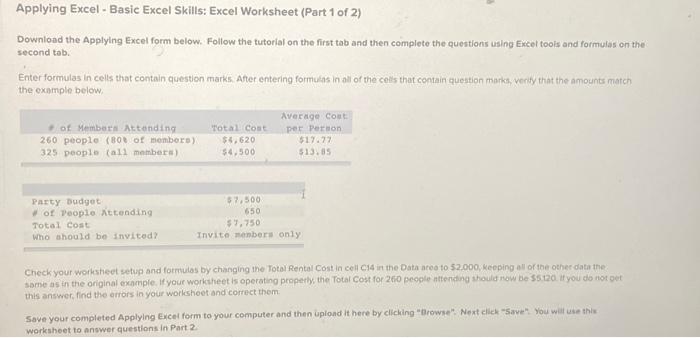
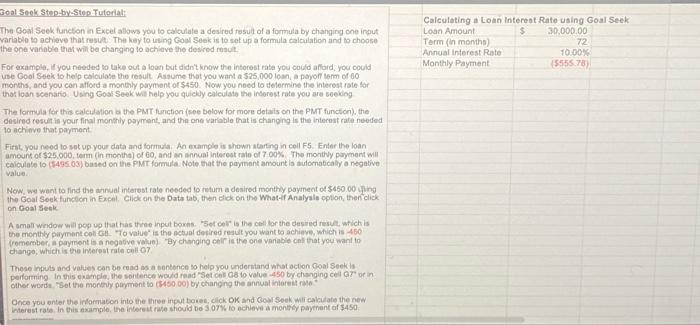
Applying Excel - Basic Excel Skills: Excel Worksheet (Part 1 of 2) Downlond the Applylng Excel form below. Follow the tutorial on the first tab and then complete the questions using Excel toois and formulas on the second tab. Enter formulas in cells that contain question marks. After entering formulas in all of the colls that contain queation marks, venty that the amounts mateh the eximple below. Check your worksheet setup and formulas by changing the Totol Rental Cost in cell Cl4 in the Data aceo to 52.000 keeping all of the other data the same as in the original example. If your worktheet is operating properby the fotal Cost for 2 boo peogle nttending should now be 55.120 if you do not pet this answer, find the errors in your worksheet and correct them. Save your completed Applylng Excel form to your computer and then uplond it here by cliching "Browhe". Next click -5aye". You wat use this worksheet to answer questions in Part? foal Seek Stop-by-Step Tutorial: The Goal Seek functon in Excel allows you to calculale a desired fesult of a formula by changing one ingut varable te achieve that resul. The key to ising Goel Seek is to set up a formula caiculation and to choose the one varable that will be changing lo achiave the desired rosult. For example, If you needed to take out a loan tut didn't know the interest rate you could afford, you could use Gool Seek to help ealculase the result Assume that you want a $25,000 losn, a payof lem of 00 months, and you con atford a monthly paryment of $+50. Now you noed to thelermine the interest rate for that iosn scenario. Using Goal Seek will help you quickly calculato the indorest rate you are soeking The formula for this calculation a the PMT function (see below for more delais on the PMT function). the desired result is your final monthily poyment, and the one varlable that is chanoing is the interest rate neoded 10 achieve that payment. Fiest you need to sot upyour data and formula. An example is shewn atarting in cell F5. Enter the loan amount of $2.5.000, term (in monthe) of 60 , and an annual interest rate of 7.00%. The monthy payment will calculate to (S495.03) based on the PMT formule. Note that the payment amount is dulomabicaly a negative value. Now we want to find the minual interest rate neoded to fetum a desired monthly poyment of $460.00 thing the Goal Seek function in Excel. Click on the Data tab, then dick on the Whatde Analyals option, then click on coal seek A amait windowe will pos ug thathas three input bowns. "Set cel" is the cell lor the desired result wrich is A the monthly paymint college. "To vatue" is the octual detired result you want bo achieve, which is 450 (romember, ai pryment is a negabve value) "By changing celif is the one variabie cell that you want to Chango, which is the irverest rate cell 0 ? These inputs and vaites con be cead as a bontence so help you underntand what octon Goal Seekis performing in this example, the sontence would read "Set ces 08 io value 450 byechanging cel 6r or in pother woedis. FSet the morehly pormment to (\$SS0 00) by changing the annuat inlereis rase" Once you onter the informabon into the three ingut boves, cllck ok and Goar Seek wit calcidate the ned Applying Excel - Basic Excel Skills: Excel Worksheet (Part 1 of 2) Downlond the Applylng Excel form below. Follow the tutorial on the first tab and then complete the questions using Excel toois and formulas on the second tab. Enter formulas in cells that contain question marks. After entering formulas in all of the colls that contain queation marks, venty that the amounts mateh the eximple below. Check your worksheet setup and formulas by changing the Totol Rental Cost in cell Cl4 in the Data aceo to 52.000 keeping all of the other data the same as in the original example. If your worktheet is operating properby the fotal Cost for 2 boo peogle nttending should now be 55.120 if you do not pet this answer, find the errors in your worksheet and correct them. Save your completed Applylng Excel form to your computer and then uplond it here by cliching "Browhe". Next click -5aye". You wat use this worksheet to answer questions in Part? foal Seek Stop-by-Step Tutorial: The Goal Seek functon in Excel allows you to calculale a desired fesult of a formula by changing one ingut varable te achieve that resul. The key to ising Goel Seek is to set up a formula caiculation and to choose the one varable that will be changing lo achiave the desired rosult. For example, If you needed to take out a loan tut didn't know the interest rate you could afford, you could use Gool Seek to help ealculase the result Assume that you want a $25,000 losn, a payof lem of 00 months, and you con atford a monthly paryment of $+50. Now you noed to thelermine the interest rate for that iosn scenario. Using Goal Seek will help you quickly calculato the indorest rate you are soeking The formula for this calculation a the PMT function (see below for more delais on the PMT function). the desired result is your final monthily poyment, and the one varlable that is chanoing is the interest rate neoded 10 achieve that payment. Fiest you need to sot upyour data and formula. An example is shewn atarting in cell F5. Enter the loan amount of $2.5.000, term (in monthe) of 60 , and an annual interest rate of 7.00%. The monthy payment will calculate to (S495.03) based on the PMT formule. Note that the payment amount is dulomabicaly a negative value. Now we want to find the minual interest rate neoded to fetum a desired monthly poyment of $460.00 thing the Goal Seek function in Excel. Click on the Data tab, then dick on the Whatde Analyals option, then click on coal seek A amait windowe will pos ug thathas three input bowns. "Set cel" is the cell lor the desired result wrich is A the monthly paymint college. "To vatue" is the octual detired result you want bo achieve, which is 450 (romember, ai pryment is a negabve value) "By changing celif is the one variabie cell that you want to Chango, which is the irverest rate cell 0 ? These inputs and vaites con be cead as a bontence so help you underntand what octon Goal Seekis performing in this example, the sontence would read "Set ces 08 io value 450 byechanging cel 6r or in pother woedis. FSet the morehly pormment to (\$SS0 00) by changing the annuat inlereis rase" Once you onter the informabon into the three ingut boves, cllck ok and Goar Seek wit calcidate the ned
Step by Step Solution
There are 3 Steps involved in it

Get step-by-step solutions from verified subject matter experts
 Study Help