





Question: Assessment 2 - Week 9 Assessment type: Individual assignment Purpose: This assessment contributes to Learning Outcomes ULO1, ULO2 and ULO6. Value: 30% Due Date: Report
Assessment 2 - Week 9 Assessment type: Individual

Assessment 2 - Week 9 Assessment type: Individual

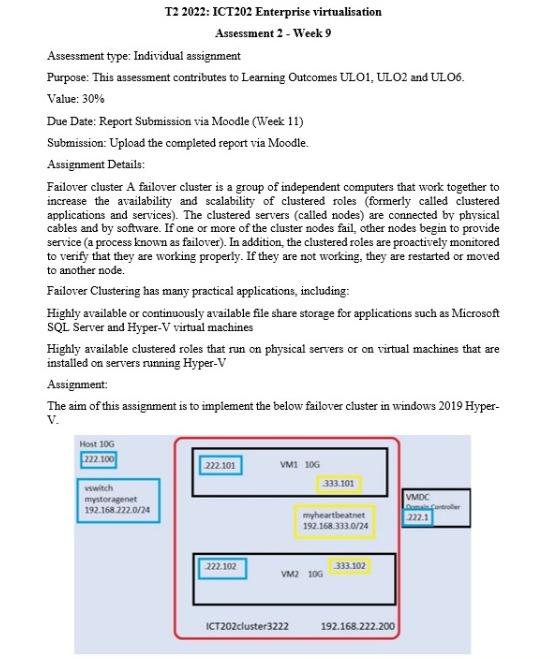
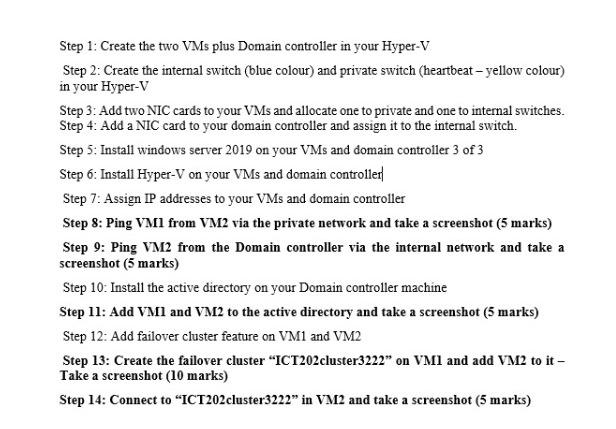
Assessment 2 - Week 9 Assessment type: Individual assignment Purpose: This assessment contributes to Learning Outcomes ULO1, ULO2 and ULO6. Value: 30% Due Date: Report Submission via Moodle (Week 11) Submission: Upload the completed report via Moodle. Assignment Details: Failover cluster A failover cluster is a group of independent computers that work together to increase the availability and scalability of clustered roles (formerly called clustered applications and services). The clustered servers (called nodes) are connected by physical cables and by software. If one or more of the cluster nodes fail, other nodes begin to provide service (a process known as failover). In addition, the clustered roles are proactively monitored to verify that they are working properly. If they are not working, they are restarted or moved to another node. Failover Clustering has many practical applications, including: Highly available or continuously available file share storage for applications such as Microsoft SQL Server and Hyper- V virtual machines Highly available clustered roles that run on physical servers or on virtual machines that are installed on servers nuning Hyper-V Assignment: The aim of this assignment is to implement the below failover cluster in windows 2019 Hyper- Step 1: Create the two VMs plus Domain controller in your HyperV Step 2: Create the internal switch (blue colour) and private switch (heartbeat-yellow colour) in your Hyper- V Step 3: Add two NIC cards to your VMs and allocate one to private and one to internal switches. Step 4: Add a NIC card to your domain controller and assign it to the internal switch. Step 5: Install windows server 2019 on your VMs and domain controller 3 of 3 Step 6: Install Hyper-V on your VMs and domain controller| Step 7: Assign IP addresses to your VMs and domain controller Step 8: Ping VM1 from VM2 via the private network and take a screenshot (5 marks) Step 9: Ping VM2 from the Domain controller via the internal network and take a screenshot (5 marks) Step 10: Install the active directory on your Domain controller machine Step 11: Add VM1 and VM2 to the active directory and take a screenshot (5 marks) Step 12: Add failover cluster feature on VM1 and VM2 Step 13: Create the failover cluster "ICT202cluster3222" on VM1 and add VM2 to it Take a screenshot (10 marks) Step 14: Connect to "ICT202cluster3222" in VM2 and take a screenshot (5 marks) Assessment 2 - Week 9 Assessment type: Individual assignment Purpose: This assessment contributes to Learning Outcomes ULO1, ULO2 and ULO6. Value: 30% Due Date: Report Submission via Moodle (Week 11) Submission: Upload the completed report via Moodle. Assignment Details: Failover cluster A failover cluster is a group of independent computers that work together to increase the availability and scalability of clustered roles (formerly called clustered applications and services). The clustered servers (called nodes) are connected by physical cables and by software. If one or more of the cluster nodes fail, other nodes begin to provide service (a process known as failover). In addition, the clustered roles are proactively monitored to verify that they are working properly. If they are not working, they are restarted or moved to another node. Failover Clustering has many practical applications, including: Highly available or continuously available file share storage for applications such as Microsoft SQL Server and Hyper- V virtual machines Highly available clustered roles that run on physical servers or on virtual machines that are installed on servers nuning Hyper-V Assignment: The aim of this assignment is to implement the below failover cluster in windows 2019 Hyper- Step 1: Create the two VMs plus Domain controller in your HyperV Step 2: Create the internal switch (blue colour) and private switch (heartbeat-yellow colour) in your Hyper- V Step 3: Add two NIC cards to your VMs and allocate one to private and one to internal switches. Step 4: Add a NIC card to your domain controller and assign it to the internal switch. Step 5: Install windows server 2019 on your VMs and domain controller 3 of 3 Step 6: Install Hyper-V on your VMs and domain controller| Step 7: Assign IP addresses to your VMs and domain controller Step 8: Ping VM1 from VM2 via the private network and take a screenshot (5 marks) Step 9: Ping VM2 from the Domain controller via the internal network and take a screenshot (5 marks) Step 10: Install the active directory on your Domain controller machine Step 11: Add VM1 and VM2 to the active directory and take a screenshot (5 marks) Step 12: Add failover cluster feature on VM1 and VM2 Step 13: Create the failover cluster "ICT202cluster3222" on VM1 and add VM2 to it Take a screenshot (10 marks) Step 14: Connect to "ICT202cluster3222" in VM2 and take a screenshot

Step by Step Solution

There are 3 Steps involved in it

1 Expert Approved Answer
Step: 1 Unlock blur-text-image

Question Has Been Solved by an Expert!

Get step-by-step solutions from verified subject matter experts

Step: 2 Unlock
Step: 3 Unlock

Students Have Also Explored These Related General Management Questions!