







Question: ASSIGNMENT 3: Create a Plan with MS Project () For the following list, create a baseline plan (following the instruction in later pages). List of
ASSIGNMENT 3: Create a Plan with MS Project ()
For the following list, create a baseline plan (following the instruction in later pages). List of activities are in D2L, so make it easier for data entry. You enter the duration, dependencies and resources as mentioned below and then level resources. The resources info is also in excel file of D2L, second sheet of it.
Solve the missing items in red.
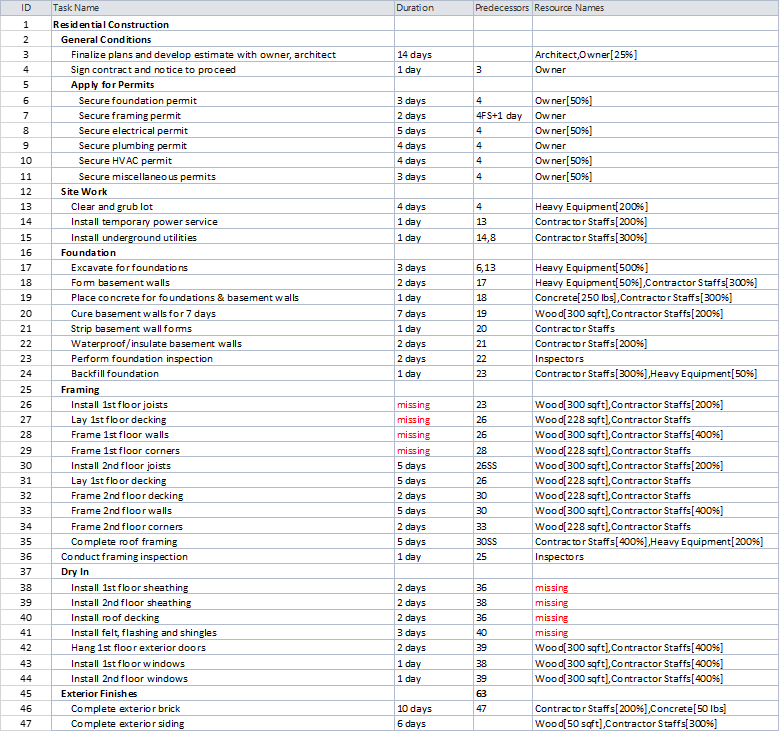
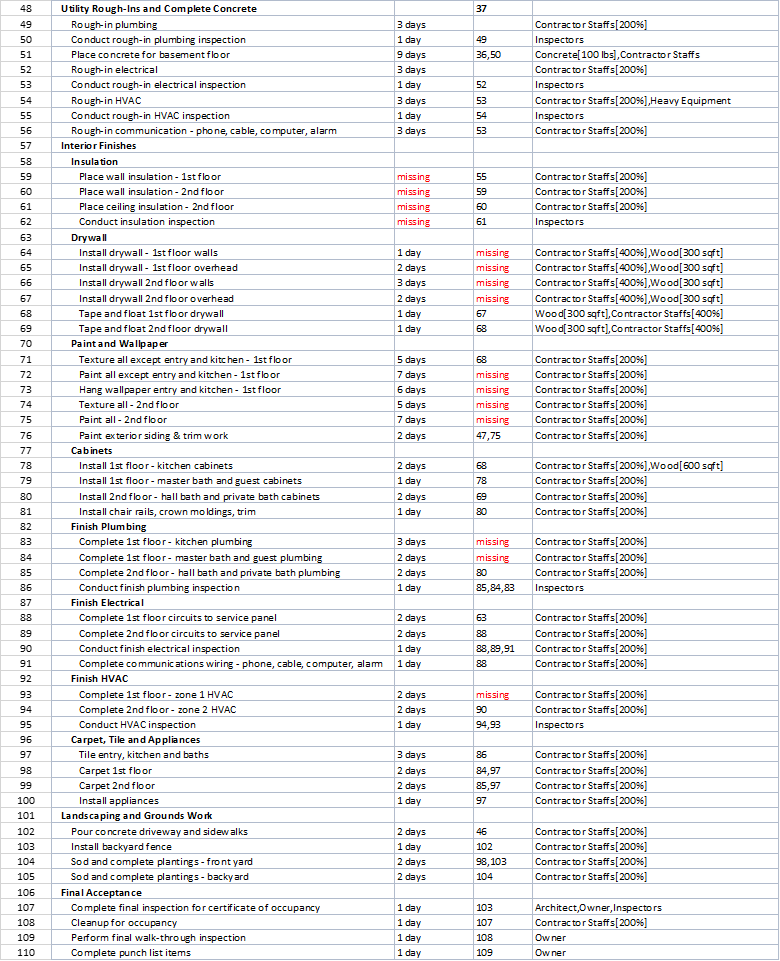
Detail Instruction:
Create a new plan and set its start date as of August 1st (your current date should be one day in July)
Create tasks from list provided in D2L (first sheet of excel file), and then enter task durations (above pictures)
Link tasks to create dependencies (above pictures).
For the durations and dependencies that are missing, use your numbers.
Switch task scheduling from manual to automatic
Check a plans duration and finish date
Switch task scheduling from automatic to manual for entering resources below
Set up work resources from list in D2L (second sheet of excel file)
Adjust working time in a resource calendar for inspector and architect (not working Thursday & Friday)
Create and assign material resources
Assign work resources to tasks based on list.
Switch task scheduling from manual to automatic
Check the plan after assigning resources
Examine resource allocations over time
Resolve resource overallocations manually (use activity floats and move tasks)
Check the plans cost and finish date and critical tasks
Customize a Gantt chart view (watch the video instruction of it on D2L)
Save a baseline of your plan
Utility Rough-Ins and Complete Concrete 37 Utility Rough-Ins and Complete Concrete 37
Step by Step Solution
There are 3 Steps involved in it

Get step-by-step solutions from verified subject matter experts
 Study Help