







Question: Assignment Using the file InvoiceData accab, complete the reports & queries below. Before submitting your work, make sure your file has two reports and seven
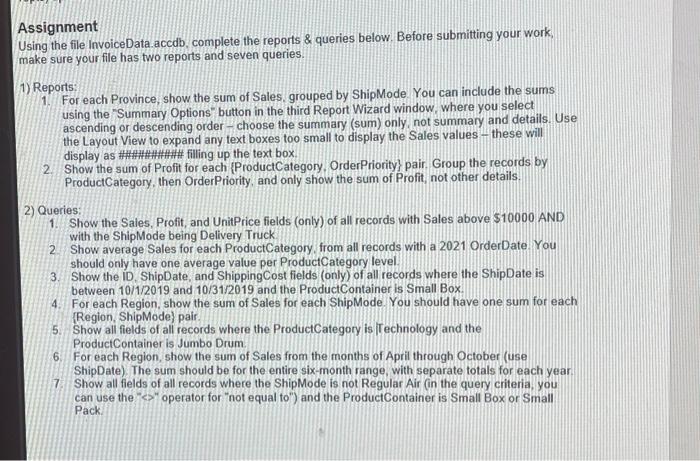
Assignment Using the file InvoiceData accab, complete the reports \& queries below. Before submitting your work, make sure your file has two reports and seven queries. 1) Reports: 1. For each Province, show the sum of Sales. grouped by ShipMode. You can include the sums using the "Summary Options" button in the third Report Wizard window, where you select ascending or descending order - choose the summary (sum) only, not summary and details. Use the Layout View to expand any text boxes too small to display the Sales values - these will display as \#\#\#\#\#\#nnn\# filling up the text box 2. Show the sum of Profit for each \{ProductCategory. OrderPriority\} pair. Group the records by ProductCategory, then OrderPriority, and only show the sum of Profit, not other details. 2) Queries: 1. Show the Sales, Profit, and UnitPrice fields (only) of all records with Sales above $10000 AND with the Shiplode being Delivery Truck. 2. Show average Sales for each ProductCategory, from all records with a 2021 OrderDate. You should only have one average value per ProductCategory level. 3. Show the ID. ShipDate, and ShippingCost fields (only) of all records where the ShipDate is between 10/1/2019 and 10/31/2019 and the ProductContainer is Small Box. 4. For each Region, show the sum of Sales for each ShipMode. You should have one sum for each \{Region, ShipMode\} pair. 5. Show all fields of all records where the ProductCategory is I Technology and the ProductContainer is Jumbo Drum. 6. For each Region, show the sum of Sales from the months of April through October (use ShipDate). The sum should be for the entire six-month range, with separate totals for each year- 7. Show all fields of all records where the ShipMode is not Regular Air (in the query criteria, you can use the " > " operator for "not equal to") and the ProductContainer is Small Box or Small Pack
Step by Step Solution
There are 3 Steps involved in it

Get step-by-step solutions from verified subject matter experts
 Study Help