







Question: b . Correct the function used in cell A 3 to calculate the sum of the values in the NumAttending column. c . D .
b Correct the function used in cell A to calculate the sum of the values
in the NumAttending column.
c D Correct the function used in cell A to count the number of values in
the street column.
d Correct the function used in cell to count the number of blank cells
in the NumAttending column.
e Correct the function used in cell A to display the largest value in the
NumbAttending column
f Correct the function used in cell A to display the average value in the
NumAttending column
On the Shopping List sheet, check all the formulas. Cells to check are filled
with the light purple color. Most of them need to be corrected. Many of the
problems on this worksheet can be solved by creating named ranges or
using name that already exists.
a The formula in cell uses the wrong function.
b The formulas in cells A:A reference a named range that doesn't
exist. There is more than one correct way to fix this problem using the cell
range A:H on the Places to Shop worksheet. You can create the named
range referenced in the formulas, or you can change the function
arguments to reference the cell range instead.
c The formula in cell results in the correct value. However, the
workbook author copied this formula to the remaining cells in the column
and those values are definitely not correct! Fix the formula in cell H and
copy it to cells H:H Hint. Notice that cell H is named Tax.
If you've fixed the formulas in cells : correctly, the formulas in cells
: and G should calculate properly now. However, the formulas in cells
G:G still have errors that need to be fixed. Hint: Use error checking as
needed andor display the formulas onscreen for easy viewing.
a Correct the function used in cell to average value of the Cost
column.
b Correct the function used in cell G to display the largest value in the
Cost column.
c Correct the function used in cell G to display the smallest value in the
Cost column.
On the Summary sheet, you will be entering all the formulas. Cells to
complete are filled with the light purple color. Hint: Use error checking as
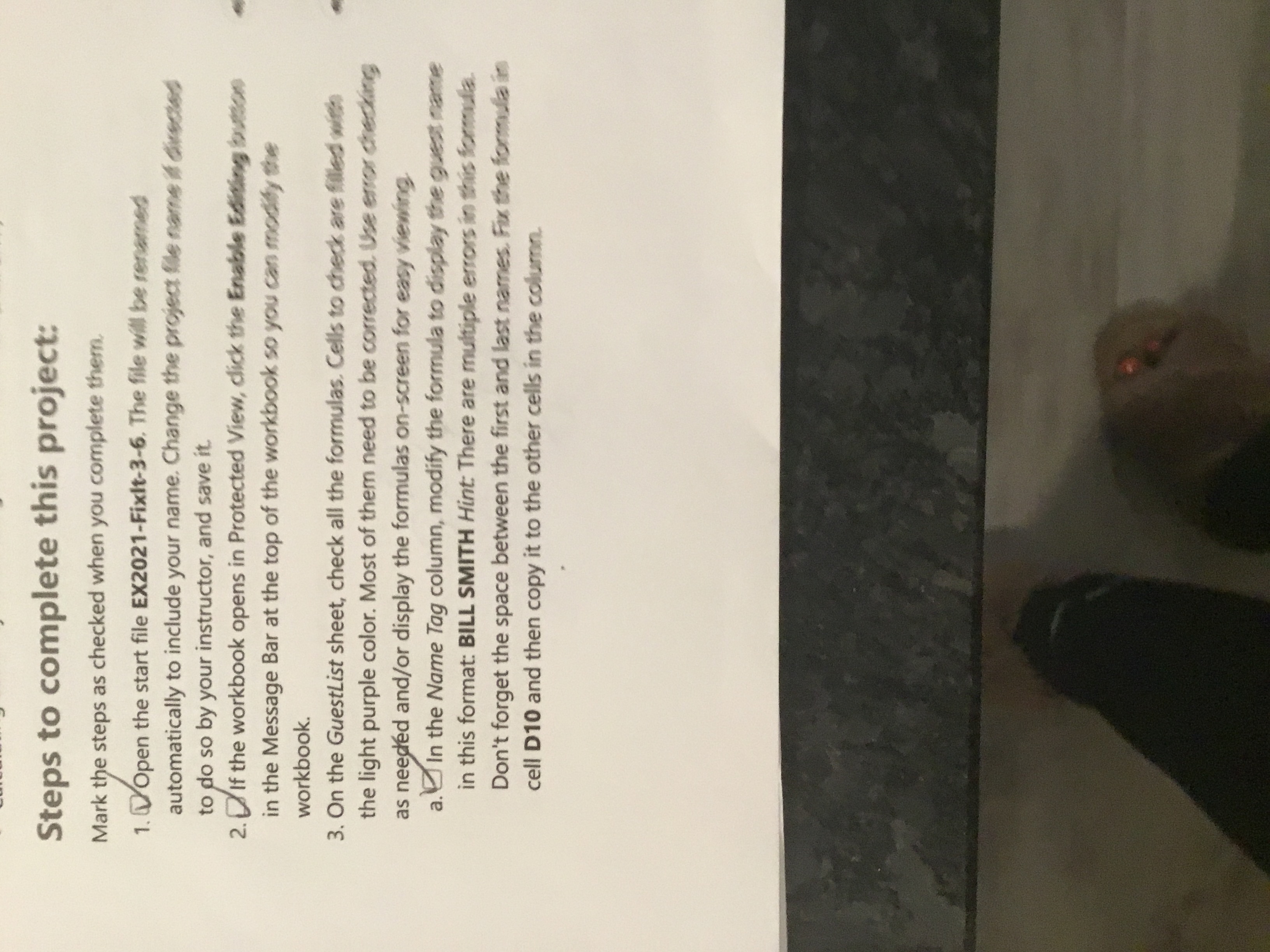
needed andor display the formulas onscreen for easy viewing.Steps to complete this project:
Mark the steps as checked when you complete them.
Open the start file EXFixIt The file will be renamed
automatically to include your name. Change the project ite name if divsetes
to do so by your instructor, and save it
If the workbook opens in Protected View, click the Enable Edining button
in the Message Bar at the top of the workbook so you can modify the
workbook.
On the GuestList sheet, check all the formulas. Cells to check are filled with
the light purple color. Most of them need to be corrected. Use error checking
as neeged andor display the formulas onscreen for easy viewing.
a In the Name Tag column, modify the formula to display the guest name
in this format: BILL SMITH Hint: There are multiple errors in this formula.
Don't forget the space between the first and last names. Fix the formula in
cell D and then copy it to the other cells in the column.
Step by Step Solution
There are 3 Steps involved in it
1 Expert Approved Answer
Step: 1 Unlock

Question Has Been Solved by an Expert!
Get step-by-step solutions from verified subject matter experts
Step: 2 Unlock
Step: 3 Unlock
 Study Help