







Question: BEGIN ASSINGMENT IM STRUGGLING FOR HRS TASK 2 Assignment Search DuckDuckGo or type a URI TASK 2: Generate the left side images For this task,
BEGIN ASSINGMENT IM STRUGGLING FOR HRS
TASK 2 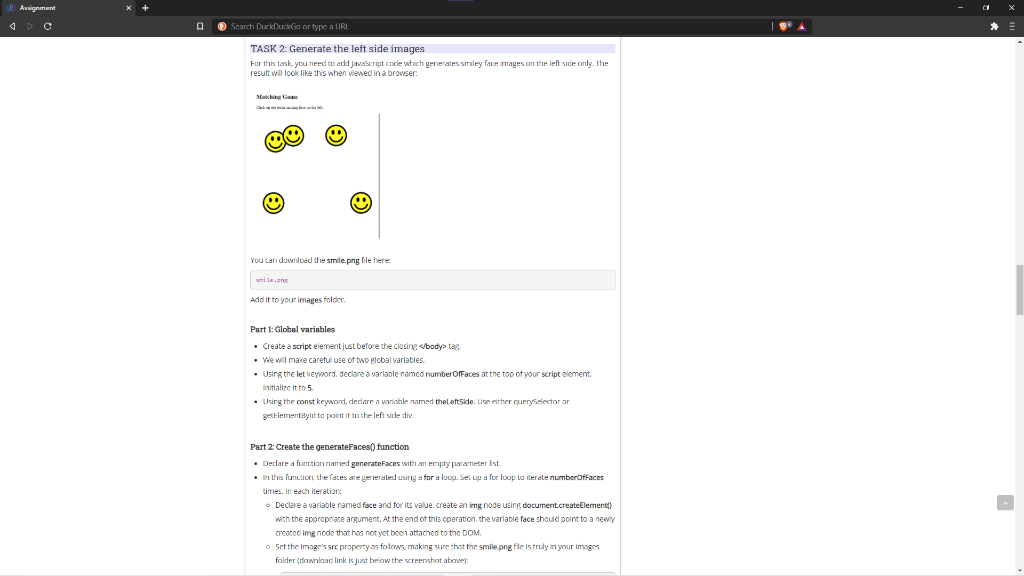
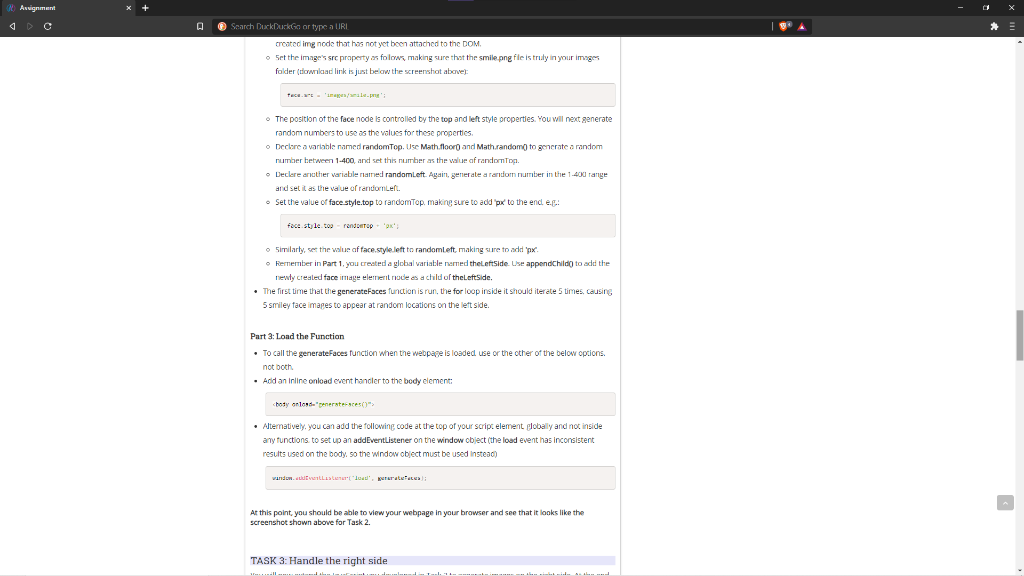
Assignment Search DuckDuckGo or type a URI TASK 2: Generate the left side images For this task, you need to add JavaScript code which generates smiley face images on the left side only. The result will look like this when viewed in a browser You can download the smile.png file here. Add it to your images folder Part 1: Global variables Create a script element just before the closing . We will make careful use of two global variables. . Using the let keyword declare a variable named numberOfFaces at the top of your script element Initialize it to 5 Using the const keyword, derlare a variable named the left side. Lise either querySelector ar getElementById to point it to the left side div Part 2: Create the generateFaces() function Declare a function named generateFaces with an empty parameter ist . In this function, the faces are generated using a for a loop. Set up a lor loop literale numberOfFaces times in each iteration Declare a variable named face and for its value. create animg node using document.createElement with the appropriate argument. At the end of this operation, the variable face should point to a newly created img node that has not yet been attached to the DOM. 5ct the images are property as folows, making sure that the smile.png file is truly in your images folder (ownload link is just below the screenshot above): Assignment Search DuckDuckGo or type a URL created img node that has not yet been attached to the DOM. Set the image's src property as follows, making sure that the smile.png file is truly in your images folder (towad link is just below the screenshot above): The position of the face node is controlled by the top and left style properties. You will next generate random numbers to use as the values for these properties o Declare a variable named randomTop. Use Math.floor and Math.random) to generate a random number between 1-400 and set this number as the value of randomo. Leclere another variable named randomLeft Again, generate a random number in the 1.400 range and set it as the value ofrendoleft. Set the value of face style.top to randomTop. making sure to add to the end er face style.toprendo Similarly, set the value of face.style.left to randomleft, making sure to add 'px kermember in Part 1, you created a global variable need theLeftsideUse appendChild to add the newly created face image element modes a child of theLeftSide. The first time that the generateFaces function is run, the for loop inside it should iterate 5 times, causing 5 smiley face images to appear at random locations on the left side. Part 3: Load the Function To call the generateFaces function when the webpage is loaded use or the other of the below options. not bort Add an inline onload event handler to the body element: boty on onderstes()" Alternatively, you can add the following code at the top of your script element plobally and not inside any functions to set up an addEventListener on the window object (the load event has inconsistent results used on the body, so the window object must be used instead) window.adventListener los reali At this point, you should be able to view your webpage in your browser and see that it looks like the screenshot shown above for Task 2. TASK 3: Handle the right side Assignment Search DuckDuckGo or type a URI TASK 2: Generate the left side images For this task, you need to add JavaScript code which generates smiley face images on the left side only. The result will look like this when viewed in a browser You can download the smile.png file here. Add it to your images folder Part 1: Global variables Create a script element just before the closing . We will make careful use of two global variables. . Using the let keyword declare a variable named numberOfFaces at the top of your script element Initialize it to 5 Using the const keyword, derlare a variable named the left side. Lise either querySelector ar getElementById to point it to the left side div Part 2: Create the generateFaces() function Declare a function named generateFaces with an empty parameter ist . In this function, the faces are generated using a for a loop. Set up a lor loop literale numberOfFaces times in each iteration Declare a variable named face and for its value. create animg node using document.createElement with the appropriate argument. At the end of this operation, the variable face should point to a newly created img node that has not yet been attached to the DOM. 5ct the images are property as folows, making sure that the smile.png file is truly in your images folder (ownload link is just below the screenshot above): Assignment Search DuckDuckGo or type a URL created img node that has not yet been attached to the DOM. Set the image's src property as follows, making sure that the smile.png file is truly in your images folder (towad link is just below the screenshot above): The position of the face node is controlled by the top and left style properties. You will next generate random numbers to use as the values for these properties o Declare a variable named randomTop. Use Math.floor and Math.random) to generate a random number between 1-400 and set this number as the value of randomo. Leclere another variable named randomLeft Again, generate a random number in the 1.400 range and set it as the value ofrendoleft. Set the value of face style.top to randomTop. making sure to add to the end er face style.toprendo Similarly, set the value of face.style.left to randomleft, making sure to add 'px kermember in Part 1, you created a global variable need theLeftsideUse appendChild to add the newly created face image element modes a child of theLeftSide. The first time that the generateFaces function is run, the for loop inside it should iterate 5 times, causing 5 smiley face images to appear at random locations on the left side. Part 3: Load the Function To call the generateFaces function when the webpage is loaded use or the other of the below options. not bort Add an inline onload event handler to the body element: boty on onderstes()" Alternatively, you can add the following code at the top of your script element plobally and not inside any functions to set up an addEventListener on the window object (the load event has inconsistent results used on the body, so the window object must be used instead) window.adventListener los reali At this point, you should be able to view your webpage in your browser and see that it looks like the screenshot shown above for Task 2. TASK 3: Handle the right side
Step by Step Solution
There are 3 Steps involved in it

Get step-by-step solutions from verified subject matter experts
 Study Help