







Question: Below, JFrameExample is a simple JFrame Java Application. Your actual assignment is on the 2nd page. import java.awt.FlowLayout; import javax.swing.*; import java.awt.event.ActionListener; import java.awt.event.ActionEvent; public
Below, JFrameExample is a simple JFrame Java Application. Your actual assignment is on the 2nd page. import java.awt.FlowLayout;
import javax.swing.*;
import java.awt.event.ActionListener;
import java.awt.event.ActionEvent;
public class JFrameExample implements ActionListener
{
private JLabel label;
private JButton button;
public JFrameExample()
{
JFrame frame = new JFrame("JFrame Example");
JPanel panel = new JPanel();
panel.setLayout(new FlowLayout());
label = new JLabel("Hello World!");
button = new JButton();
button.setText("Press me");
button.addActionListener(this);
panel.add(label);
panel.add(button);
frame.add(panel);
frame.setSize(200, 300);
frame.setLocationRelativeTo(null);
frame.setDefaultCloseOperation(JFrame.EXIT_ON_CLOSE);
frame.setVisible(true);
} // JFrameExample constructor
public void actionPerformed(ActionEvent e)
{
String text = label.getText();
if (text.startsWith("Hello"))
label.setText("Welcome to Java!");
else
label.setText("Hello World!");
} // actionPerformed
public static void main(String s[])
{
SwingUtilities.invokeLater(new Runnable()
{
public void run()
{
new JFrameExample();
}
});
} // main
}
Modify the SwitchTest Applet given below so that it runs as a Java JFrame Application, similar to the one listed above. You will need to create a class constructor and a main method and add the action event handler. Also there is no showStatus method for applications, so you will need to output the error message by using the JOption class showMessage methods we saw in class. An example of the finished application is shown below. When I enter X for a grade I get the left JOptionPane message. The right pops up when no characters are entered.
import java.awt.*;
import java.awt.event.*;
import javax.swing.JApplet;
import javax.swing.*;
import java.awt.image.*;
public class SwitchTest extends JApplet implements ActionListener {
JLabel prompt;
JTextField input;
private int aCount, bCount, cCount, dCount, fCount;
public void init()
{
JPanel pane = (JPanel)this.getContentPane();
pane.setLayout(new FlowLayout());
prompt = new JLabel( "Enter Grade" );
prompt.setBackground(Color.GRAY);
input = new JTextField( 8 );
pane.add(prompt);
pane.add(input);
input.addActionListener(this);
setBackground(Color.GRAY);
setVisible(true);
}
public void update(Graphics g) { paint(g); }
public void paint( Graphics g )
{
BufferedImage bi = new BufferedImage(getWidth(), getHeight(), BufferedImage.TYPE_INT_RGB);
Graphics2D graphics = bi.createGraphics();
graphics.setColor(Color.YELLOW);
graphics.fill(new Rectangle(0,0,getWidth(), getHeight()));
graphics.setColor(Color.BLUE);
graphics.drawString( "Totals for each letter grade:", 25, 40 );
graphics.drawString( "A: " + aCount, 25, 55 );
graphics.drawString( "B: " + bCount, 25, 70 );
graphics.drawString( "C: " + cCount, 25, 85 );
graphics.drawString( "D: " + dCount, 25, 100 );
graphics.drawString( "F: " + fCount, 25, 115 );
g.drawImage(bi,0,0,this);
prompt.setVisible(true);
}
public void actionPerformed( ActionEvent e)
{
String val = e.getActionCommand();
char grade = val.charAt( 0 );
showStatus( "" ); // clear status bar area
input.setText( "" ); // clear input text field
switch ( grade ) {
case 'A': case 'a': // Grade was uppercase A
++aCount; // or lowercase a.
break;
case 'B': case 'b': // Grade was uppercase B
++bCount; // or lowercase b.
break;
case 'C': case 'c': // Grade was uppercase C
++cCount; // or lowercase c.
break;
case 'D': case 'd': // Grade was uppercase D
++dCount; // or lowercase d.
break;
case 'F': case 'f': // Grade was uppercase F
++fCount; // or lowercase f.
break;
default: // catch all other characters
showStatus( "Incorrect grade. Enter new grade." );
break;
}
repaint(); // display summary of results
} }
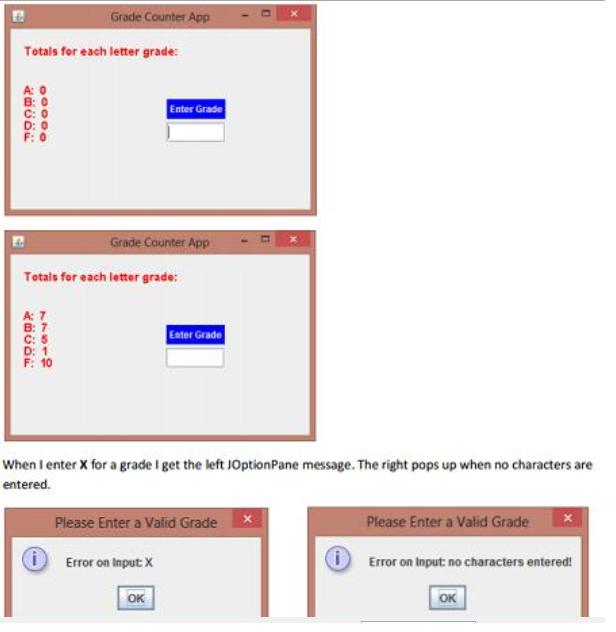
Grade Counter App Totals for each letter grade: A: o B: 0 C: 0 D: 0 F: 0 Enter Grade Grade Counter App Totals for each letter grade: A: 7 B: 7 C: 5 Enter Grade F: 10 When I enter X for a gradeI get the left J0ptionPane message. The right pops up when no characters are entered Please Enter a Valid Grade Please Enter a Valid Grade IError on Input Error on Input: no characters entered! OK OK
Step by Step Solution
There are 3 Steps involved in it

Get step-by-step solutions from verified subject matter experts
 Study Help