







Question: Budget - Using Excel Choose and Match Functions Budget Year 03 04 Put formulas in the yellow cells only and do not change the formulas
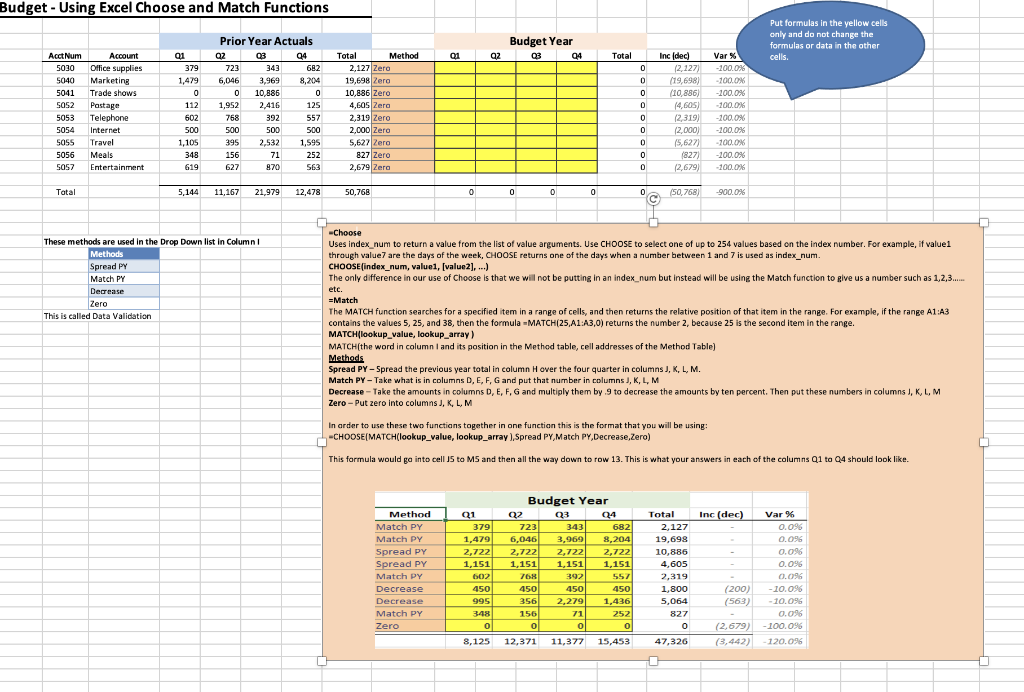
Budget - Using Excel Choose and Match Functions Budget Year 03 04 Put formulas in the yellow cells only and do not change the formulas or data in the other cells. Account 01 Q2 Total 0 0 Acct Num 5030 5040 5041 SOS2 5053 5054 5055 5056 5057 0 0 Office supplies Marketing Trade shows Postage Telephone Internet Travel Meals Entertainment Prior Year Actuals Q2 03 Q4 723 343 682 6,046 3,969 8,204 0 10,886 0 1,952 2,416 125 758 392 557 500 500 500 395 2.532 1,595 156 71 252 627 870 563 01 379 1,479 0 o 112 602 500 1,105 348 619 Total Method 2,127 Zero 19,698 Zero 10,886 Zero 4,605 Zero 2.319 Zero 2.000 Zero 5,627 Zero 827 Zero 2,679 Zero Inc (dec) (2.127) (19,698) (10,886) 14,605) (2319) (2.000) (5,627) (827) (2,679) Var % -100.0 -100.0% -200.0% -100.0% -200.0% -100.0% -100.0% -200.0% 100.0% 0 0 0 0 0 Total 5,144 11,167 21,979 12,478 50,768 0 0 0 0 50.768) -900.0% 0 These methods are used in the Drop Down list in Column Methods Spread PY Match py Decrease Zero This is called Data Validation -Choose Uses index_num to return a value from the list of value arguments. Use CHOOSE to select one of up to 254 values based on the index number. For example, if valuel through value7 are the days of the week, CHOOSE returns one of the days when a number between 1 and 7 is used as index_num. CHOOSE(index_num, valuei, [value2),...) The only difference in our use of Choose is that we will not be putting in an index_num but instead will be using the Match function to give us a number such as 1,2,3..... a etc. =Match The MATCH function searches for a specified item in a range of cells, and then returns the relative position of that item in the range. For example, if the range A1:A3 contains the values 5, 25, and 38, then the formula -MATCH(25,A1:A3,0) returns the number 2, because 25 is the second item in the range. MATCH(lookup_value, lookup_array) MATCH(the word in column I and its position in the Method table, cell addresses of the Method Table) Methods Spread PY - Spread the previous year total in column Hover the four quarter in columns J, K, L, M. Match PY - Take what is in columns D, E, F, G and put that number in columns J, K, L, M Decrease - Take the amounts in columns D, E, F, G and multiply them by 9 to decrease the amounts by ten percent. Then put these numbers in columns J, K, L, M Zero - Put zero into columns J, K, L, M In order to use these two functions together in one function this is the format that you will be using: -CHOOSE(MATCH(lookup_value, lookup_array), Spread PY,Match PY,Decrease,Zero) This formula would go into cell 5 to MS and then all the way down to row 13. This is what your answers in each of the columns 1 to 24 should look like. Q1 Q4 . Inc (dec) Method Match PY Match PY Spread PY Spread PY Match PY Decrease Decrease Match PY Zero Q1 3791 1,479 2,722 1,151 602 450 995 348 0 Budget Year Q2 Q3 04 723 343 682 6,046 3,969 8,204 2,722 2,722 2,722 1,151 1,151 1,151 768 392 557 450 450 450 356 2,279 1,436 156 71 252 0 ol 0 12,371 11,377 15,453 Total 2,127 19,698 10,886 4,605 2,319 1,800 5,064 827 0 47,326 Var % 0.096 0.096 0.09% 0.096 0.096 -10.096 10.09 0.096 -100.096 - 120.096 (200) (563) (2,679) (3,442) 8,125 Budget - Using Excel Choose and Match Functions Budget Year 03 04 Put formulas in the yellow cells only and do not change the formulas or data in the other cells. Account 01 Q2 Total 0 0 Acct Num 5030 5040 5041 SOS2 5053 5054 5055 5056 5057 0 0 Office supplies Marketing Trade shows Postage Telephone Internet Travel Meals Entertainment Prior Year Actuals Q2 03 Q4 723 343 682 6,046 3,969 8,204 0 10,886 0 1,952 2,416 125 758 392 557 500 500 500 395 2.532 1,595 156 71 252 627 870 563 01 379 1,479 0 o 112 602 500 1,105 348 619 Total Method 2,127 Zero 19,698 Zero 10,886 Zero 4,605 Zero 2.319 Zero 2.000 Zero 5,627 Zero 827 Zero 2,679 Zero Inc (dec) (2.127) (19,698) (10,886) 14,605) (2319) (2.000) (5,627) (827) (2,679) Var % -100.0 -100.0% -200.0% -100.0% -200.0% -100.0% -100.0% -200.0% 100.0% 0 0 0 0 0 Total 5,144 11,167 21,979 12,478 50,768 0 0 0 0 50.768) -900.0% 0 These methods are used in the Drop Down list in Column Methods Spread PY Match py Decrease Zero This is called Data Validation -Choose Uses index_num to return a value from the list of value arguments. Use CHOOSE to select one of up to 254 values based on the index number. For example, if valuel through value7 are the days of the week, CHOOSE returns one of the days when a number between 1 and 7 is used as index_num. CHOOSE(index_num, valuei, [value2),...) The only difference in our use of Choose is that we will not be putting in an index_num but instead will be using the Match function to give us a number such as 1,2,3..... a etc. =Match The MATCH function searches for a specified item in a range of cells, and then returns the relative position of that item in the range. For example, if the range A1:A3 contains the values 5, 25, and 38, then the formula -MATCH(25,A1:A3,0) returns the number 2, because 25 is the second item in the range. MATCH(lookup_value, lookup_array) MATCH(the word in column I and its position in the Method table, cell addresses of the Method Table) Methods Spread PY - Spread the previous year total in column Hover the four quarter in columns J, K, L, M. Match PY - Take what is in columns D, E, F, G and put that number in columns J, K, L, M Decrease - Take the amounts in columns D, E, F, G and multiply them by 9 to decrease the amounts by ten percent. Then put these numbers in columns J, K, L, M Zero - Put zero into columns J, K, L, M In order to use these two functions together in one function this is the format that you will be using: -CHOOSE(MATCH(lookup_value, lookup_array), Spread PY,Match PY,Decrease,Zero) This formula would go into cell 5 to MS and then all the way down to row 13. This is what your answers in each of the columns 1 to 24 should look like. Q1 Q4 . Inc (dec) Method Match PY Match PY Spread PY Spread PY Match PY Decrease Decrease Match PY Zero Q1 3791 1,479 2,722 1,151 602 450 995 348 0 Budget Year Q2 Q3 04 723 343 682 6,046 3,969 8,204 2,722 2,722 2,722 1,151 1,151 1,151 768 392 557 450 450 450 356 2,279 1,436 156 71 252 0 ol 0 12,371 11,377 15,453 Total 2,127 19,698 10,886 4,605 2,319 1,800 5,064 827 0 47,326 Var % 0.096 0.096 0.09% 0.096 0.096 -10.096 10.09 0.096 -100.096 - 120.096 (200) (563) (2,679) (3,442) 8,125
Step by Step Solution
There are 3 Steps involved in it

Get step-by-step solutions from verified subject matter experts
 Study Help