







Question: Build the ProjectRunner Class Create the Project Runner class the same way you created the other two classes. Fill out the fields and methods
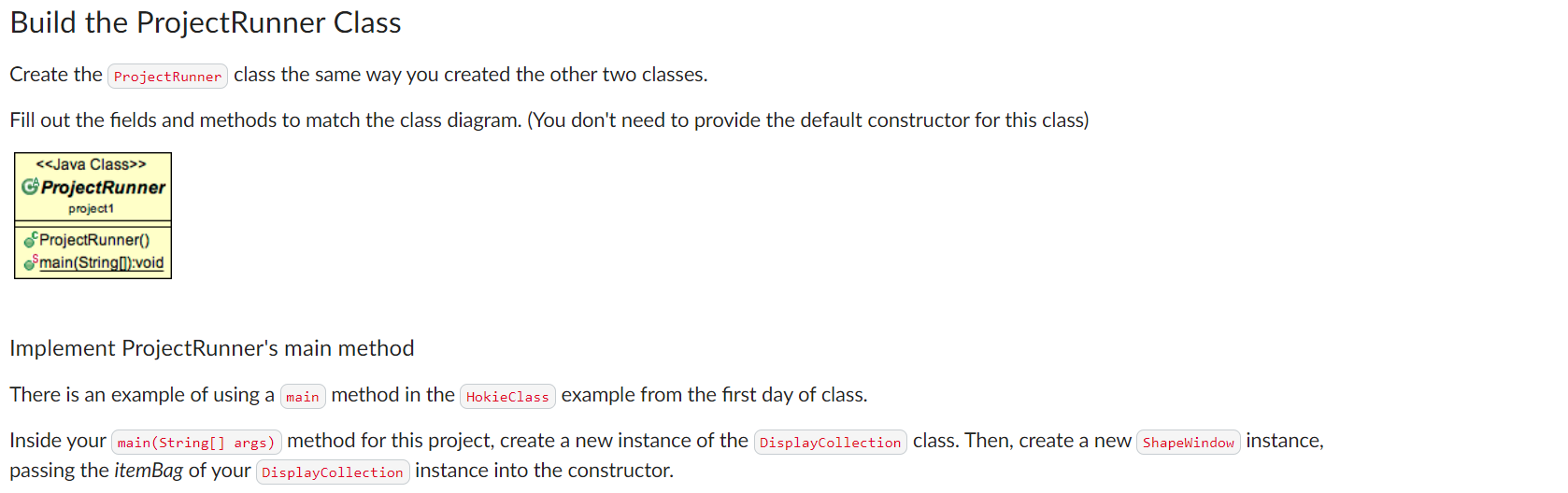
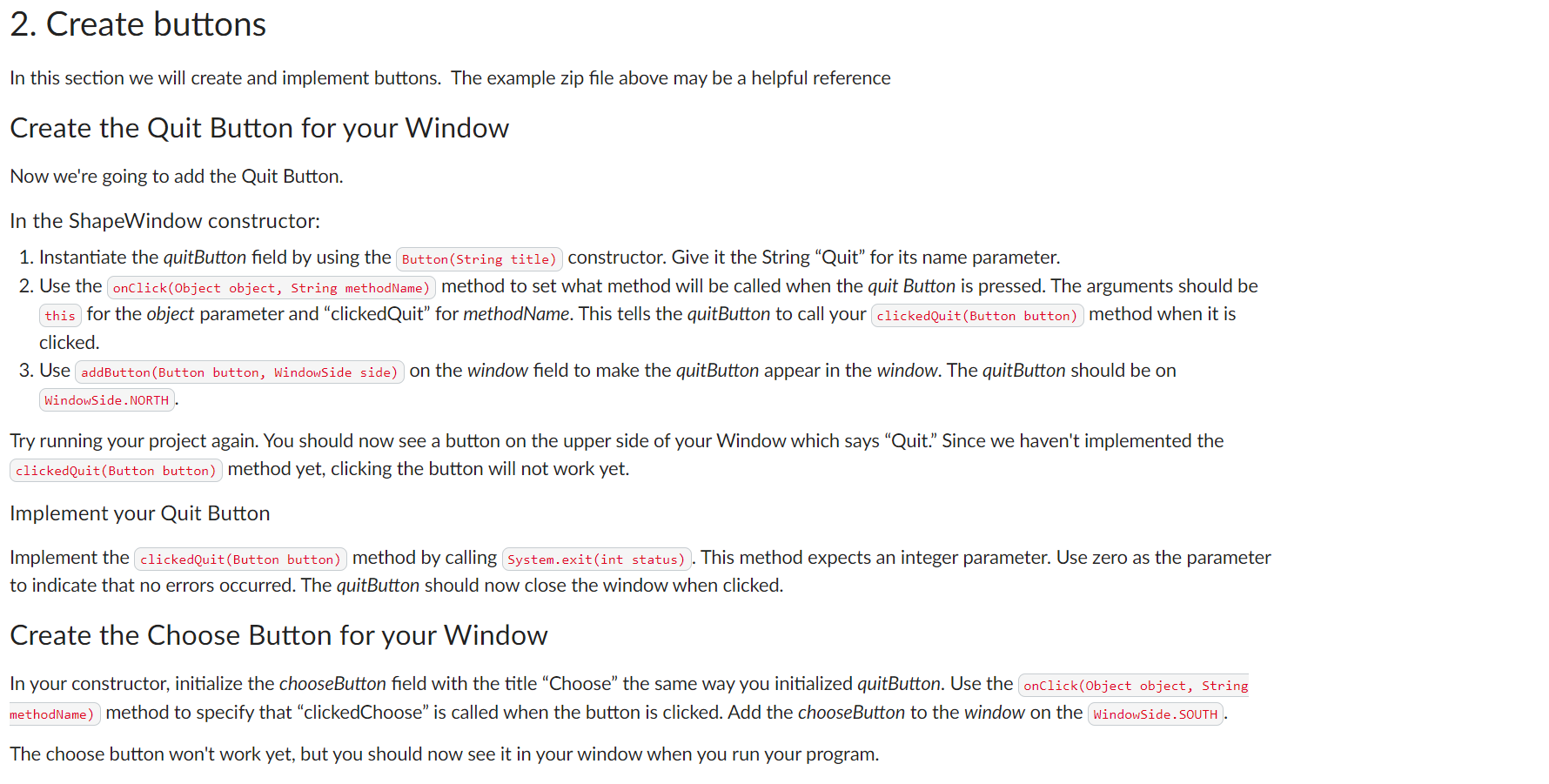
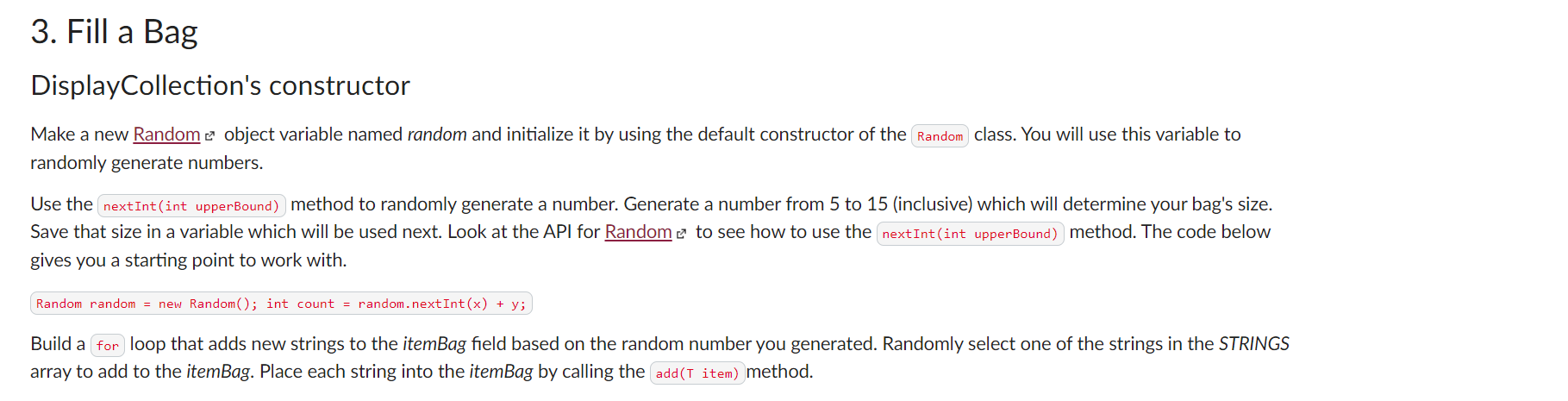
Build the ProjectRunner Class Create the Project Runner class the same way you created the other two classes. Fill out the fields and methods to match the class diagram. (You don't need to provide the default constructor for this class) < > ProjectRunner project1 ProjectRunner() main(String:void Implement ProjectRunner's main method There is an example of using a main method in the HokieClass example from the first day of class. Inside your main(String[] args) method for this project, create a new instance of the DisplayCollection class. Then, create a new Shapewindow instance, passing the itemBag of your Display Collection instance into the constructor. 2. Create buttons In this section we will create and implement buttons. The example zip file above may be a helpful reference Create the Quit Button for your Window Now we're going to add the Quit Button. In the Shape Window constructor: 1. Instantiate the quitButton field by using the Button (String title) constructor. Give it the String "Quit" for its name parameter. 2. Use the onClick(Object object, String methodName) method to set what method will be called when the quit Button is pressed. The arguments should be this for the object parameter and clickedQuit" for methodName. This tells the quitButton to call your clickedQuit (Button button) method when it is clicked. 3. Use addButton (Button button, WindowSide side) on the window field to make the quitButton appear in the window. The quitButton should be on WindowSide.NORTH. Try running your project again. You should now see a button on the upper side of your Window which says "Quit." Since we haven't implemented the clicked Quit (Button button) method yet, clicking the button will not work yet. Implement your Quit Button Implement the clickedQuit (Button button) method by calling System.exit(int status). This method expects an integer parameter. Use zero as the parameter to indicate that no errors occurred. The quitButton should now close the window when clicked. Create the Choose Button for your Window In your constructor, initialize the chooseButton field with the title "Choose" the same way you initialized quitButton. Use the onClick(Object object, String methodName) method to specify that "clicked Choose" is called when the button is clicked. Add the chooseButton to the window on the WindowSide. SOUTH. The choose button won't work yet, but you should now see it in your window when you run your program. 3. Fill a Bag DisplayCollection's constructor Make a new Random object variable named random and initialize it by using the default constructor of the Random class. You will use this variable to randomly generate numbers. Use the nextInt(int upperBound) method to randomly generate a number. Generate a number from 5 to 15 (inclusive) which will determine your bag's size. Save that size in a variable which will be used next. Look at the API for Random to see how to use the nextInt(int upperBound) method. The code below gives you a starting point to work with. Random random = new Random(); int count = random.nextInt(x) + y; Build a for loop that adds new strings to the itemBag field based on the random number you generated. Randomly select one of the strings in the STRINGS array to add to the itemBag. Place each string into the itemBag by calling the add(T item) method.
Step by Step Solution
There are 3 Steps involved in it
Below is the Java implementation of the projectrunner class according to the spec... View full answer

Get step-by-step solutions from verified subject matter experts
 Study Help