







Question: C# : Please post designer.cs with the form.cs Project 2-2 Maintain student scores For this project, you'll develop an application that lets the user add
C# : Please post designer.cs with the form.cs
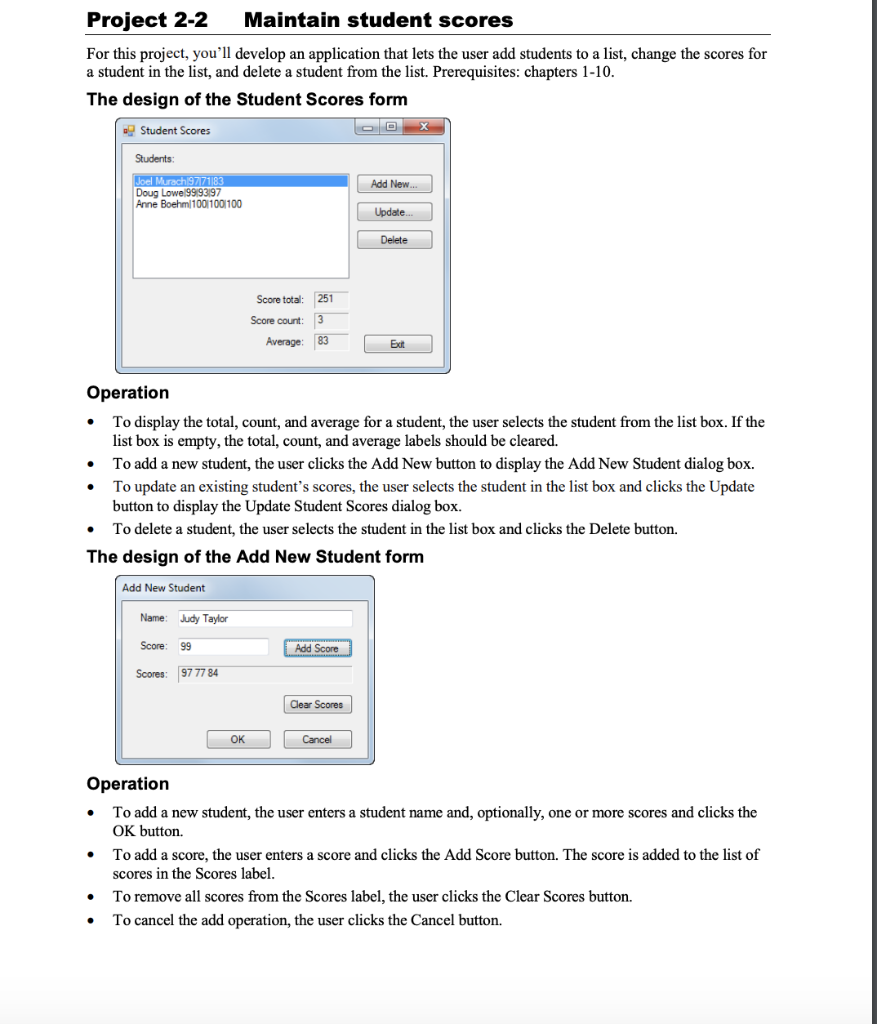
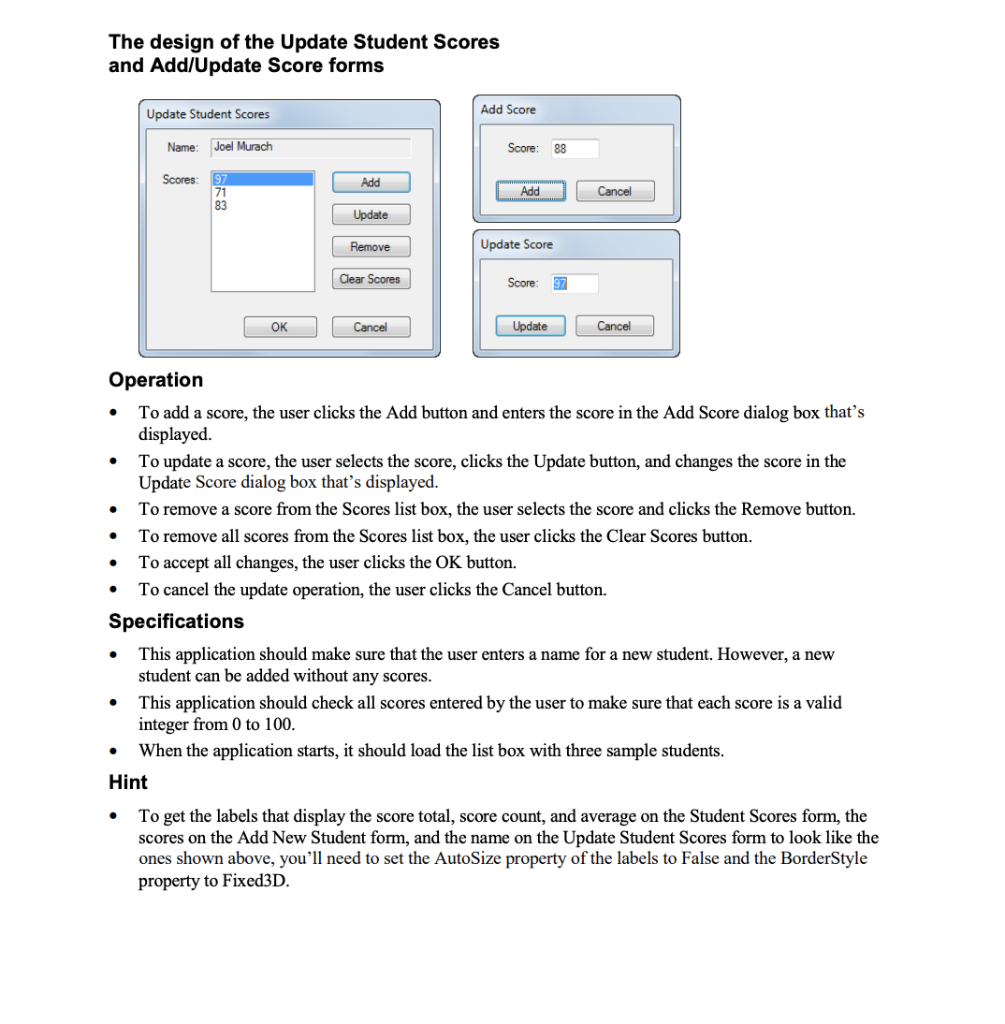
Project 2-2 Maintain student scores For this project, you'll develop an application that lets the user add students to a list, change the scores for a student in the list, and delete a student from the list. Prerequisites: chapters 1-10. The design of the Student Scores form Student Scores Students Add New. Joel Murach 9771183 Doug Lowe9993197 Anne Boehm 10011001100 Update Delete Score total 251 Score count: 3 Average: 83 Exit . Operation To display the total, count, and average for a student, the user selects the student from the list box. If the list box is empty, the total, count, and average labels should be cleared. To add a new student, the user clicks the Add New button to display the Add New Student dialog box. To update an existing student's scores, the user selects the student in the list box and clicks the Update button to display the Update Student Scores dialog box. To delete a student, the user selects the student in the list box and clicks the Delete button. The design of the Add New Student form Add New Student Name Judy Taylor Score 99 Add Score Scores: 97 77 84 Clear Scores OK Cancel . Operation To add a new student, the user enters a student name and, optionally, one or more scores and clicks the OK button. To add a score, the user enters a score and clicks the Add Score button. The score is added to the list of scores in the Scores label. To remove all scores from the Scores label, the user clicks the Clear Scores button. To cancel the add operation, the user clicks the Cancel button. The design of the Update Student Scores and Add/Update Score forms Update Student Scores Add Score Name: Joel Murach Score: 88 Scores Add 97 71 83 Add Cancel Update Remove Update Score Clear Scores Score: 97 OK Cancel Update Cancel . Operation To add a score, the user clicks the Add button and enters the score in the Add Score dialog box that's displayed. To update a score, the user selects the score, clicks the Update button, and changes the score in the Update Score dialog box that's displayed. To remove a score from the Scores list box, the user selects the score and clicks the Remove button. To remove all scores from the Scores list box, the user clicks the Clear Scores button. To accept all changes, the user clicks the OK button. To cancel the update operation, the user clicks the Cancel button. Specifications This application should make sure that the user enters name for a new student. However, a new student can be added without any scores. This application should check all scores entered by the user to make sure that each score is a valid integer from 0 to 100. When the application starts, it should load the list box with three sample students. Hint . To get the labels that display the score total, score count, and average on the Student Scores form, the scores on the Add New Student form, and the name on the Update Student Scores form to look like the ones shown above, you'll need to set the AutoSize property of the labels to False and the BorderStyle property to Fixed3D. Project 2-2 Maintain student scores For this project, you'll develop an application that lets the user add students to a list, change the scores for a student in the list, and delete a student from the list. Prerequisites: chapters 1-10. The design of the Student Scores form Student Scores Students Add New. Joel Murach 9771183 Doug Lowe9993197 Anne Boehm 10011001100 Update Delete Score total 251 Score count: 3 Average: 83 Exit . Operation To display the total, count, and average for a student, the user selects the student from the list box. If the list box is empty, the total, count, and average labels should be cleared. To add a new student, the user clicks the Add New button to display the Add New Student dialog box. To update an existing student's scores, the user selects the student in the list box and clicks the Update button to display the Update Student Scores dialog box. To delete a student, the user selects the student in the list box and clicks the Delete button. The design of the Add New Student form Add New Student Name Judy Taylor Score 99 Add Score Scores: 97 77 84 Clear Scores OK Cancel . Operation To add a new student, the user enters a student name and, optionally, one or more scores and clicks the OK button. To add a score, the user enters a score and clicks the Add Score button. The score is added to the list of scores in the Scores label. To remove all scores from the Scores label, the user clicks the Clear Scores button. To cancel the add operation, the user clicks the Cancel button. The design of the Update Student Scores and Add/Update Score forms Update Student Scores Add Score Name: Joel Murach Score: 88 Scores Add 97 71 83 Add Cancel Update Remove Update Score Clear Scores Score: 97 OK Cancel Update Cancel . Operation To add a score, the user clicks the Add button and enters the score in the Add Score dialog box that's displayed. To update a score, the user selects the score, clicks the Update button, and changes the score in the Update Score dialog box that's displayed. To remove a score from the Scores list box, the user selects the score and clicks the Remove button. To remove all scores from the Scores list box, the user clicks the Clear Scores button. To accept all changes, the user clicks the OK button. To cancel the update operation, the user clicks the Cancel button. Specifications This application should make sure that the user enters name for a new student. However, a new student can be added without any scores. This application should check all scores entered by the user to make sure that each score is a valid integer from 0 to 100. When the application starts, it should load the list box with three sample students. Hint . To get the labels that display the score total, score count, and average on the Student Scores form, the scores on the Add New Student form, and the name on the Update Student Scores form to look like the ones shown above, you'll need to set the AutoSize property of the labels to False and the BorderStyle property to Fixed3D
Step by Step Solution
There are 3 Steps involved in it

Get step-by-step solutions from verified subject matter experts
 Study Help