Question: Case Problem 1 Data File needed for this Case Problem: Schoolaccdb Great Giraffe Jeremiah Garver is the operations manager at Great Giraffe, a career school
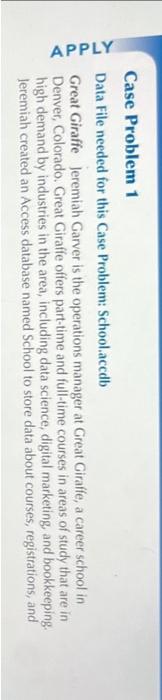
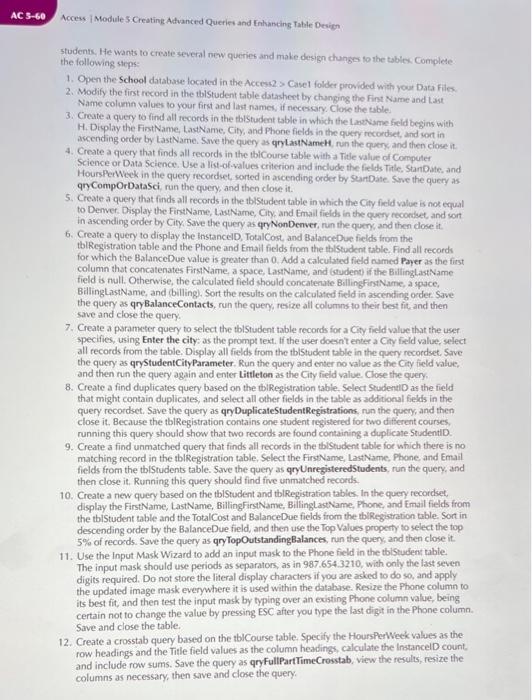
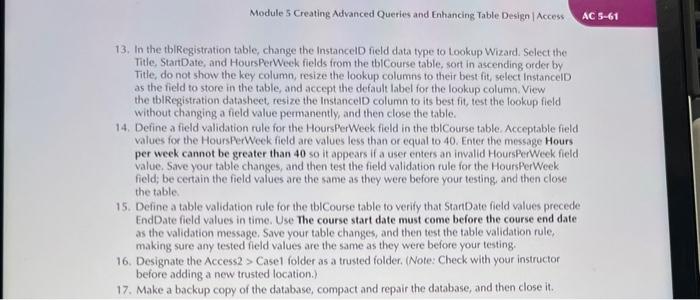
Case Problem 1 Data File needed for this Case Problem: Schoolaccdb Great Giraffe Jeremiah Garver is the operations manager at Great Giraffe, a career school in Denver, Colorado. Great Giraffe offers part-time and full-time courses in areas of study that are in high demand by industries in the area, including data science, digital marketing, and bookkeeping. leremiah created an Access database named School to store data about courses, registrations, and Access I Module 5 Creating Advanced Queries and Enkanting Table Desimen students. He wants to create several new queries and make design thanges to the tables. Complete. the following steps: 1. Open the School database located in the Access2 s Casel folder prowided with your Data Files. 2. Modify the first record in the tbistudent table datasheet by changing the Fint Name and Last. Name column values to your first and last names, if necessary. Clope the table. 3. Create a query to find all records in the tblstudent table in which the Landame freld begins with H. Display the FintName, LastNarne, City, and Phone fieldh in the query recordset, and sot in ascending order by LastName. Srve the query as qrylastNameht, run the query, and then ciose it. 4. Create a query that finds all records in the tbiCourse table with a Title value co Computer Science or Data Science. Use a list-of-values criterion and include the frelds Title. StanDate. and HourspetWeck in the query recordset sorted in ascending order by SartDate. Swe the query as: qryCompOrDataSci, run the query, and then close it. 5. Create a query that finds all records in the tbiStudent table in which the City field value is not equal to Demer. Display the FirstName, Laukame, City, and Email fields in the query recordset, and wort in ascending order by City, Save the query as qryNonDenver, run the query, and then dose it. 6. Create a query to display the instancelD, TotalCost, and BalanceDue fields from the tblRegistration table and the Phone and Email fields from the tblistudent table. Find all records for which the BalanceDue value is greater than 0. Add a calculated field named Payer as the first column that concatenates FirstName, a space, LastName, and (ctudent) if the BillinglastName field is null. Otherwise, the calculated field should concatenate. BillingfinstName, a space, BillinglastName, and billing. Sort the results on the calculated field in ascenting order. Save the query as qryBalanceContacts, run the query, resize all columns to their best fit, and then save and close the query. 7. Create a parameter query to select the tblStudent table records for a City ireld value that the user specifies, using Enter the city: as the prompt text. If the user doesit enter a Caty field value, select all records from the table. Display all fields from the tbl5tudent table in the query recordsec. Save the query as qrystudentCityparameter. Run the query and enter no value as the City field value, and then run the query again and enter littleton as the City field value. Close the query. 8. Create a find duplicates query based on the tbiRegistration table. Select StudentiD as the field that might contain duplicates, and select all other fields in the table as additional felds in the query recordset. Save the query as qryDuplicateStudentRegistrations, run the query, and then close it. Because the tbiRegistration contains one student registered for two different courses, running this query should show that two records are found containing a duplicate StudentiD. 9. Create a find unmatched query that finds all records in the thlStudent table for which there is no matching record in the tblkegistration table, Select the FirstName, LastName, Phone, and Email fields from the thistudents table. Save the query as qryUnregisteredStudents, run the query, and then close it. Running this query should find five unmatched records. 10. Create a new query based on the tbiStudent and tblRegistration tables, In the query recordset, display the FirstName, LastName, Billing firstName, BillinglastName, Phone, and Email fields from the tbiStudent table and the TotalCost and BalanceDoe fields from the tbikegistation table. Sort in descending order by the BalanceDue field, and then use the Top Values property to select the top 5% of records. Save the query as qryTopOutstandingBalances, run the queny, and then close it. 11. Use the input Mask Wizard to add an input mask to the Phone ficld in the tblstudent table. The input mask should use periods as separators, as in 987.654.3210, with only the last seven digits required. Do not store the literal display characters if you are asked to do so, and apply the updated image mask everywhere it is used within the database. Resize the Phone column to its best fit, and then test the input mask by typing ovet an existing Phone column value, being certain not to change the value by pressing ESC after you type the last digit in the Phone column. Save and close the table. 12. Create a crosstab query based on the tblCourse table. Specify the HoursperWeck values as the row headings and the Title field values as the column headings, calculate the InstancelD count. and include rows sums. Save the query as qryFultPartTimeCrosstab, view the results, resize the columns as necessary, then save and close the query: 13. In the tblRegistration table, change the InstancelD field data type to Lookup Wizard. Select the Title, StantDate, and HoursPerWeek fields from the tbiCourse table, sort in ascending order by Title, do not show the key column, resize the lookup columns to their best fit, select instancelD as the field to store in the table, and accept the default label for the lookup column. View the tbIRegistration datasheet, resize the InstancelD column to its best fit, test the lookup field without changing a field value permanently, and then close the table. 14. Define a field validation rule for the HoursperWeek field in the tbiCourse table. Acceptable field values for the HoursPerWeek field are values less than or equal to 40 . Enter the message Hours per week cannot be greater than 40 so it appears if a user enters an irvalid HoursperWeek field value, Save your table changes, and then test the field validation rule for the HoursPerWeek field; be certain the field values are the same as they were before your testing, and then close the table. 15. Define a table validation rule for the tblCourse table to verify that StantDate field values precede EndDate field values in time. Use The course start date must come before the course end date as the validation message. Save your table changes, and then test the table validation rule, making sure any tested field values are the same as they were before your testing. 16. Designate the Access2 > Case1 folder as a trusted folder, (Note: Check with your instructor before adding a new trusted location.) 17. Make a backup copy of the database, compact and repair the database, and then close it. Case Problem 1 Data File needed for this Case Problem: Schoolaccdb Great Giraffe Jeremiah Garver is the operations manager at Great Giraffe, a career school in Denver, Colorado. Great Giraffe offers part-time and full-time courses in areas of study that are in high demand by industries in the area, including data science, digital marketing, and bookkeeping. leremiah created an Access database named School to store data about courses, registrations, and Access I Module 5 Creating Advanced Queries and Enkanting Table Desimen students. He wants to create several new queries and make design thanges to the tables. Complete. the following steps: 1. Open the School database located in the Access2 s Casel folder prowided with your Data Files. 2. Modify the first record in the tbistudent table datasheet by changing the Fint Name and Last. Name column values to your first and last names, if necessary. Clope the table. 3. Create a query to find all records in the tblstudent table in which the Landame freld begins with H. Display the FintName, LastNarne, City, and Phone fieldh in the query recordset, and sot in ascending order by LastName. Srve the query as qrylastNameht, run the query, and then ciose it. 4. Create a query that finds all records in the tbiCourse table with a Title value co Computer Science or Data Science. Use a list-of-values criterion and include the frelds Title. StanDate. and HourspetWeck in the query recordset sorted in ascending order by SartDate. Swe the query as: qryCompOrDataSci, run the query, and then close it. 5. Create a query that finds all records in the tbiStudent table in which the City field value is not equal to Demer. Display the FirstName, Laukame, City, and Email fields in the query recordset, and wort in ascending order by City, Save the query as qryNonDenver, run the query, and then dose it. 6. Create a query to display the instancelD, TotalCost, and BalanceDue fields from the tblRegistration table and the Phone and Email fields from the tblistudent table. Find all records for which the BalanceDue value is greater than 0. Add a calculated field named Payer as the first column that concatenates FirstName, a space, LastName, and (ctudent) if the BillinglastName field is null. Otherwise, the calculated field should concatenate. BillingfinstName, a space, BillinglastName, and billing. Sort the results on the calculated field in ascenting order. Save the query as qryBalanceContacts, run the query, resize all columns to their best fit, and then save and close the query. 7. Create a parameter query to select the tblStudent table records for a City ireld value that the user specifies, using Enter the city: as the prompt text. If the user doesit enter a Caty field value, select all records from the table. Display all fields from the tbl5tudent table in the query recordsec. Save the query as qrystudentCityparameter. Run the query and enter no value as the City field value, and then run the query again and enter littleton as the City field value. Close the query. 8. Create a find duplicates query based on the tbiRegistration table. Select StudentiD as the field that might contain duplicates, and select all other fields in the table as additional felds in the query recordset. Save the query as qryDuplicateStudentRegistrations, run the query, and then close it. Because the tbiRegistration contains one student registered for two different courses, running this query should show that two records are found containing a duplicate StudentiD. 9. Create a find unmatched query that finds all records in the thlStudent table for which there is no matching record in the tblkegistration table, Select the FirstName, LastName, Phone, and Email fields from the thistudents table. Save the query as qryUnregisteredStudents, run the query, and then close it. Running this query should find five unmatched records. 10. Create a new query based on the tbiStudent and tblRegistration tables, In the query recordset, display the FirstName, LastName, Billing firstName, BillinglastName, Phone, and Email fields from the tbiStudent table and the TotalCost and BalanceDoe fields from the tbikegistation table. Sort in descending order by the BalanceDue field, and then use the Top Values property to select the top 5% of records. Save the query as qryTopOutstandingBalances, run the queny, and then close it. 11. Use the input Mask Wizard to add an input mask to the Phone ficld in the tblstudent table. The input mask should use periods as separators, as in 987.654.3210, with only the last seven digits required. Do not store the literal display characters if you are asked to do so, and apply the updated image mask everywhere it is used within the database. Resize the Phone column to its best fit, and then test the input mask by typing ovet an existing Phone column value, being certain not to change the value by pressing ESC after you type the last digit in the Phone column. Save and close the table. 12. Create a crosstab query based on the tblCourse table. Specify the HoursperWeck values as the row headings and the Title field values as the column headings, calculate the InstancelD count. and include rows sums. Save the query as qryFultPartTimeCrosstab, view the results, resize the columns as necessary, then save and close the query: 13. In the tblRegistration table, change the InstancelD field data type to Lookup Wizard. Select the Title, StantDate, and HoursPerWeek fields from the tbiCourse table, sort in ascending order by Title, do not show the key column, resize the lookup columns to their best fit, select instancelD as the field to store in the table, and accept the default label for the lookup column. View the tbIRegistration datasheet, resize the InstancelD column to its best fit, test the lookup field without changing a field value permanently, and then close the table. 14. Define a field validation rule for the HoursperWeek field in the tbiCourse table. Acceptable field values for the HoursPerWeek field are values less than or equal to 40 . Enter the message Hours per week cannot be greater than 40 so it appears if a user enters an irvalid HoursperWeek field value, Save your table changes, and then test the field validation rule for the HoursPerWeek field; be certain the field values are the same as they were before your testing, and then close the table. 15. Define a table validation rule for the tblCourse table to verify that StantDate field values precede EndDate field values in time. Use The course start date must come before the course end date as the validation message. Save your table changes, and then test the table validation rule, making sure any tested field values are the same as they were before your testing. 16. Designate the Access2 > Case1 folder as a trusted folder, (Note: Check with your instructor before adding a new trusted location.) 17. Make a backup copy of the database, compact and repair the database, and then close it









 Study Help