



Question: Case Study: 1 10 Marks Hypothesis: A newly recruited sales manager wants to understand the reporting feature available in the logistics software used within the
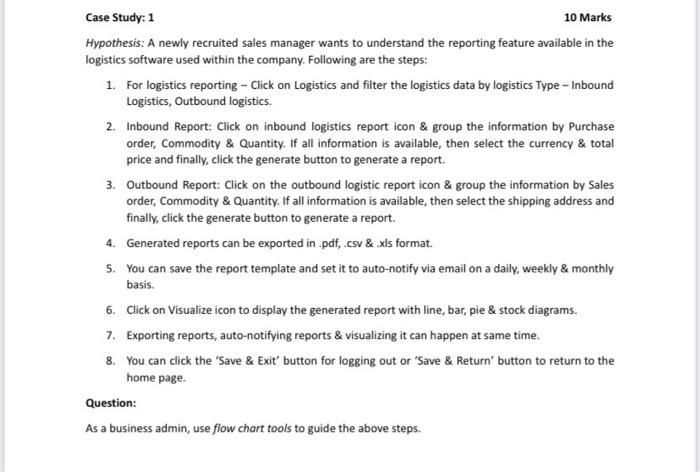
Case Study: 1 10 Marks Hypothesis: A newly recruited sales manager wants to understand the reporting feature available in the logistics software used within the company. Following are the steps: 1. For logistics reporting - Click on Logistics and filter the logistics data by logistics Type - Inbound Logistics, Outbound logistics. 2. Inbound Report: Click on inbound logistics report icon \& group the information by Purchase order, Commodity & Quantity. If all information is available, then select the currency & total price and finally, click the generate button to generate a report. 3. Outbound Report: Click on the outbound logistic report icon & group the information by Sales order, Commodity \& Quantity. If all information is available, then select the shipping address and finally, click the generate button to generate a report. 4. Generated reports can be exported in .pdf, .csv &.xls format. 5. You can save the report template and set it to auto-notify via email on a daily, weekly \& monthly basis. 6. Click on Visualize icon to display the generated report with line, bar, pie & stock diagrams. 7. Exporting reports, auto-notifying reports & visualizing it can happen at same time. 8. You can click the 'Save \& Exit' button for logging out or 'Save & Return' button to return to the home page. Question: As a business admin, use flow chort tools to guide the above steps
Step by Step Solution
There are 3 Steps involved in it

Get step-by-step solutions from verified subject matter experts