







Question: @charset UTF-8; html { box-sizing: border-box; } * { box-sizing: inherit; } body { font-family: Georgia, serif; font-size: 100%; background-color: white; } /* link styles
@charset "UTF-8"; html { box-sizing: border-box; } * { box-sizing: inherit; }
body { font-family: Georgia, serif; font-size: 100%; background-color: white; }
/* link styles */ a:link, a:visited { color: #DC6903; } a:focus, a:hover, a:active { color: #F9AB33; }
/* header styles */ header { color: white; background: url(images/croissants_banner.jpg) no-repeat center center; background-size: cover; text-align: center; height: 15em; } header p { font-style: italic; font-size: 1.2em; }
/* nav styles */ nav, footer { font-family: verdana, sans-serif; background-color: #783F27; } nav ul li a:link, nav ul li a:visited { color: #F9AB33; } nav ul li a:focus, nav ul li a:hover, nav ul li a:active { color: #fff; } nav ul li { font-size: .8em; text-transform: uppercase; letter-spacing: .2em; }
/* main "products" styles */ main { font-family: 'Stint Ultra Expanded', cursive; background-color: white; line-height: 1.8em; color: #555; padding: 1em; } h3 { text-transform: uppercase; letter-spacing: .2em; color: #7A0002; } p.more { font-family: verdana, sans-serif; text-transform: uppercase; font-size: .8em; }
/* aside "hours" styles */ aside { background: url(images/scallop.png) repeat-y left top; background-color: #F6F3ED; padding: 1em; padding-left: 45px; }
/* misc styles */ footer { color: #EADDC4; text-align: center; font-size: .8em; padding: 1em; } h2 { font-family: 'Stint Ultra Expanded', cursive; } .day { color: #783F27; font-family: verdana, sans-serif; font-size: .8em; text-transform: uppercase; }
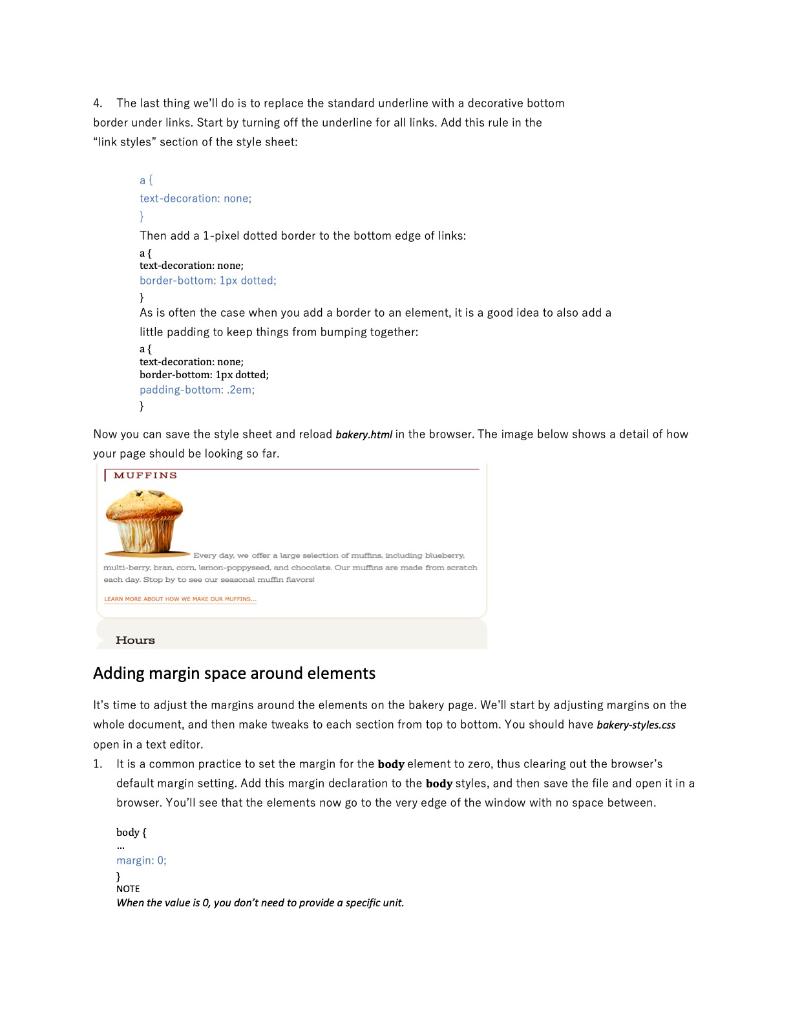
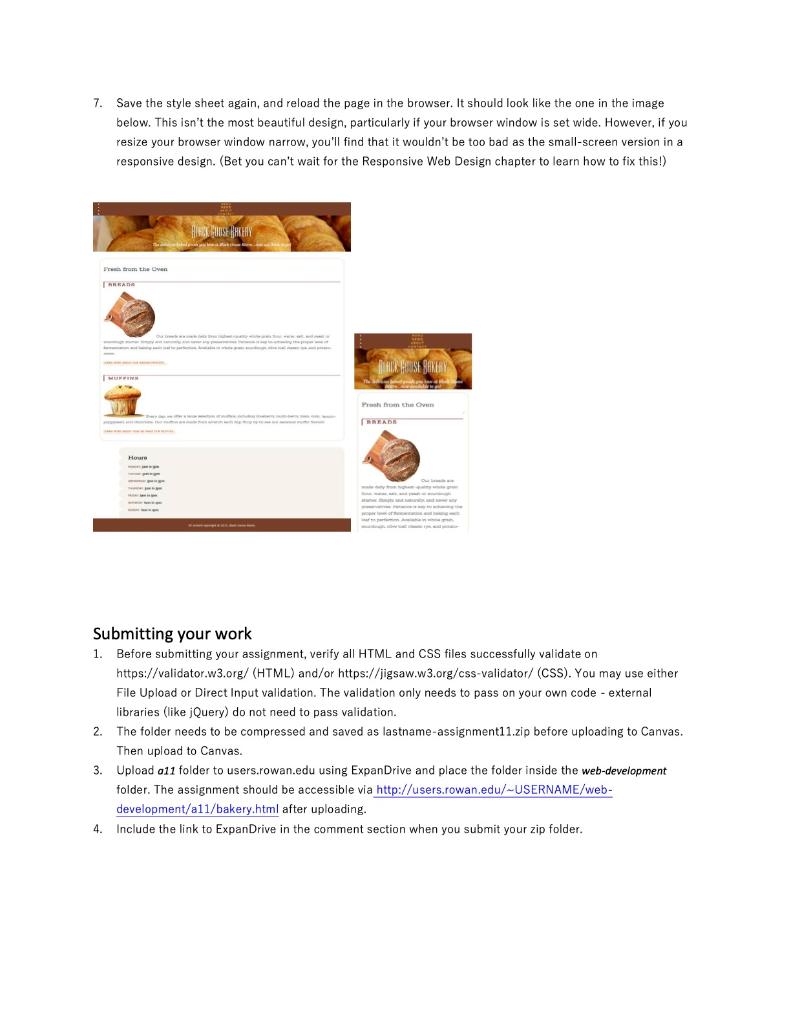
Assignment 11 Getting Started 1. Copy ala folder provided to you from the assignment la resources folder. This folder needs to be placed inside the web-development folder. Both locally and on ExpanDrive. Border tricks In this exercise, we'll have some fun with borders on the Black Goose Bakery page. In addition to putting borders around content sections of the page, we'll use borders to beef up the headlines and as an alternative to underlines under links. 1. Open bakery-styles.css in a text editor if it isn't already. We'll start with the basics by using the shorthand border property to add a tan double rule around the main element. Add the new declaration to the existing rule for main main padding: 1em; border: double 4px #EADDC4; } 2. Now try out some border-radius properties to add generous rounded corners to the main and aside sections. A 25-pixel radius should do. Pixels are my choice over ems here because I don't want the radius to scale with the text. Start by adding this declaration to the styles for main: border-radius: 25px; And give just the top-right corner of the aside a matching rounded corner: aside { border-top-right-radius: 25px; } 3. Just for fun (and practice), we'll add a decorative border on two sides of the baked goods headings (h3). Find the existing rule for h3 elements and add a declaration that adds a 1-pixel solid rule on the top of the headline. Add another that adds a thicker 3-pixel solid rule on the left. I want the borders to be the same color as the text, so we don't need to specify the border-color. Finally, to prevent the text from bumping into the left border, add a little bit of padding (lem) to the left of the headline content: h3{ border-top: 1px solid; border-left: 3px solid; padding-left: 1em; } 4. The last thing we'll do is to replace the standard underline with a decorative bottom border under links. Start by turning off the underline for all links. Add this rule in the "link styles" section of the style sheet: al text-decoration: none; Then add a 1-pixel dotted border to the bottom edge of links: a{ text-decoration: none; border-bottom: 1px dotted: } As is often the case when you add a border to an element, it is a good idea to also add a little padding to keep things from bumping together: a{ text-decoration:none; border-bottom: 1px dotted; padding-bottom: 2em; } detail of how Now you can save the style sheet and reload bakery.html in the browser. The image below shows your page should be looking so far. MUFFINS Every day, we offer a large selection of mutis including blueberry mules-barry, bean, com lamon-poppyseed, and chocolate. Our muns are made from scratch each day. Stop by to see our sonansal mutin favorst LEARN MORE ABOUT HOW WE MEDULINS Hours Adding margin space around elements It's time to adjust the margins around the elements on the bakery page. We'll start by adjusting margins on the whole document, and then make tweaks to each section from top to bottom. You should have bakery-styles.css open in a text editor. 1. It is a common practice to set the margin for the body element to zero, thus clearing out the browser's default margin setting. Add this margin declaration to the body styles, and then save the file and open it in a browser. You'll see that the elements now go to the very edge of the window with no space between body { margin: 0; NOTE When the value is 0, you don't need to provide a specific unit. 7. Save the style sheet again, and reload the page in the browser. It should look like the one in the image below. This isn't the most beautiful design, particularly your browser window is set wide. However, if you resize your browser window narrow, you'll find that it wouldn't be too bad as the small-screen version in a responsive design. (Bet you can't wait for the Responsive Web Design chapter to learn how to fix this!) Pretrom the One Phunu I Khu CNHTH Hour Submitting your work 1. Before submitting your assignment, verify all HTML and CSS files successfully validate on https://validator.w3.org/ (HTML) and/or https://jigsaw.w3.org/css-validator/ (CSS). You may use either File Upload or Direct Input validation. The validation only needs to pass on your own code - external libraries (like jQuery) do not need to pass validation. 2. The folder needs to be compressed and saved as lastname-assignment11.zip before uploading to Canvas. Then upload to Canvas. 3. Upload 011 folder to users.rowan.edu using ExpanDrive and place the folder inside the web-development folder. The assignment should be accessible via http://users.rowan.edu/-USERNAME/web- development/a11/bakery.html after uploading. Include the link to ExpanDrive in the comment section when you submit your zip folder. 4 Assignment 11 Getting Started 1. Copy ala folder provided to you from the assignment la resources folder. This folder needs to be placed inside the web-development folder. Both locally and on ExpanDrive. Border tricks In this exercise, we'll have some fun with borders on the Black Goose Bakery page. In addition to putting borders around content sections of the page, we'll use borders to beef up the headlines and as an alternative to underlines under links. 1. Open bakery-styles.css in a text editor if it isn't already. We'll start with the basics by using the shorthand border property to add a tan double rule around the main element. Add the new declaration to the existing rule for main main padding: 1em; border: double 4px #EADDC4; } 2. Now try out some border-radius properties to add generous rounded corners to the main and aside sections. A 25-pixel radius should do. Pixels are my choice over ems here because I don't want the radius to scale with the text. Start by adding this declaration to the styles for main: border-radius: 25px; And give just the top-right corner of the aside a matching rounded corner: aside { border-top-right-radius: 25px; } 3. Just for fun (and practice), we'll add a decorative border on two sides of the baked goods headings (h3). Find the existing rule for h3 elements and add a declaration that adds a 1-pixel solid rule on the top of the headline. Add another that adds a thicker 3-pixel solid rule on the left. I want the borders to be the same color as the text, so we don't need to specify the border-color. Finally, to prevent the text from bumping into the left border, add a little bit of padding (lem) to the left of the headline content: h3{ border-top: 1px solid; border-left: 3px solid; padding-left: 1em; } 4. The last thing we'll do is to replace the standard underline with a decorative bottom border under links. Start by turning off the underline for all links. Add this rule in the "link styles" section of the style sheet: al text-decoration: none; Then add a 1-pixel dotted border to the bottom edge of links: a{ text-decoration: none; border-bottom: 1px dotted: } As is often the case when you add a border to an element, it is a good idea to also add a little padding to keep things from bumping together: a{ text-decoration:none; border-bottom: 1px dotted; padding-bottom: 2em; } detail of how Now you can save the style sheet and reload bakery.html in the browser. The image below shows your page should be looking so far. MUFFINS Every day, we offer a large selection of mutis including blueberry mules-barry, bean, com lamon-poppyseed, and chocolate. Our muns are made from scratch each day. Stop by to see our sonansal mutin favorst LEARN MORE ABOUT HOW WE MEDULINS Hours Adding margin space around elements It's time to adjust the margins around the elements on the bakery page. We'll start by adjusting margins on the whole document, and then make tweaks to each section from top to bottom. You should have bakery-styles.css open in a text editor. 1. It is a common practice to set the margin for the body element to zero, thus clearing out the browser's default margin setting. Add this margin declaration to the body styles, and then save the file and open it in a browser. You'll see that the elements now go to the very edge of the window with no space between body { margin: 0; NOTE When the value is 0, you don't need to provide a specific unit. 7. Save the style sheet again, and reload the page in the browser. It should look like the one in the image below. This isn't the most beautiful design, particularly your browser window is set wide. However, if you resize your browser window narrow, you'll find that it wouldn't be too bad as the small-screen version in a responsive design. (Bet you can't wait for the Responsive Web Design chapter to learn how to fix this!) Pretrom the One Phunu I Khu CNHTH Hour Submitting your work 1. Before submitting your assignment, verify all HTML and CSS files successfully validate on https://validator.w3.org/ (HTML) and/or https://jigsaw.w3.org/css-validator/ (CSS). You may use either File Upload or Direct Input validation. The validation only needs to pass on your own code - external libraries (like jQuery) do not need to pass validation. 2. The folder needs to be compressed and saved as lastname-assignment11.zip before uploading to Canvas. Then upload to Canvas. 3. Upload 011 folder to users.rowan.edu using ExpanDrive and place the folder inside the web-development folder. The assignment should be accessible via http://users.rowan.edu/-USERNAME/web- development/a11/bakery.html after uploading. Include the link to ExpanDrive in the comment section when you submit your zip folder. 4
Step by Step Solution
There are 3 Steps involved in it

Get step-by-step solutions from verified subject matter experts
 Study Help