







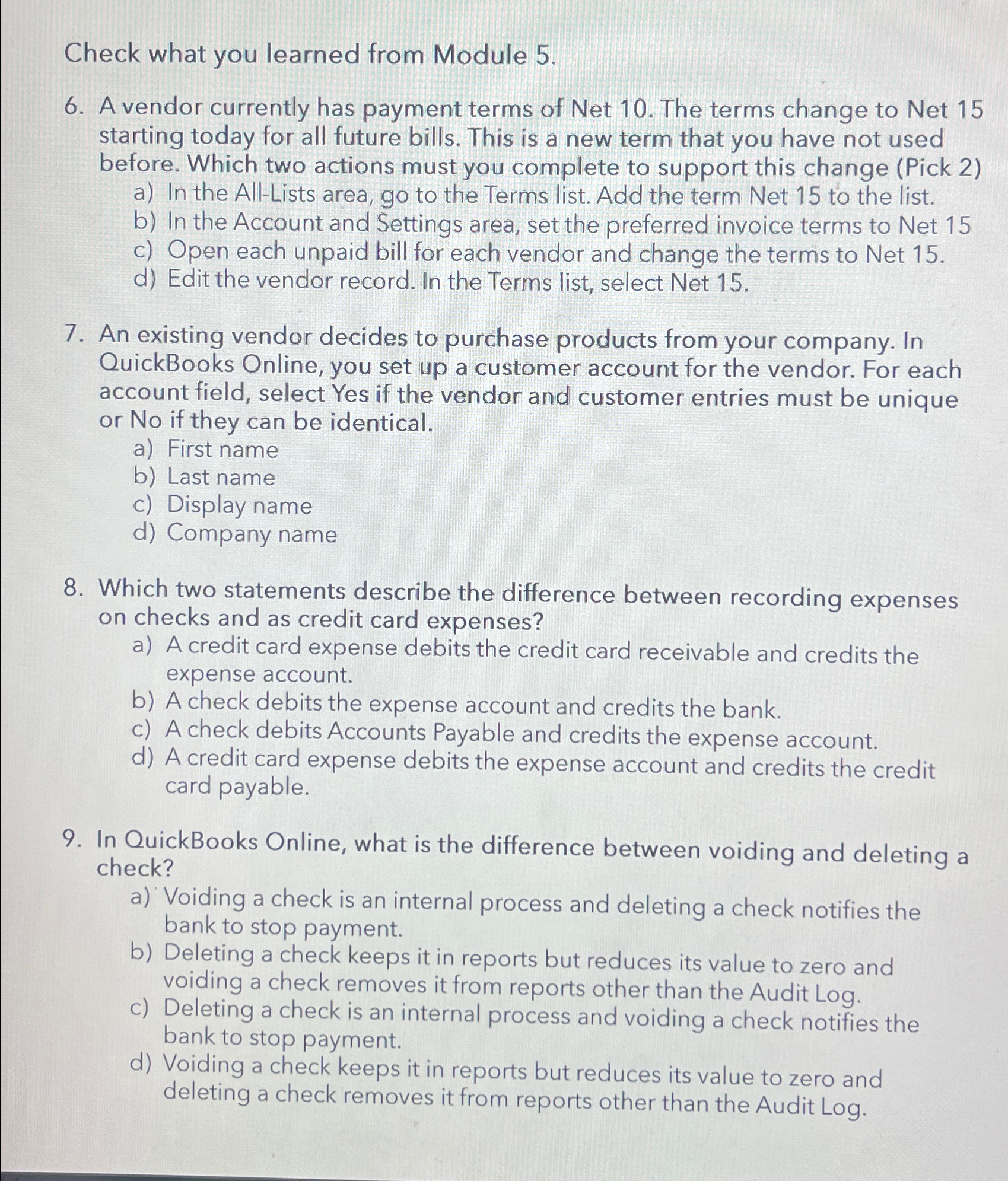
Question: Check what you learned from Module 5 . 6 . A vendor currently has payment terms of Net 1 0 . The terms change to
Check what you learned from Module
A vendor currently has payment terms of Net The terms change to Net starting today for all future bills. This is a new term that you have not used before. Which two actions must you complete to support this change Pick
a In the AllLists area, go to the Terms list. Add the term Net to the list.
b In the Account and Settings area, set the preferred invoice terms to Net
c Open each unpaid bill for each vendor and change the terms to Net
d Edit the vendor record. In the Terms list, select Net
An existing vendor decides to purchase products from your company. In QuickBooks Online, you set up a customer account for the vendor. For each account field, select Yes if the vendor and customer entries must be unique or No if they can be identical.
a First name
b Last name
c Display name
d Company name
Which two statements describe the difference between recording expenses on checks and as credit card expenses?
a A credit card expense debits the credit card receivable and credits the expense account.
b A check debits the expense account and credits the bank.
c A check debits Accounts Payable and credits the expense account.
d A credit card expense debits the expense account and credits the credit card payable.
In QuickBooks Online, what is the difference between voiding and deleting a check?
a Voiding a check is an internal process and deleting a check notifies the bank to stop payment.
b Deleting a check keeps it in reports but reduces its value to zero and voiding a check removes it from reports other than the Audit Log.
c Deleting a check is an internal process and voiding a check notifies the bank to stop payment.
d Voiding a check keeps it in reports but reduces its value to zero and deleting a check removes it from reports other than the Audit Log.
Step by Step Solution
There are 3 Steps involved in it
1 Expert Approved Answer
Step: 1 Unlock

Question Has Been Solved by an Expert!
Get step-by-step solutions from verified subject matter experts
Step: 2 Unlock
Step: 3 Unlock
 Study Help