







Question: Common Text Functions Concatenate ( bring together ) text strings using ampersand ( & ) and adding a space, : Number Conversion Not
Common Text Functions Concatenate bring together text strings using ampersand & and adding a space, :
Number Conversion
Not all numbers should be treated as "numbers" in a dataset. For example, zip codes, phone numbers, addresses, etc., are not meant to be added,
subtracted, divided, or multiplied. Adding zip codes makes no sense. Therefore, those types of data should actually be treated as text. Luckily,
Excel as the TEXT function which will do that easily. The TEXT function also requires that you tell Excel how to format the result. In the case of a
zip code, we want five characters: #####use the quotation marks Use the TEXT function and the ##### formatting rule to convert the
number in C to a text zip code in cell D
Convert a number like a zip code to text:
One challenge with converting zip codes and other numbers is that some of those values start with a leading zero. For numbers, a leading zero
does not mean anything. However, for a zip code, it means a lot! Therefore, when converting a zip code that is supposed to have a leading zero, a
slightly different formatting is required: #### which instructs Excel to format the text as then the four numbers. Use that formatting
technique in cell D
Convert a number like a zip code to text adding back leading zero:
Searching and Splitting
Sometimes you need to search for the location of the first occurrence of a character or substring within a larger string. A common example is to
find the location of the @ symbol in an email address so you can isolate the username of the address. In cell D find the location of the @
symbol in the email address in cell C
Search for the location of the text string @ within an email address:
Finally, you can combine SEARCH and LEFT to isolate the username of the email address. SEARCH tells you where the @ symbol is located and
LEFT needs to know how many characters on the left you want to keep; which SEARCH can provide. Try combining SEARCH and LEFT in cell D to
isolate the email username from cell C
Note: there is one slight modification you will need to make to the SEARCH part of the formula to get just the username. See if you can figure it
out.
Split off username from email address. Hint: search for @ symbol: Finally, you can combine SEARCH and LEFT to isolate the username of the email address. SEARCH tells you where the @ symbol is located and
LEFT needs to know how many characters on the left you want to keep; which SEARCH can provide. Try combining SEARCH and LEFT in cell D to
isolate the email username from cell C
Note: there is one slight modification you will need to make to the SEARCH part of the formula to get just the username. See if you can figure it
out.
Split off username from email address. Hint: search for @ symbol:
Text Data Cleaning and Manipulation
Beginning in row columns and contain raw names and numeric zip codes. In columns through you are asked to clean and manipulate
that data in specific ways. Good thing is that you only have to cre
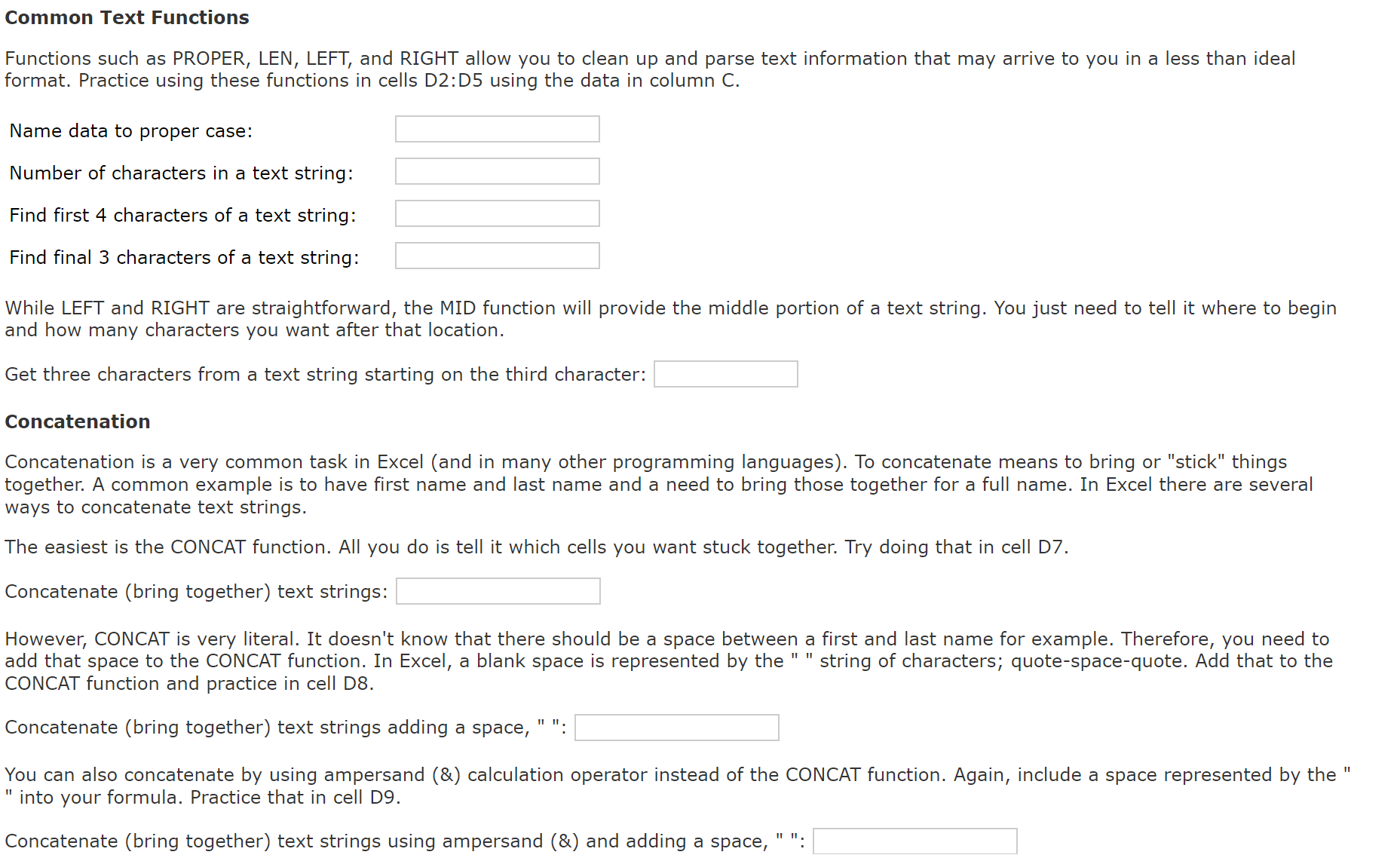
Functions such as PROPER, LEN, LEFT, and RIGHT allow you to clean up and parse text information that may arrive to you in a less than ideal
format. Practice using these functions in cells D:D using the data in column C
Name data to proper case:
Number of characters in a text string:
Find first characters of a text string:
Find final characters of a text string:
While LEFT and RIGHT are straightforward, the MID function will provide the middle portion of a text string. You just need to tell it where to begin
and how many characters you want after that location.
Get three characters from a text string starting on the third character:
Concatenation
Concatenation is a very common task in Excel and in many other programming languages To concatenate means to bring or "stick" things
together. A common example is to have first name and last name and a need to bring those together for a full name. In Excel there are several
ways to concatenate text strings.
The easiest is the CONCAT function. All you do is tell it which cells you want stuck together. Try doing that in cell D
Concatenate bring together text strings:
However, CONCAT is very literal. It doesn't know that there should be a space between a first and last name for example. Therefore, you need to
add that space to the CONCAT function. In Excel, a blank space is represented by the string of characters; quotespacequote.
Step by Step Solution
There are 3 Steps involved in it
1 Expert Approved Answer
Step: 1 Unlock

Question Has Been Solved by an Expert!
Get step-by-step solutions from verified subject matter experts
Step: 2 Unlock
Step: 3 Unlock
 Study Help