







Question: Common-Size Financial Statement Analysis Using Excel Completing this activity will help you learn to: 1. create Excel formules using cell references. 2. create absolute cell
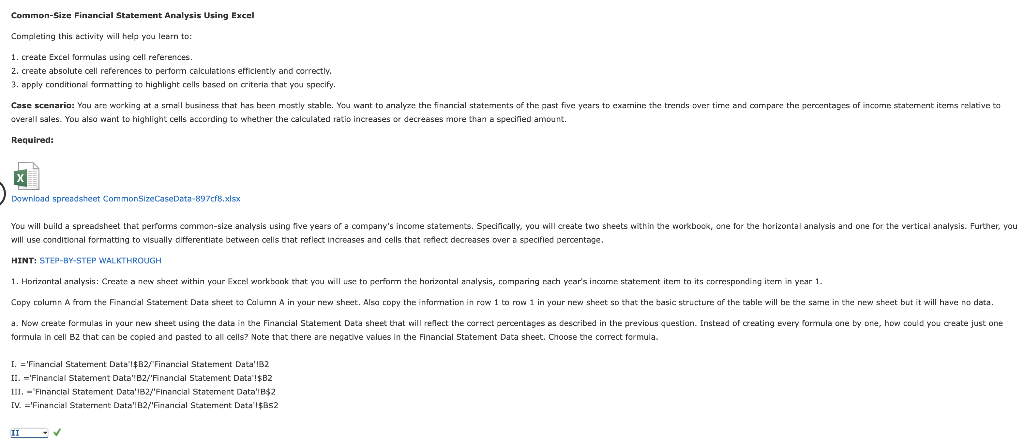
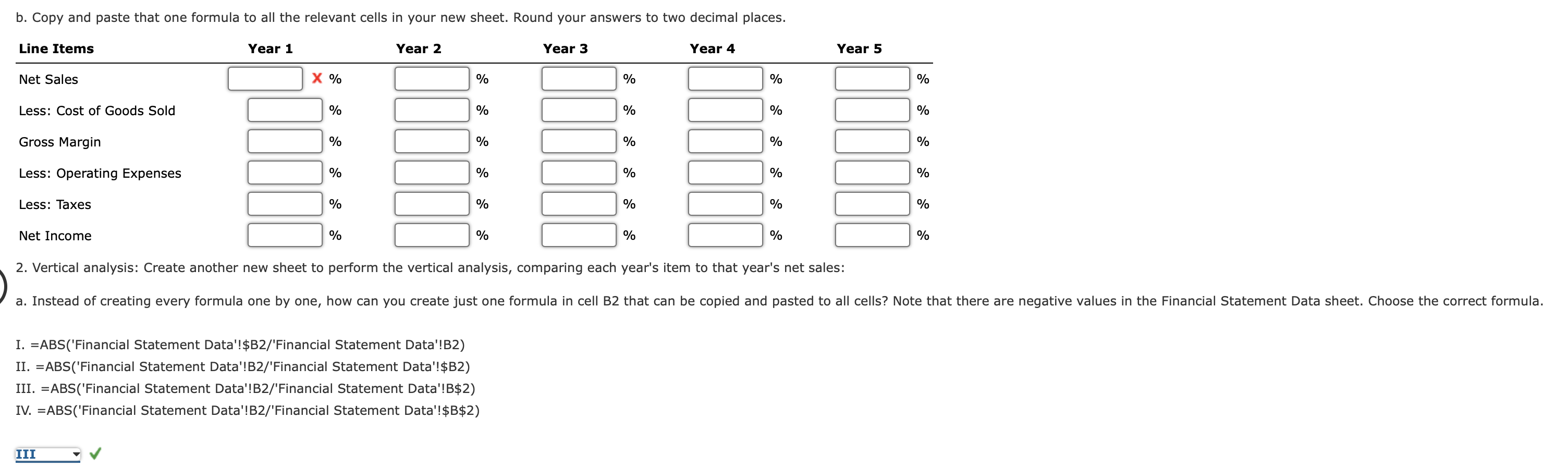
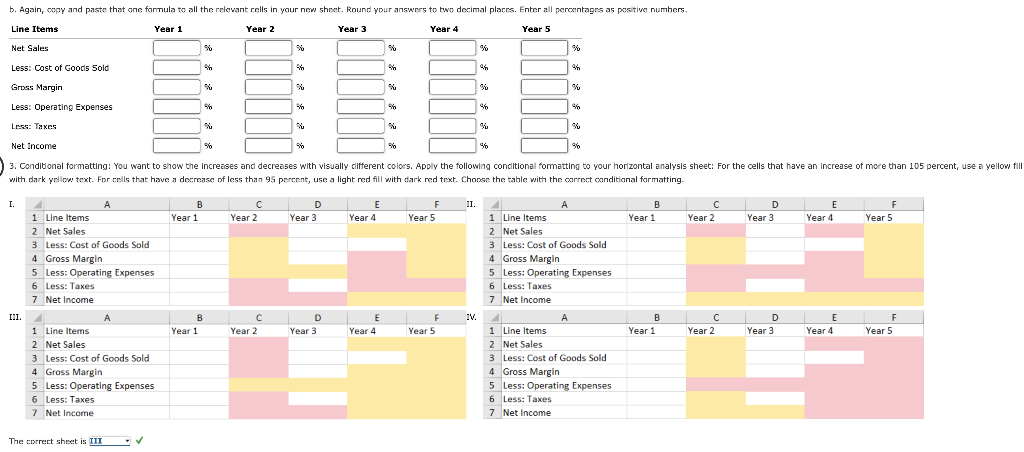
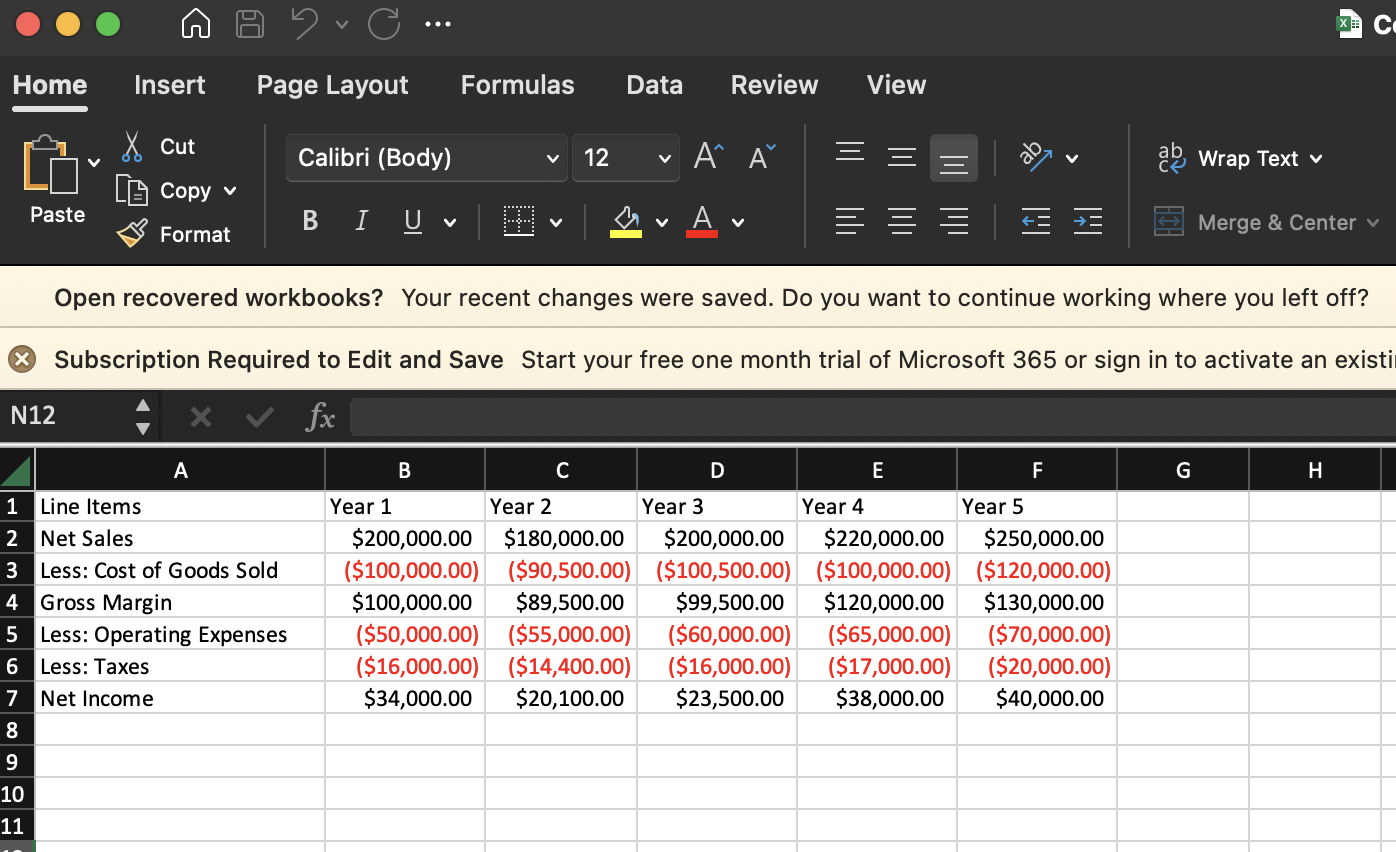
Common-Size Financial Statement Analysis Using Excel Completing this activity will help you learn to: 1. create Excel formules using cell references. 2. create absolute cell references to perfonm calculations efficlently and correctly. 3. apply conditional formatting to highlight colls based on criteria that pou specify. overall sales. You also want to highlight cells according to whether the calculated ratio increases or decreases more than a specified amount. Required: Download spreadsheet CommonSizeCaseData-897cf8,xlsx will use conditional formatting to visually differentiate between cells that reflect increases and cells that reflect decreases over a specified percentage. HINT: STEP-BY-STEP WALKTHROUGH formula in cell Bz that can be copied and pasted to all cells? Note that there are negative values in the Financial 5 tatement Data sheet. Choose the correct formula. I. ='Financial Statement Data'! B2f'Financial Statement Data'!B2 II. ='Financial Statement Data'! B2/'Financial Statement Data'!\$B2 I11. - 'Financial Statement Data'l82/'Financial Statement Data'lB\$2 IV. ='Financial Staternent Data'| 2 /'Financial Statement Data'1\$bs2 2. Vertical analysis: Create another new sheet to perform the vertical analysis, comparing each year's item to that year's net sales: I. =ABS('Financial Statement Data'!\$B2/'Financial Statement Data'!B2) II. =ABS('Financial Statement Data'!B2/'Financial Statement Data'!\$B2) III. =ABS('Financial Statement Data'!B2/'Financial Statement Data'!B\$2) IV. =ABS('Financial Statement Data'!B2/'Financial Statement Data'!\$B\$2) b. Again, copy and paste that one fonmula to all the relevant cells in your new sheet. Round your answers to two docimal placrs. Enter all pereentages as pesitive numbers. with dark yollow text. For cells that have a decrease of less than 9.5 pereent, use a light red fill with dark red trxt. Chonee the table with the correct conditional formatting. I. The correct shbet is III Open recovered workbooks? Your recent changes were saved. Do you want to continue working where you left off? Subscription Required to Edit and Save Start your free one month trial of Microsoft 365 or sign in to activate an exist
Step by Step Solution
There are 3 Steps involved in it

Get step-by-step solutions from verified subject matter experts
 Study Help