



Question: Compare the Regular Scan Results for ICMP and ARP Traffic with the results from the ping scan. Compare the Intense Scan results with the results
- Compare the Regular Scan Results for ICMP and ARP Traffic with the results from the ping scan.
- Compare the Intense Scan results with the results from the PING Scan.
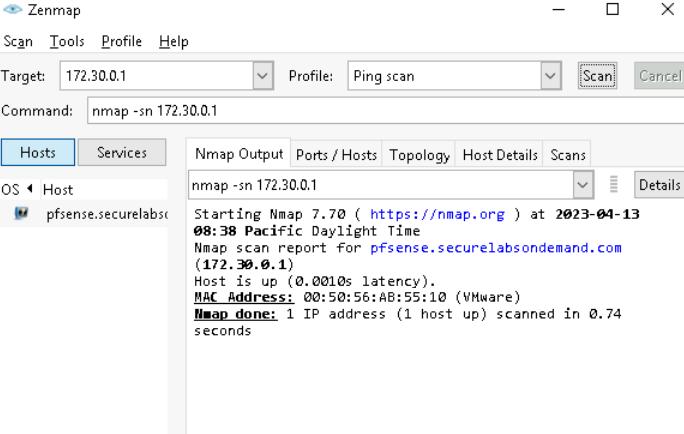
- Ping Scan Zenmap
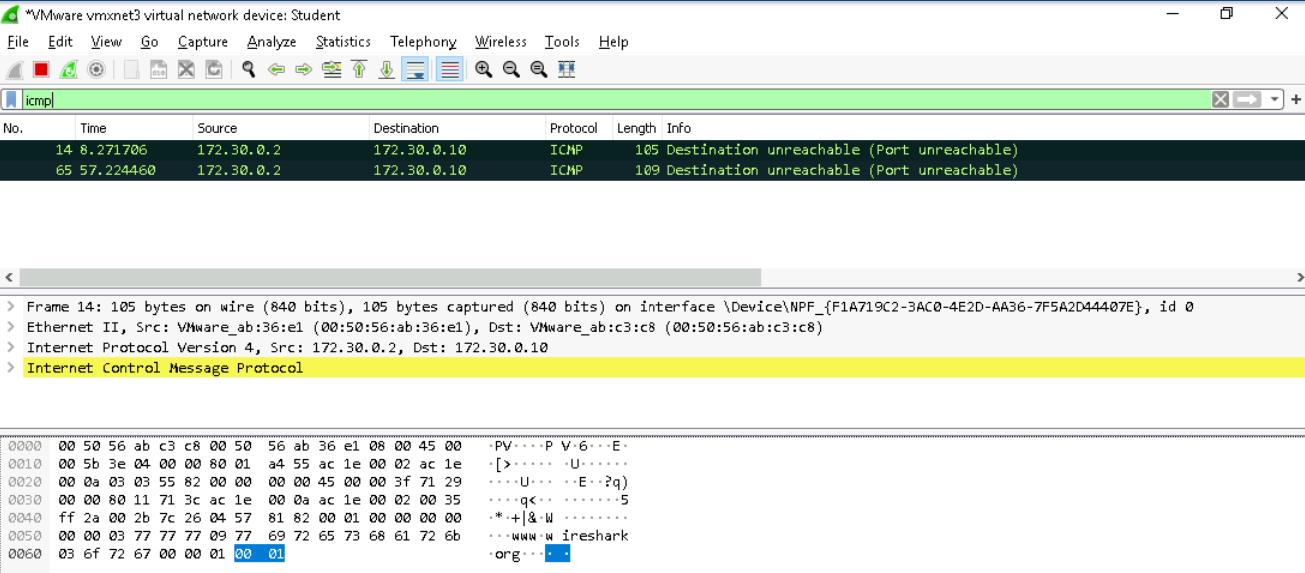
 Wireshark ICMP Filter from Zenmap Ping Scan
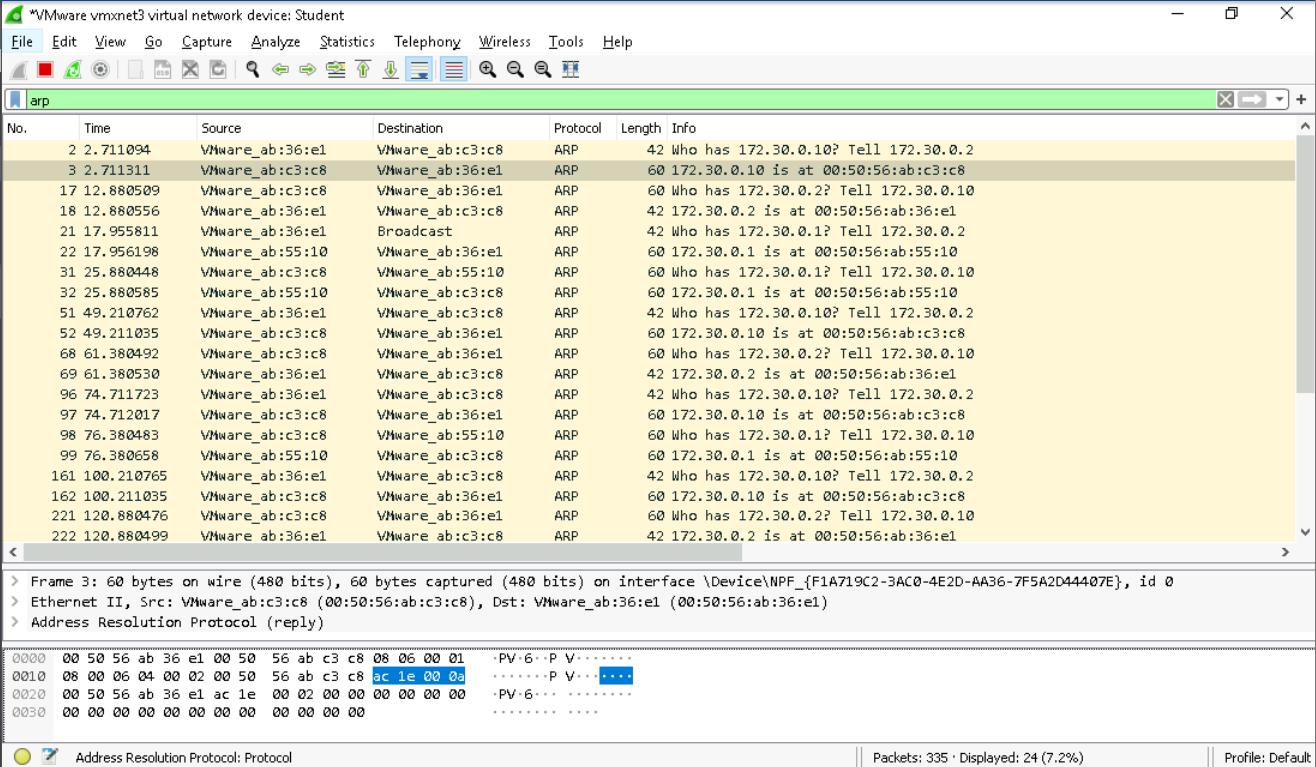
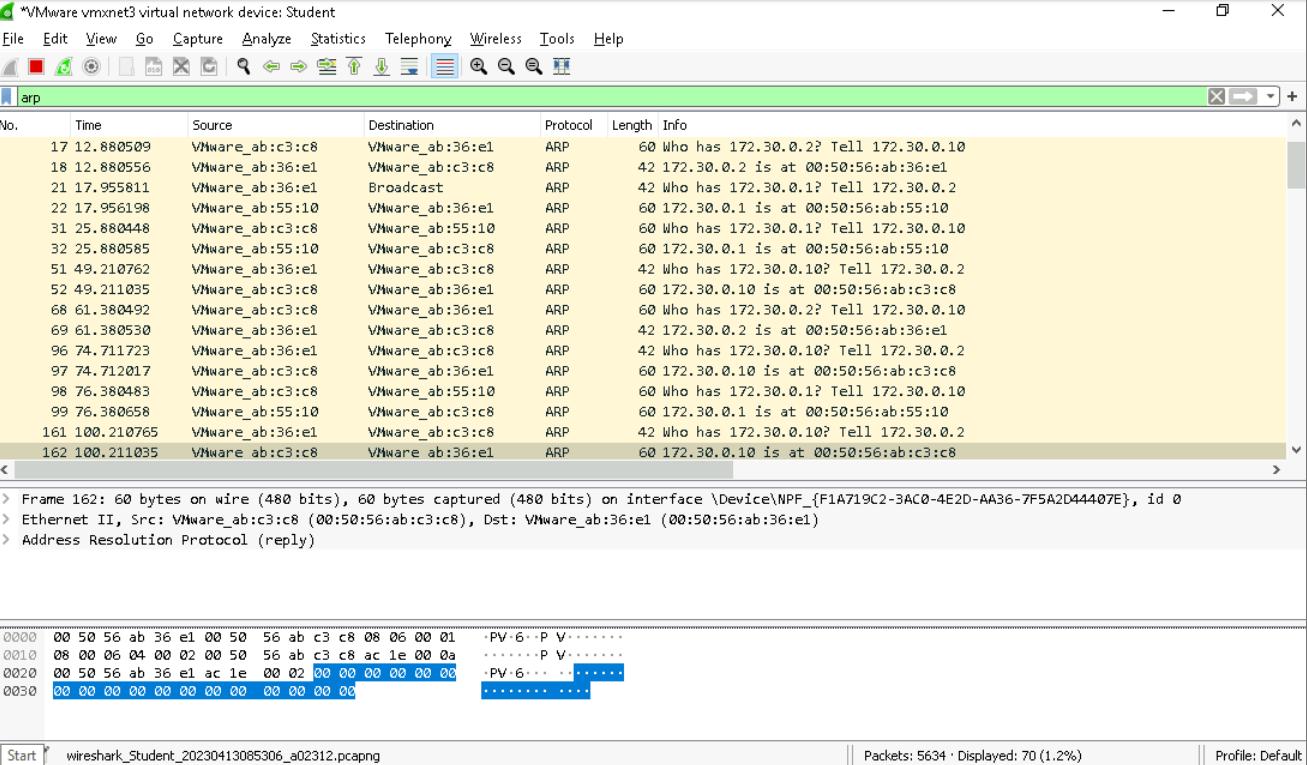
  Wireshark ARP Filter from Zenmap Ping Scan
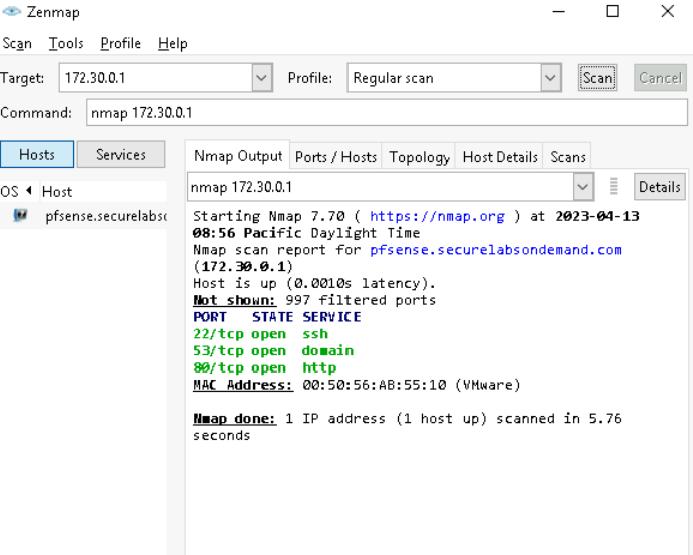
  Regular Scan Zenmap
  Wireshark ICMP Filter from Zenmap Regular Scan
 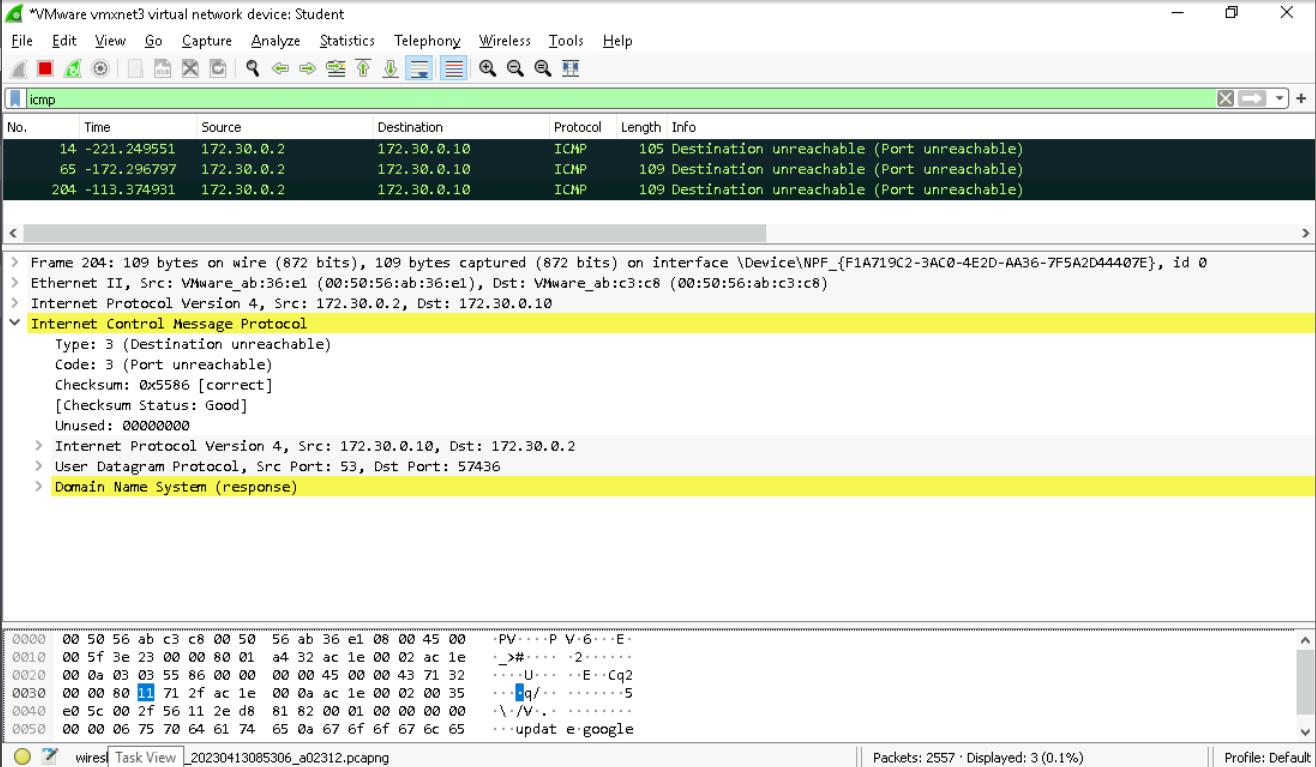 Wireshark ARP Filter from Zenmap Regular Scan
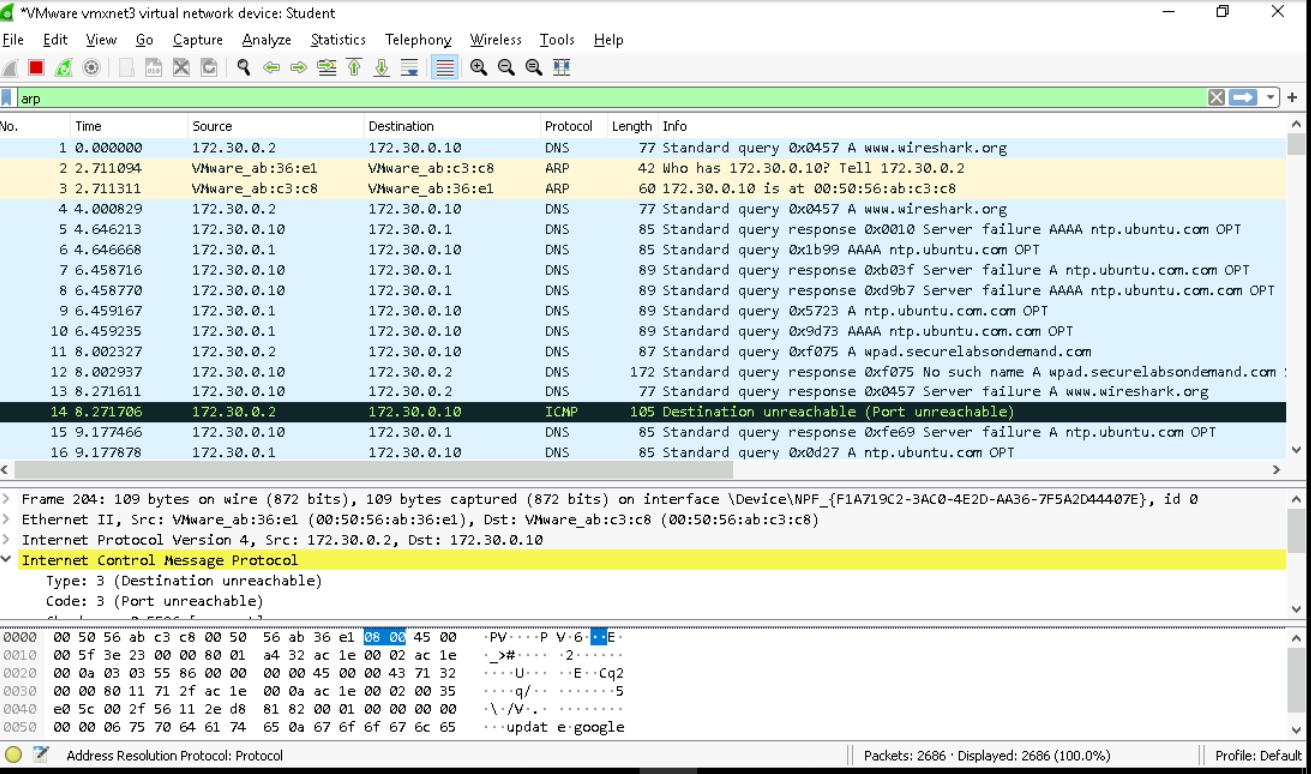
Intense Scan Zenmap
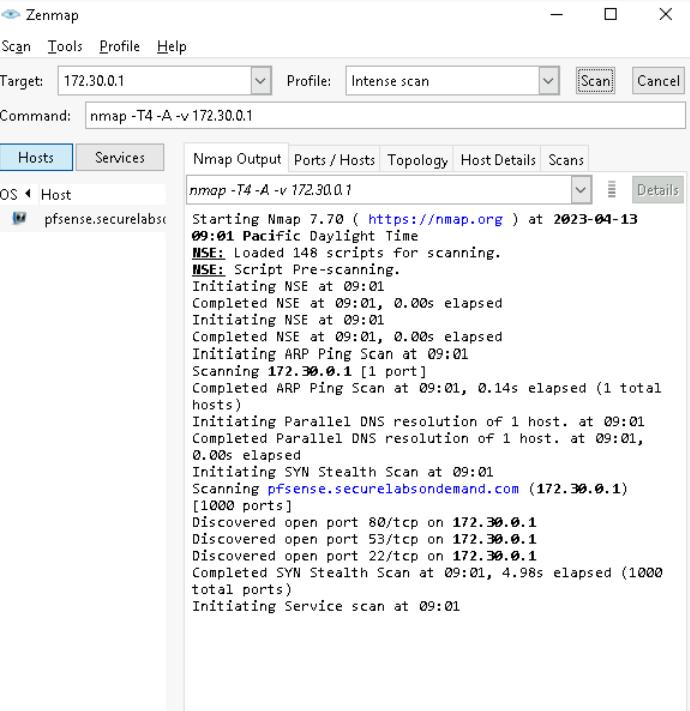
Wireshark ICMP Filter from Zenmap Intense Scan
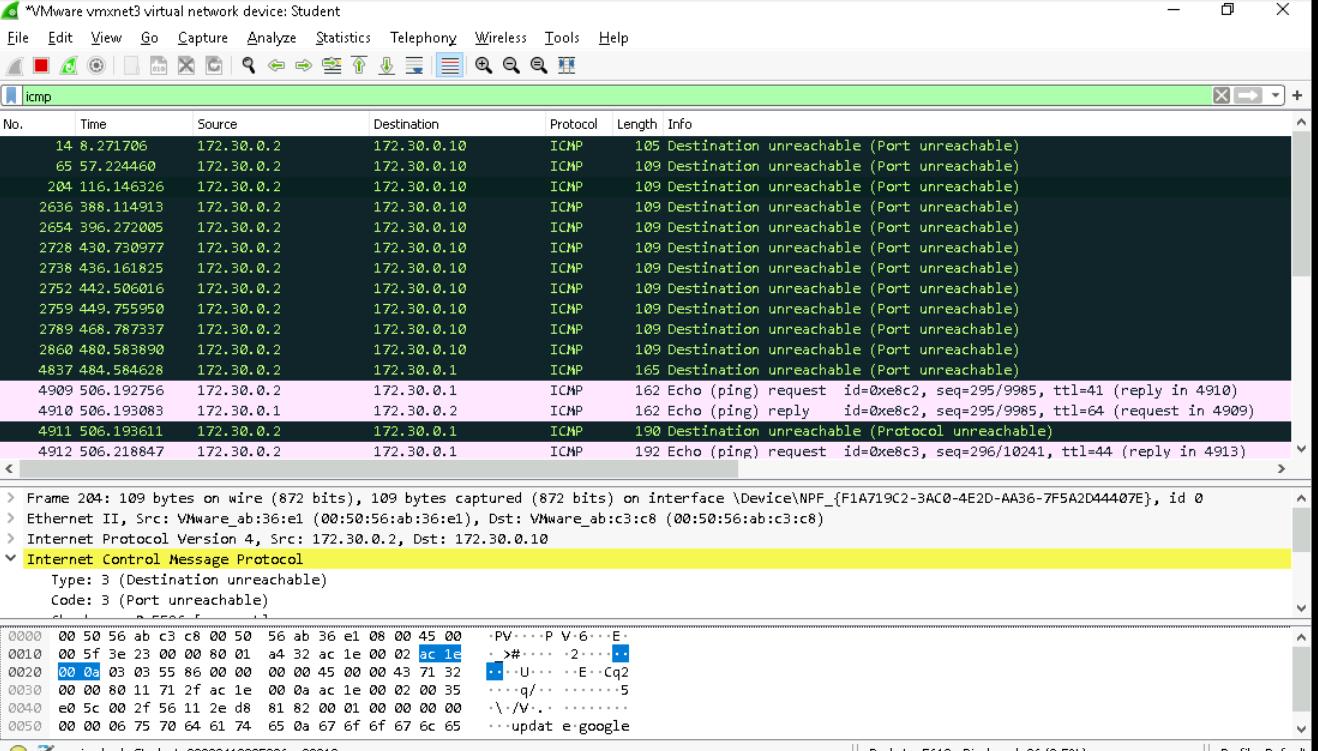
Wireshark ARP Filter from Zenmap Intense Scan
Zenmap Scan Tools Profile Help Target: 172.30.0.1 Command: nmap -sn 172.30.0.1 Hosts OS Host Services pfsense.securelabs Profile: Ping scan I Scan Nmap Output Ports / Hosts Topology Host Details Scans nmap -sn 172.30.0.1 Starting Nmap 7.70 ( https://nmap.org ) at 2023-04-13 08:38 Pacific Daylight Time Nmap scan report for pfsense.securelabsondemand.com (172.30.0.1) Host is up (0.0010s latency). IIIII MAC Address: 00:50:56: AB:55:10 (VMware) Nmap done: 1 IP address (1 host up) scanned in 0.74 seconds X Cancel Details
Step by Step Solution
There are 3 Steps involved in it
Based on the provided screenshots we can compare the results from different types of scans using Zenmap and the captured traffic in Wireshark 1 Ping Scan vs Regular Scan for ICMP and ARP Traffic Ping ... View full answer

Get step-by-step solutions from verified subject matter experts