







Question: Complete chapters 7 Path of Light Case Study Create a privacy policy page and link to it on each page in the footer section. Can
Complete chapters 7 Path of Light Case Study
Create a privacy policy page and link to it on each page in the footer section.
Can I get the code for the picture at the bottom of the question
CHAPTER 7 INSTRUCTION
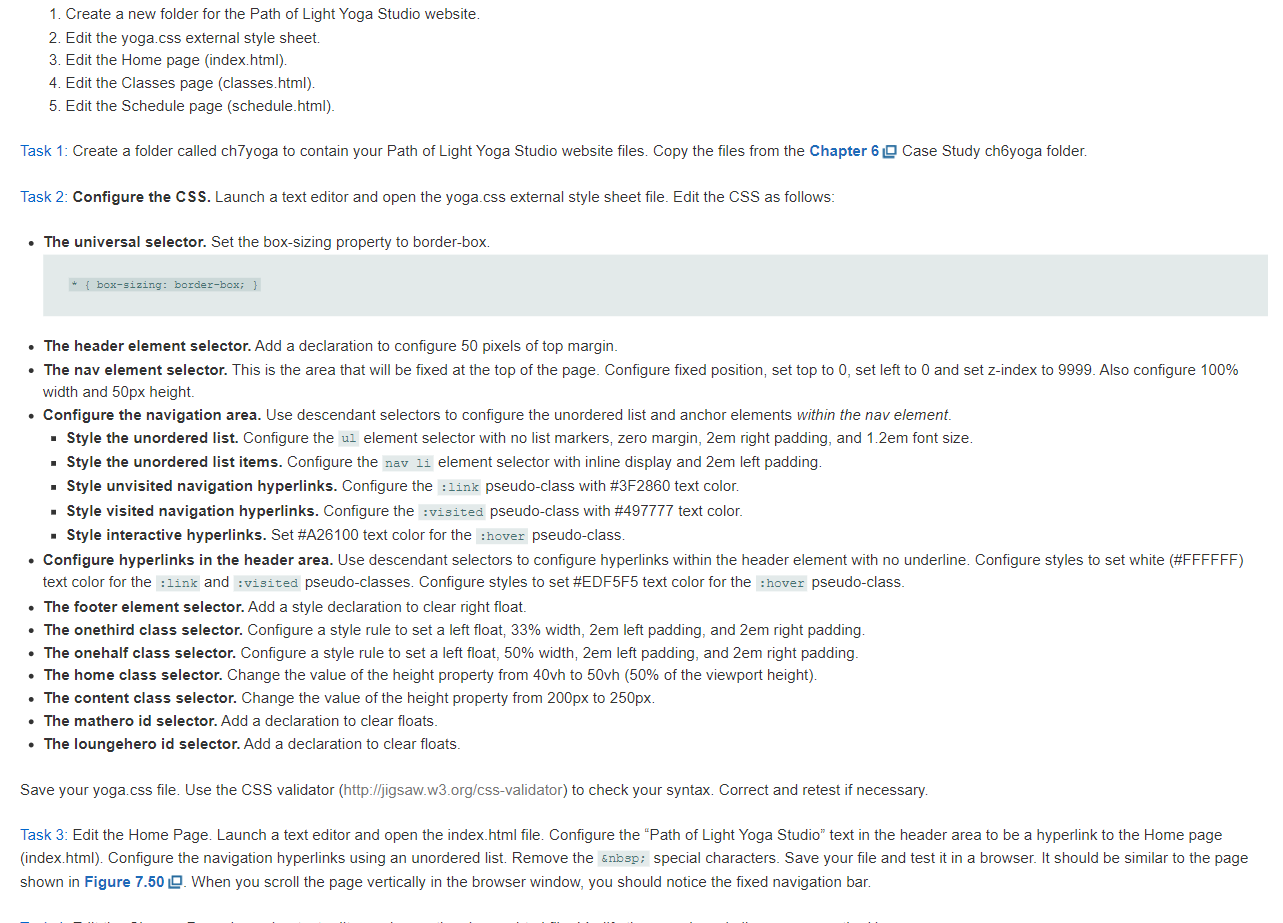
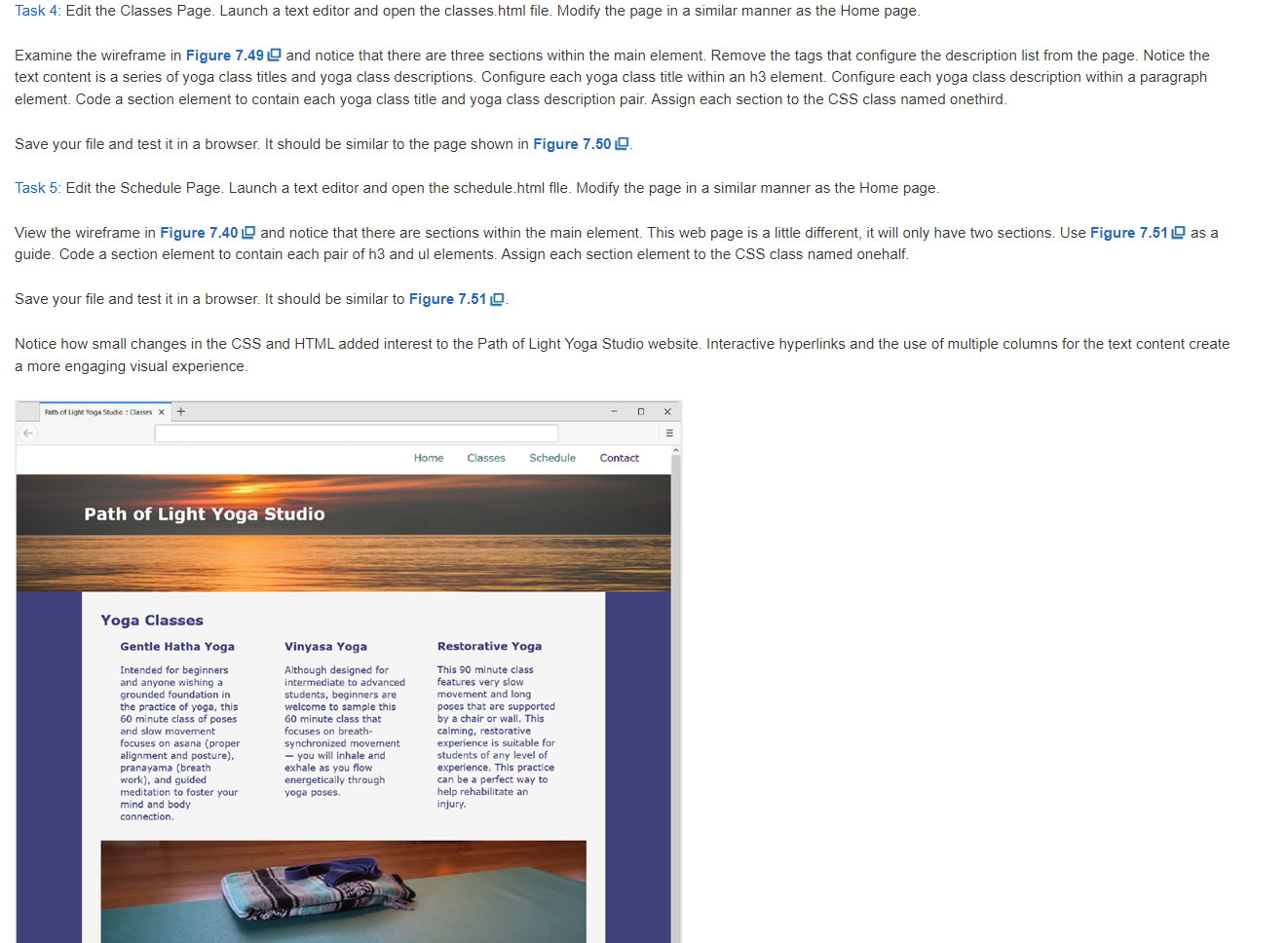
1. Create a new folder for the Path of Light Yoga Studio website. 2. Edit the yoga.css external style sheet. 3. Edit the Home page (index.html). 4. Edit the Classes page (classes.html). 5. Edit the Schedule page (schedule.html). Task 1: Create a folder called ch7yoga to contain your Path of Light Yoga Studio website files. Copy the files from the Chapter 6 Case Study ch6yoga folder. Task 2: Configure the CSS. Launch a text editor and open the yoga.css external style sheet file. Edit the CSS as follows: - The universal selector. Set the box-sizing property to border-box. *{box-sizing:border-box;} - The header element selector. Add a declaration to configure 50 pixels of top margin. - The nav element selector. This is the area that will be fixed at the top of the page. Configure fixed position, set top to 0 , set left to 0 and set z-index to 9999 . Also configure 100% width and 50px height. - Configure the navigation area. Use descendant selectors to configure the unordered list and anchor elements within the nav element. - Style the unordered list. Configure the ul element selector with no list markers, zero margin, 2em right padding, and 1.2em font size. - Style the unordered list items. Configure the element selector with inline display and 2em left padding. - Style unvisited navigation hyperlinks. Configure the :1ink pseudo-class with \#3F2860 text color. - Style visited navigation hyperlinks. Configure the :visited pseudo-class with \#497777 text color. - Style interactive hyperlinks. Set \#A26100 text color for the :hover pseudo-class. - Configure hyperlinks in the header area. Use descendant selectors to configure hyperlinks within the header element with no underline. Configure styles to set white (\#FFFFFF) text color for the : :ink and :visited pseudo-classes. Configure styles to set \#EDF5F5 text color for the :hover pseudo-class. - The footer element selector. Add a style declaration to clear right float. - The onethird class selector. Configure a style rule to set a left float, 33% width, 2em left padding, and 2em right padding. - The onehalf class selector. Configure a style rule to set a left float, 50% width, 2em left padding, and 2em right padding. - The home class selector. Change the value of the height property from 40vh to 50vh ( 50% of the viewport height). - The content class selector. Change the value of the height property from 200px to 250px. - The mathero id selector. Add a declaration to clear floats. - The loungehero id selector. Add a declaration to clear floats. Save your yoga.css file. Use the CSS validator (http://jigsaw.w3.org/css-validator) to check your syntax. Correct and retest if necessary. Task 3: Edit the Home Page. Launch a text editor and open the index.html file. Configure the "Path of Light Yoga Studio" text in the header area to be a hyperlink to the Home page (index.html). Configure the navigation hyperlinks using an unordered list. Remove the \ special characters. Save your file and test it in a browser. It should be similar to the page shown in Figure 7.50 . When you scroll the page vertically in the browser window, you should notice the fixed navigation bar. Task 4: Edit the Classes Page. Launch a text editor and open the classes.html file. Modify the page in a similar manner as the Home page. Examine the wireframe in Figure 7.49 and notice that there are three sections within the main element. Remove the tags that configure the description list from the page. Notice the text content is a series of yoga class titles and yoga class descriptions. Configure each yoga class title within an h3 element. Configure each yoga class description within a paragraph element. Code a section element to contain each yoga class title and yoga class description pair. Assign each section to the CSS class named onethird. Save your file and test it in a browser. It should be similar to the page shown in Figure 7.50 Task 5: Edit the Schedule Page. Launch a text editor and open the schedule.html flle. Modify the page in a similar manner as the Home page. View the wireframe in Figure 7.40 and notice that there are sections within the main element. This web page is a little different, it will only have two sections. Use Figure 7.51 as a guide. Code a section element to contain each pair of h3 and ul elements. Assign each section element to the CSS class named onehalf. Save your file and test it in a browser. It should be similar to Figure 7.51 Notice how small changes in the CSS and HTML added interest to the Path of Light Yoga Studio website. Interactive hyperlinks and the use of multiple columns for the text content create a more engaging visual experience. 1. Create a new folder for the Path of Light Yoga Studio website. 2. Edit the yoga.css external style sheet. 3. Edit the Home page (index.html). 4. Edit the Classes page (classes.html). 5. Edit the Schedule page (schedule.html). Task 1: Create a folder called ch7yoga to contain your Path of Light Yoga Studio website files. Copy the files from the Chapter 6 Case Study ch6yoga folder. Task 2: Configure the CSS. Launch a text editor and open the yoga.css external style sheet file. Edit the CSS as follows: - The universal selector. Set the box-sizing property to border-box. *{box-sizing:border-box;} - The header element selector. Add a declaration to configure 50 pixels of top margin. - The nav element selector. This is the area that will be fixed at the top of the page. Configure fixed position, set top to 0 , set left to 0 and set z-index to 9999 . Also configure 100% width and 50px height. - Configure the navigation area. Use descendant selectors to configure the unordered list and anchor elements within the nav element. - Style the unordered list. Configure the ul element selector with no list markers, zero margin, 2em right padding, and 1.2em font size. - Style the unordered list items. Configure the element selector with inline display and 2em left padding. - Style unvisited navigation hyperlinks. Configure the :1ink pseudo-class with \#3F2860 text color. - Style visited navigation hyperlinks. Configure the :visited pseudo-class with \#497777 text color. - Style interactive hyperlinks. Set \#A26100 text color for the :hover pseudo-class. - Configure hyperlinks in the header area. Use descendant selectors to configure hyperlinks within the header element with no underline. Configure styles to set white (\#FFFFFF) text color for the : :ink and :visited pseudo-classes. Configure styles to set \#EDF5F5 text color for the :hover pseudo-class. - The footer element selector. Add a style declaration to clear right float. - The onethird class selector. Configure a style rule to set a left float, 33% width, 2em left padding, and 2em right padding. - The onehalf class selector. Configure a style rule to set a left float, 50% width, 2em left padding, and 2em right padding. - The home class selector. Change the value of the height property from 40vh to 50vh ( 50% of the viewport height). - The content class selector. Change the value of the height property from 200px to 250px. - The mathero id selector. Add a declaration to clear floats. - The loungehero id selector. Add a declaration to clear floats. Save your yoga.css file. Use the CSS validator (http://jigsaw.w3.org/css-validator) to check your syntax. Correct and retest if necessary. Task 3: Edit the Home Page. Launch a text editor and open the index.html file. Configure the "Path of Light Yoga Studio" text in the header area to be a hyperlink to the Home page (index.html). Configure the navigation hyperlinks using an unordered list. Remove the \ special characters. Save your file and test it in a browser. It should be similar to the page shown in Figure 7.50 . When you scroll the page vertically in the browser window, you should notice the fixed navigation bar. Task 4: Edit the Classes Page. Launch a text editor and open the classes.html file. Modify the page in a similar manner as the Home page. Examine the wireframe in Figure 7.49 and notice that there are three sections within the main element. Remove the tags that configure the description list from the page. Notice the text content is a series of yoga class titles and yoga class descriptions. Configure each yoga class title within an h3 element. Configure each yoga class description within a paragraph element. Code a section element to contain each yoga class title and yoga class description pair. Assign each section to the CSS class named onethird. Save your file and test it in a browser. It should be similar to the page shown in Figure 7.50 Task 5: Edit the Schedule Page. Launch a text editor and open the schedule.html flle. Modify the page in a similar manner as the Home page. View the wireframe in Figure 7.40 and notice that there are sections within the main element. This web page is a little different, it will only have two sections. Use Figure 7.51 as a guide. Code a section element to contain each pair of h3 and ul elements. Assign each section element to the CSS class named onehalf. Save your file and test it in a browser. It should be similar to Figure 7.51 Notice how small changes in the CSS and HTML added interest to the Path of Light Yoga Studio website. Interactive hyperlinks and the use of multiple columns for the text content create a more engaging visual experience
Step by Step Solution
There are 3 Steps involved in it

Get step-by-step solutions from verified subject matter experts
 Study Help