







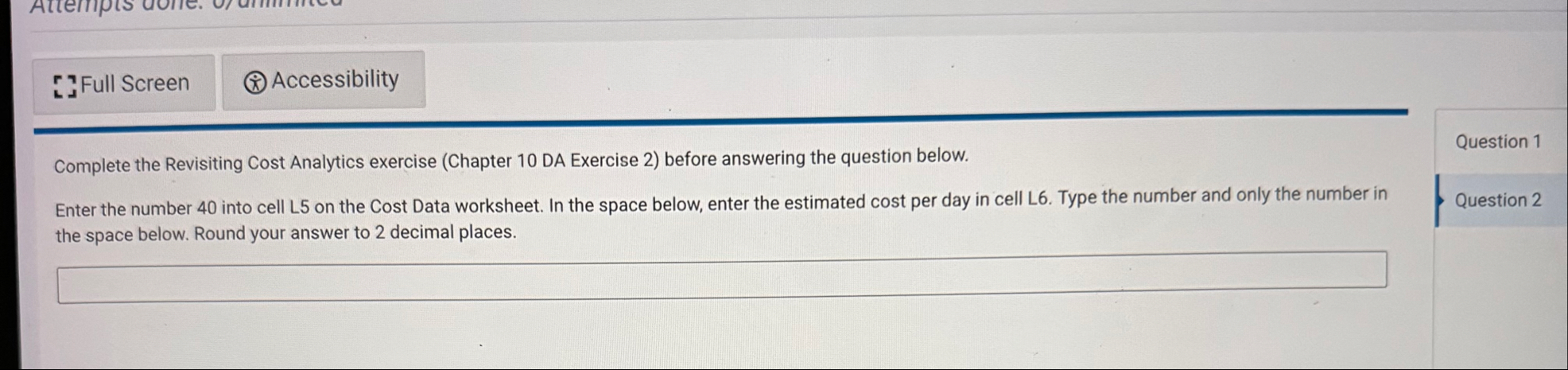
Question: Complete the Revisiting Cost Analytics exercise ( Chapter 1 0 DA Exercise 2 ) before answering the question below. Enter the number 4 0 into
Complete the Revisiting Cost Analytics exercise Chapter DA Exercise before answering the question below.
Enter the number into cell L on the Cost Data worksheet. In the space below, enter the estimated cost per day in cell L Type the number and only the number in
Question the space below. Round your answer to decimal places.
Question
Complete the Revisiting Cost Analytics exercise Chapter DA Exercise before answering the question below.
Enter the number into cell L on the Cost Data worksheet. In the space below, enter the estimated cost per day in cell L Type the number and only the number in
Question the space below. Round your answer to decimal places.
Question
Complete the Revisiting Cost Analytics exercise Chapter DA Exercise before answering the question below.
Question
After running the regression and observing the output in step enter the Adjusted R Square that appears in cell B in the space below. Type the number and only the number in the space below. Round your answer to decimal places.
Question
read
Define the Input Range with the data in the Number of Properties column. Include cell in the cell range for this input box. This will be the independent variable for the regression analysis.
Click the Labels check box in the Regression dialog box.
Type the following in the New Worksheet Ply input box: "Regression Output".
Click the Line Fit Plots option and then click the OK button on the Regression dialog box.
Increase the width of column A to points on the Regression Output worksheet.
Increase the size of the scatter chart so the right side is in column and the bottom of the chart is in row
Add a linear trendline to the Predicted Total Cost data series on the scatter chart and add the trendline equation. Then, move the trendline equation to the upper left area of the chart plot area. The equation shown on the chart is the cost function for the total landscaping costs. The Number of Properties coefficient, x is the variable cost per unit and the x represents the number of properties serviced. Therefore, the number of properties serviced multiplied by would equal the total variable cost that is predicted to be incurred. The Intercept, which is is the fixed cost per day.
Format the values in the range E:E to a percentage with five decimal places. Increase the width of column E if needed. These are the Pvalues for the Intercept and the Number of Properties coefficients. Provide a brief explanation of what these values indicate for this analysis in the AnswerSheet worksheet.
Observe the Multiple and Adjusted Square in the regression output. Provide a brief explanation of what these values indicate for this analysis in the AnswerSheet worksheet.
Open the Cost Data worksheet and type the fixed cost per day that was established in the regression analysis into cell L Use two decimal places for this value.
Type the variable cost per property serviced day that was established in the regression analysis into cell L Use three decimal places for this value.
Type the number into cell L Assume the company is estimating the total costs that would
read
Define the Input Range with the data in the Number of Properties column. Include cell in the cell range for this input box. This will be the independent variable for the regression analysis.
Click the Labels check box in the Regression dialog box.
Type the following in the New Worksheet Ply input box: "Regression Output".
Click the Line Fit Plots option and then click the OK button on the Regression dialog box.
Increase the width of column A to points on the Regression Output worksheet.
Increase the size of the scatter chart so the right side is in column and the bottom of the chart is in row
Add a linear trendline to the Predicted Total Cost data series on the scatter chart and add the trendline equation. Then, move the trendline equation to the upper left area of the chart plot area. The equation shown on the chart is the cost function for the total landscaping costs. The Number of Properties coefficient, x is the variable cost per unit and the x represents the number of properties serviced. Therefore, the number
Step by Step Solution
There are 3 Steps involved in it
1 Expert Approved Answer
Step: 1 Unlock

Question Has Been Solved by an Expert!
Get step-by-step solutions from verified subject matter experts
Step: 2 Unlock
Step: 3 Unlock
 Study Help