







Question: Complete the steps below using cell references to given data or previous calculations. In some cases, a simple cell reference is all you need. To
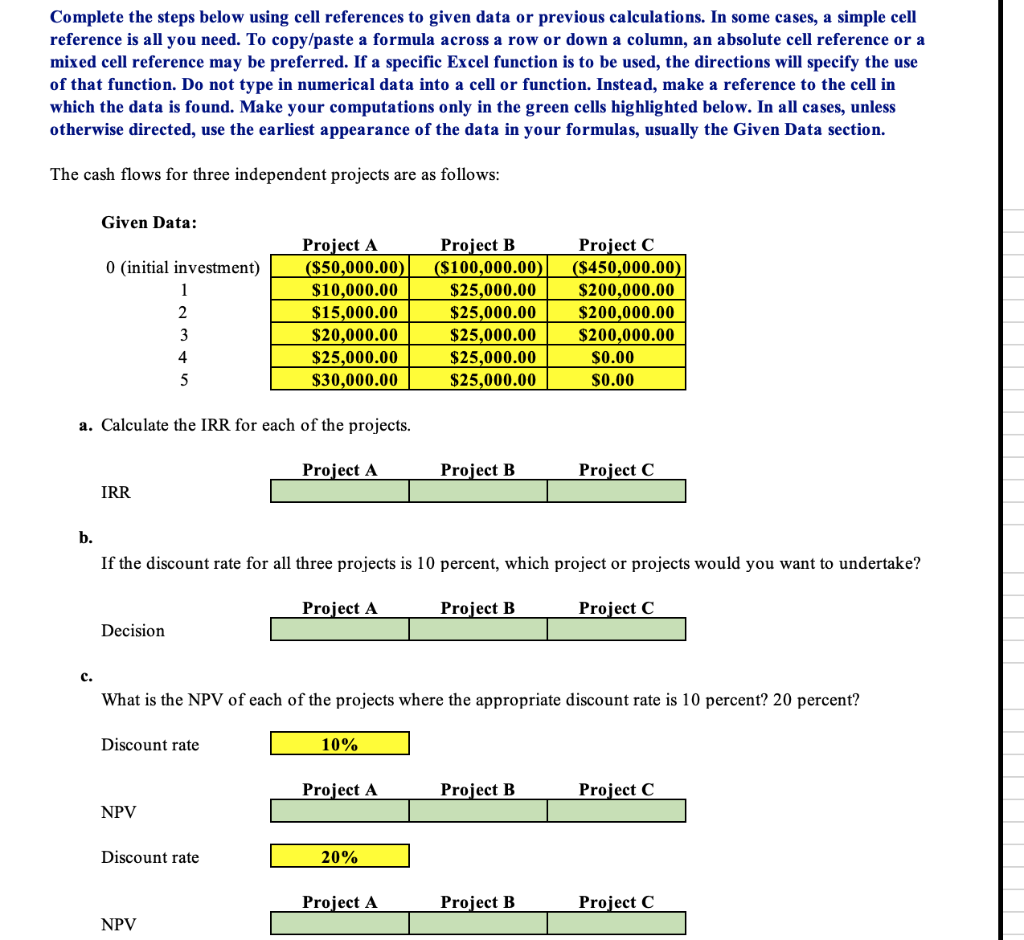
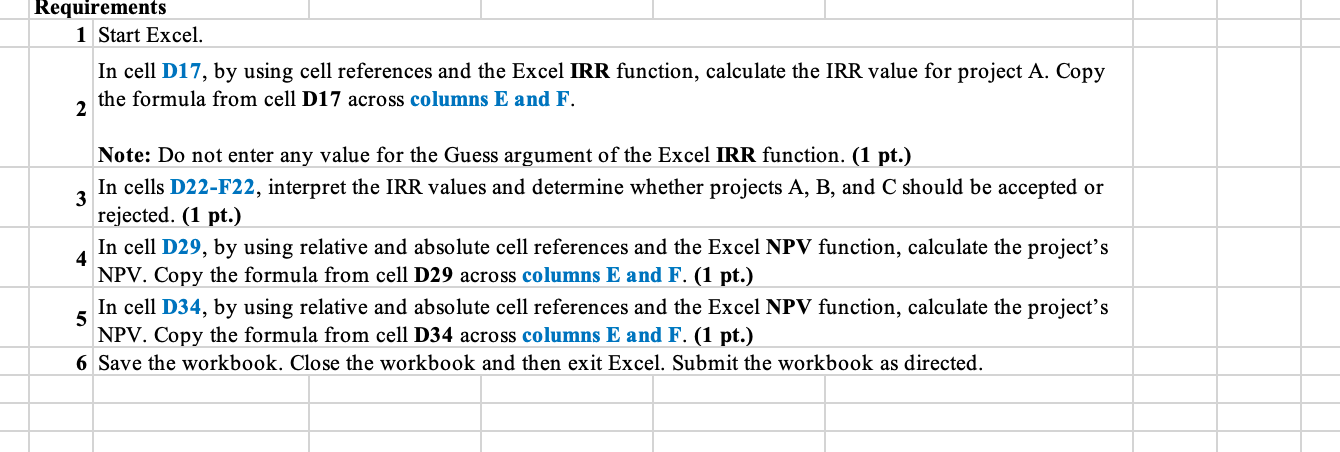
Complete the steps below using cell references to given data or previous calculations. In some cases, a simple cell reference is all you need. To copy/paste a formula across a row or down a column, an absolute cell reference or a mixed cell reference may be preferred. If a specific Excel function is to be used, the directions will specify the use of that function. Do not type in numerical data into a cell or function. Instead, make a reference to the cell in which the data is found. Make your computations only in the green cells highlighted below. In all cases, unless otherwise directed, use the earliest appearance of the data in your formulas, usually the Given Data section. The cash flows for three independent projects are as follows: Given Data: 0 initial investment) 1 2 3 4 5 Project A ($50,000.00) $10,000.00 $15,000.00 $20,000.00 $25,000.00 $30,000.00 Project B ($100,000.00) $25,000.00 $25,000.00 $25,000.00 $25,000.00 $25,000.00 Project C ($450,000.00) $200,000.00 $200,000.00 $200,000.00 $0.00 $0.00 a. Calculate the IRR for each of the projects. Project A Project B Project C IRR b. If the discount rate for all three projects is 10 percent, which project or projects would you want to undertake? Project A Project B Project C Decision c. What is the NPV of each of the projects where the appropriate discount rate is 10 percent? 20 percent? Discount rate 10% Project A Project B Project C NPV Discount rate 20% Project A Project B Project C NPV Requirements 1 Start Excel. In cell D17, by using cell references and the Excel IRR function, calculate the IRR value for project A. Copy 2 the formula from cell D17 across columns E and F. Note: Do not enter any value for the Guess argument of the Excel IRR function. (1 pt.) In cells D22-F22, interpret the IRR values and determine whether projects A, B, and C should be accepted or 3 rejected. (1 pt.) 4 In cell D29, by using relative and absolute cell references and the Excel NPV function, calculate the project's NPV. Copy the formula from cell D29 across columns E and F. (1 pt.) In cell D34, by using relative and absolute cell references and the Excel NPV function, calculate the project's 5 NPV. Copy the formula from cell D34 across columns E and F. (1 pt.) 6 Save the workbook. Close the workbook and then exit Excel. Submit the workbook as directed
Step by Step Solution
There are 3 Steps involved in it

Get step-by-step solutions from verified subject matter experts
 Study Help