







Question: Complete the tasks under the Sort Tab* and then select the item with the highest Total Revenue a Revenue per unit - Units Sold Select
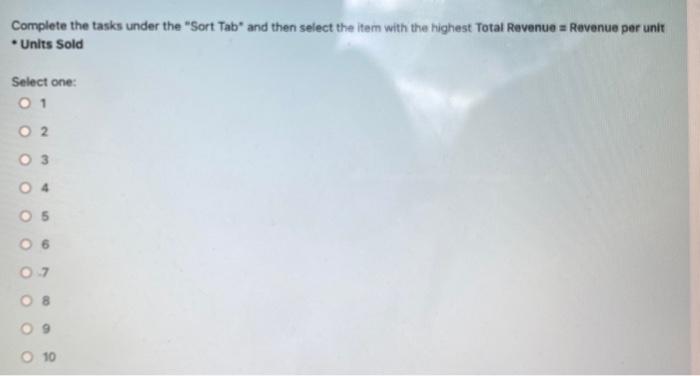
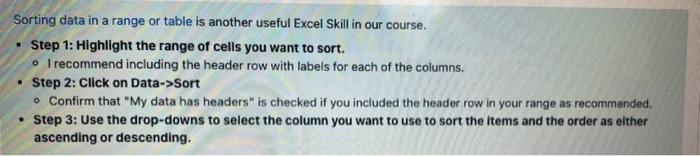
Complete the tasks under the "Sort Tab* and then select the item with the highest Total Revenue a Revenue per unit - Units Sold Select one: 1 2 3 4 5 6 7 8 9 10 Sorting data in a range or table is another useful Excel Skill in our course. - Step 1: Highilght the range of cells you want to sort. - I recommend including the header row with labels for each of the columns. - Step 2: Click on Data->Sort - Confirm that "My data has headers" is checked if you included the header row in your range as recommended. - Step 3: Use the drop-downs to select the column you want to use to sort the items and the order as either ascending or descending. Complete the tasks under the "Sort Tab* and then select the item with the highest Total Revenue a Revenue per unit - Units Sold Select one: 1 2 3 4 5 6 7 8 9 10 Sorting data in a range or table is another useful Excel Skill in our course. - Step 1: Highilght the range of cells you want to sort. - I recommend including the header row with labels for each of the columns. - Step 2: Click on Data->Sort - Confirm that "My data has headers" is checked if you included the header row in your range as recommended. - Step 3: Use the drop-downs to select the column you want to use to sort the items and the order as either ascending or descending
Step by Step Solution
There are 3 Steps involved in it

Get step-by-step solutions from verified subject matter experts
 Study Help