







Question: computer programming 2 Write to File FirstName Adity LasName Mutsuda School UCBA My Mutseddi UCBA Create a new project called WK9WriteToFile. Download the file WK9WriteToFile.java
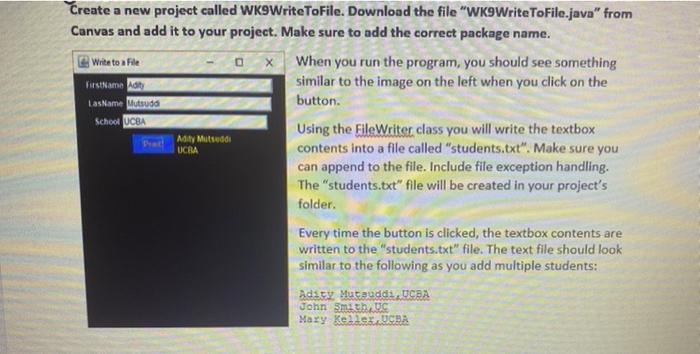
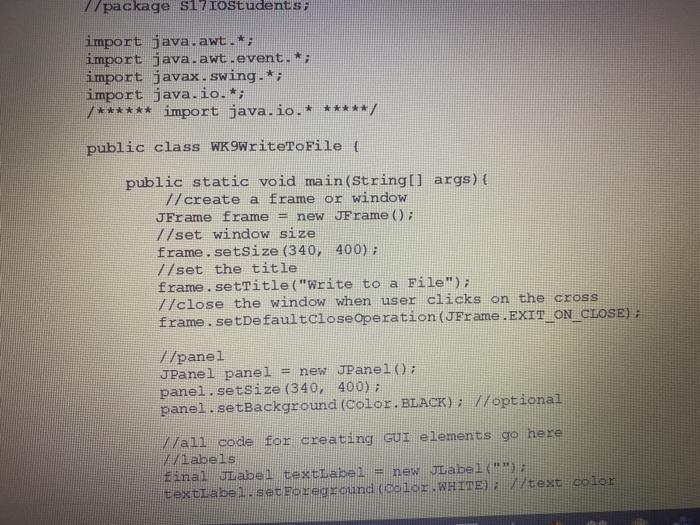
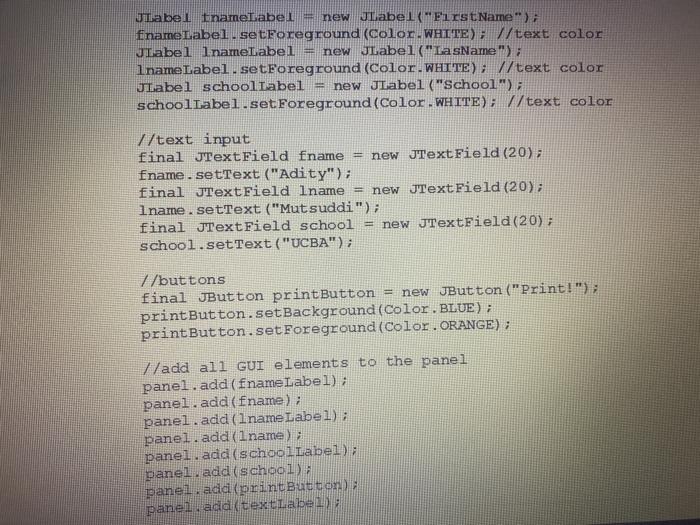
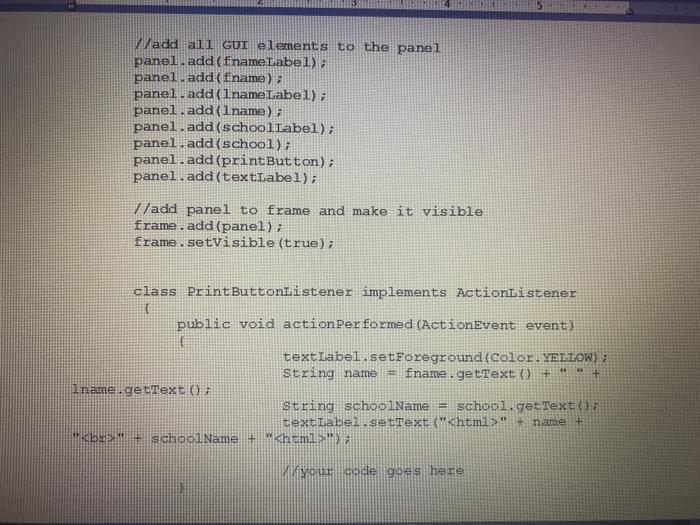
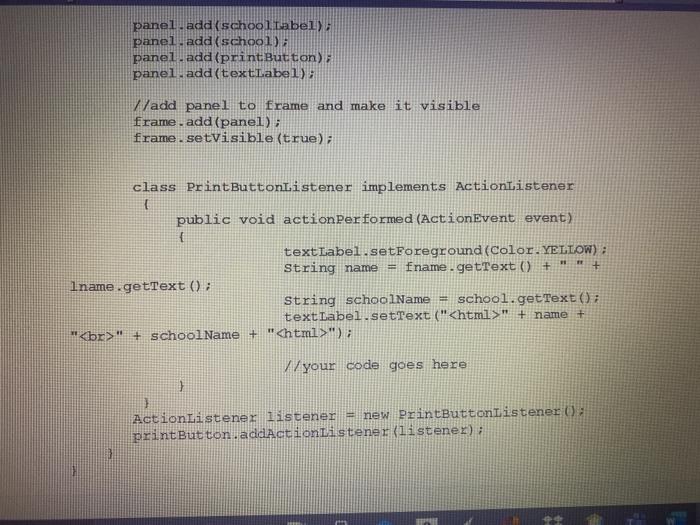
Write to File FirstName Adity LasName Mutsuda School UCBA My Mutseddi UCBA Create a new project called WK9WriteToFile. Download the file "WK9WriteToFile.java" from Canvas and add it to your project. Make sure to add the correct package name. When you run the program, you should see something similar to the image on the left when you click on the button. Using the File Writer class you will write the textbox contents into a file called "students.txt". Make sure you can append to the file. Include file exception handling. The "students.txt" file will be created in your project's folder. Every time the button is clicked, the textbox contents are written to the "students.txt" file. The text file should look similar to the following as you add multiple students: Adaty Musauddi. UCRA John Smith Mary Ke.UCRA 7/package sl7IoStudents, import java.awt.*; import java.awt.event. *; import javax.swing. *; import java.io.*; /****** import java.io.* *****/ public class WK9WriteToFile ! public static void main(String[] args) { //create a frame or window JFrame frame = new JFrame: //set window size frame.setSize (340, 400); 7/set the title frame.setTitle ("Write to a File"); //close the window when user clicks on the cross frame.setDefaultCloseOperation(JFrame.EXIT_ON_CLOSE) ; //panel JPanel panel = new JPanel(); panel.setSize (340, 400); panel.setBackground (Color.BLACK); //optional //ali code for creating GUI elements go here labels Final JLabel textlabei. = new JLabel textLabel.set Foreground color.WHITE) / text color JLabel EnameLabel = new JLabel("FirstName"); fnameLabel.setForeground (Color.WHITE); //text color JLabel lnameLabel new JLabel("LasName"); lnameLabel.setForeground (Color.WHITE); //text color JLabel schoolLabel = new JLabel("School"); schoolLabel.set Foreground (Color.WHITE); // text color //text input final JTextField fname = new JTextField (20); fname.setText ("Adity"); final JTextField lname new JTextField (20); lname.setText ("Mutsuddi"); final JTextField school = new JTextField(20) ; school.setText("UCBA"); 7/buttons final JButton printButton = new JButton ("Print!"); print Button.setBackground (Color.BLUE) ; print Button.set Foreground (Color. ORANGE) ; //add all GUI elements to the panel panel.add(fname Label); panel.add(fname); panel.add(lname Label); panel.add(lname) panel.add(schoolLabel) panel, add (school) panel, add (print Button panel, add (textrabe) //add all GUI elements to the panel panel.add(fname Label): panel.add(fname) panel.add(lname Label); panel.add(lname); panel.add(schoolLabel); panel.add(school); panel.add(printButton); panel.add(textLabel); //add panel to frame and make it visible frame.add(panel); frame.setVisible (true); class Print ButtonListener implements ActionListener public void action Performed (ActionEvent event) textLabel.setForeground (Color.YELLOW); String name fname.getText + iname.getText 0; String schoolName = school.getText: textLabel.setText ("" + name + by school Name + "" + name + " " + school Name + ""); V/your code goes here } ActionListener listener = new PrintButtonListener : print Button.addActionListener(listener)
Step by Step Solution
There are 3 Steps involved in it

Get step-by-step solutions from verified subject matter experts
 Study Help