





Question: Continue in the same Excel workbook prepared in Week 4, adding the following tabs: 0 The 12''1 tab in your Financial Statement Analysis Template must
Continue in the same Excel workbook prepared in
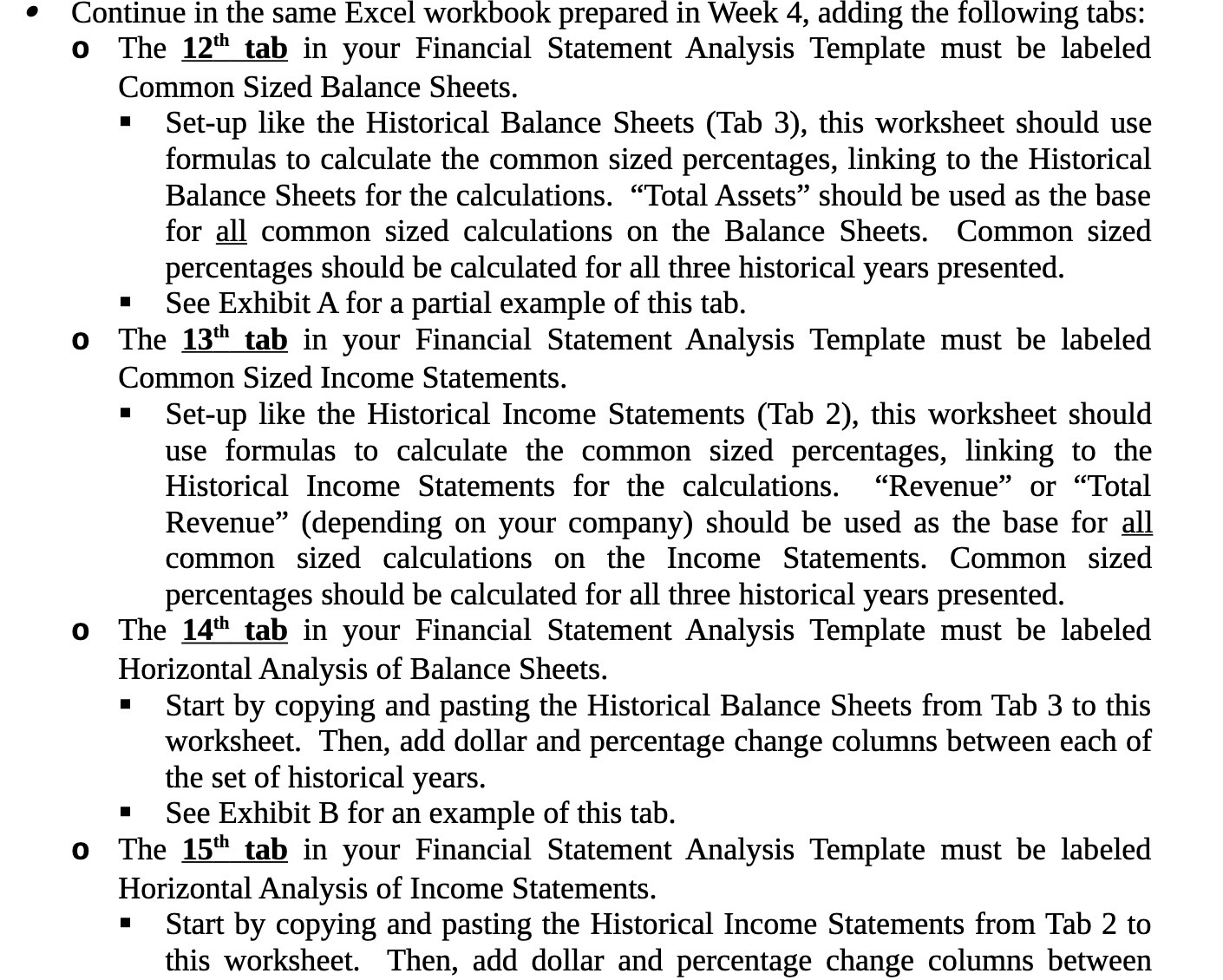
Continue in the same Excel workbook prepared in Week 4, adding the following tabs: 0 The 12''1 tab in your Financial Statement Analysis Template must be labeled Common Sized Balance Sheets. I Setup like the Historical Balance Sheets (Tab 3), this worksheet should use formulas to calculate the common sized percentages, linking to the Historical Balance Sheets for the calculations. \"Total Assets\" should be used as the base for Q common sized calculations on the Balance Sheets. Common sized percentages should be calculated for all three historical years presented. I See Exhibit A for a partial example of this tab. 0 The 13''1 tab in your Financial Statement Analysis Template must be labeled Common Sized Income Statements. I Setup like the Historical Income Statements (Tab 2), this worksheet should use formulas to calculate the common sized percentages, linking to the Historical Income Statements for the calculations. \"Revenue\" or \"Total Revenue\" (depending on your company) should be used as the base for a_ll common sized calculations on the Income Statements. Common sized percentages should be calculated for all three historical years presented. 0 The 14\"1 tab in your Financial Statement Analysis Template must be labeled Horizontal Analysis of Balance Sheets. I Start by copying and pasting the Historical Balance Sheets from Tab 3 to this worksheet. Then, add dollar and percentage change columns between each of the set of historical years. I See Exhibit B for an example of this tab. 0 The 15'\" tab in your Financial Statement Analysis Template must be labeled Horizontal Analysis of Income Statements. I Start by copying and pasting the Historical Income Statements from Tab 2 to this worksheet. Then, add dollar and percentage change columns between

Step by Step Solution

There are 3 Steps involved in it

1 Expert Approved Answer
Step: 1 Unlock blur-text-image

Question Has Been Solved by an Expert!

Get step-by-step solutions from verified subject matter experts

Step: 2 Unlock
Step: 3 Unlock

Students Have Also Explored These Related Accounting Questions!