







Question: Convert lengths In this exercise, youll add code to a form that converts the value the user enters based on the selected conversion type. The
Convert lengths
In this exercise, youll add code to a form that converts the value the user enters based on the selected conversion type.
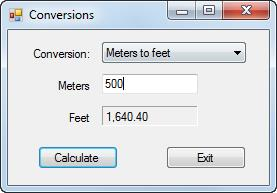
The application should handle the following conversions:
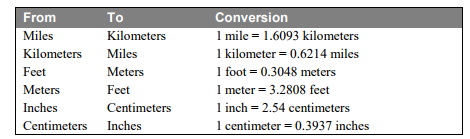
1. Open the LengthConversions project in the Extra Exercises\Chapter 10\LengthConversions directory. Display the code for the form, and notice the rectangular array whose rows contain the value to be displayed in the combo box, the text for the labels that identify the two text boxes, and the multiplier for the conversion as shown above.
2. Set the DropDownStyle property of the combo box so the user must select an item from the list.
3. Add code to load the combo box with the first element in each row of the rectangular array, and display the first item in the combo box when the form is loaded.
4. Add code to change the labels for the text boxes, clear the calculated length, and move the focus to the entry text box when the user selects a different item from the combo box.
5. Test the application to be sure the conversions are displayed in the combo box, the first conversion is selected by default, and the labels change appropriately when a different conversion is selected.
6. Add code to calculate and display the converted length when the user clicks the Calculate button. To calculate the length, you can get the index for the selected conversion and then use that index to get the multiplier from the array. Test the application to be sure this works correctly.
7. Add code to check that the user enters a valid decimal value for the length. Then, test the application one more time to be sure the validation works correctly
Lenghtconversions code below:
using System;
using System.Collections.Generic;
using System.ComponentModel;
using System.Data;
using System.Drawing;
using System.Linq;
using System.Text;
using System.Threading.Tasks;
using System.Windows.Forms;
namespace Conversions
{
public partial class Form1 : Form
{
public Form1()
{
InitializeComponent();
}
string[,] conversionTable = {
{"Miles to kilometers", "Miles", "Kilometers", "1.6093"},
{"Kilometers to miles", "Kilometers", "Miles", "0.6214"},
{"Feet to meters", "Feet", "Meters", "0.3048"},
{"Meters to feet", "Meters", "Feet", "3.2808"},
{"Inches to centimeters", "Inches", "Centimeters", "2.54"},
{"Centimeters to inches", "Centimeters", "Inches", "0.3937"}
};
public bool IsPresent(TextBox textBox, string name)
{
if (textBox.Text == "")
{
MessageBox.Show(name + " is a required field.", "Entry Error");
textBox.Focus();
return false;
}
return true;
}
public bool IsDecimal(TextBox textBox, string name)
{
try
{
Convert.ToDecimal(textBox.Text);
return true;
}
catch (FormatException)
{
MessageBox.Show(name + " must be a decimal number.", "Entry Error");
textBox.Focus();
return false;
}
}
private void btnExit_Click(object sender, EventArgs e)
{
this.Close();
}
}
}
Conversions Conversion: Meters to feet Meters 5001 Feet 1,640.40 Calculate Exit
Step by Step Solution
There are 3 Steps involved in it

Get step-by-step solutions from verified subject matter experts
 Study Help