







Question: Correct the #VALUE! errors in the worksheet as follows: Use Trace Precedents arrows to find the source of the #VALUE! error in cell C20. Correct
-
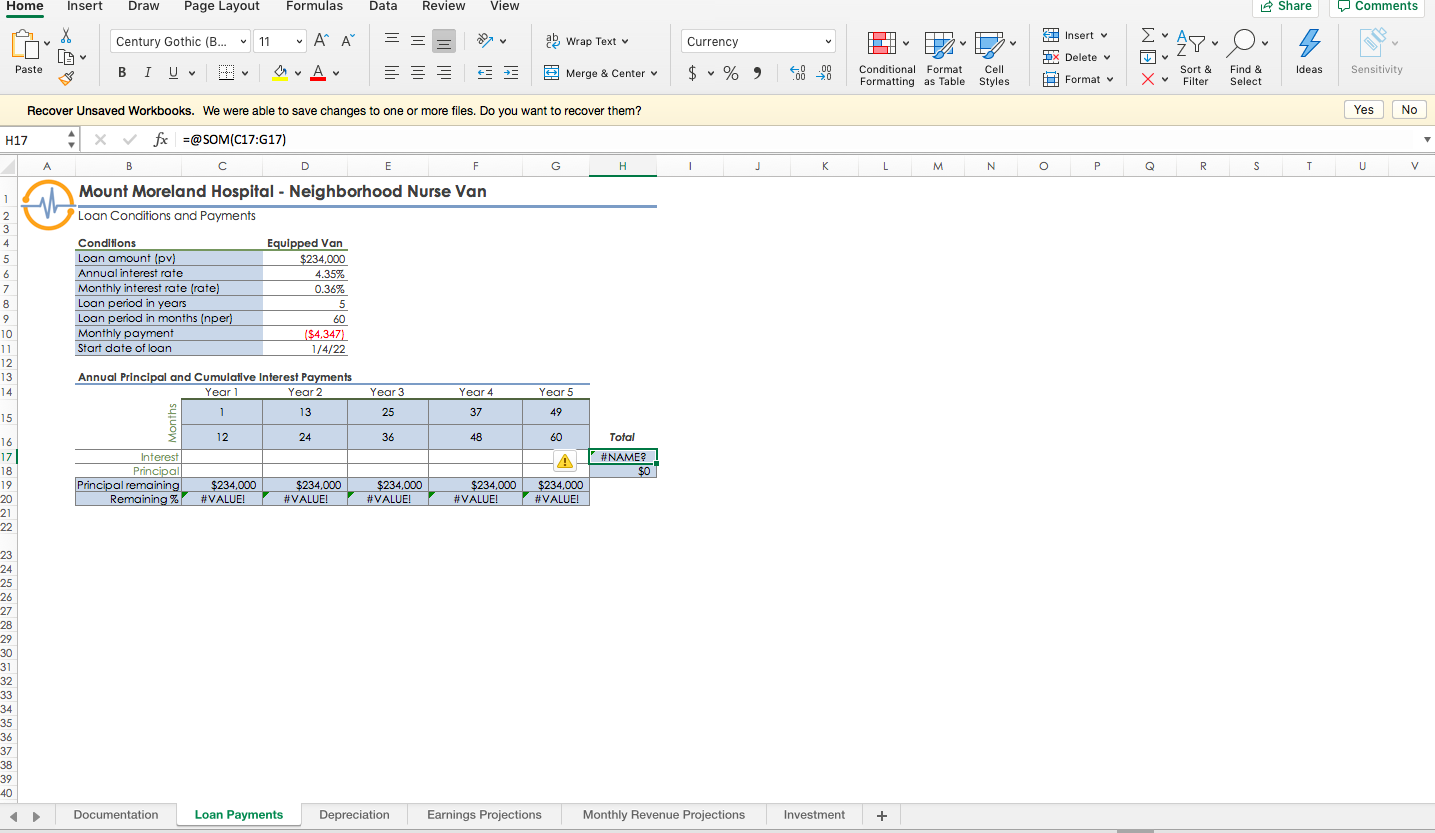 Correct the #VALUE! errors in the worksheet as follows:
 - Use Trace Precedents arrows to find the source of the #VALUE! error in cell C20.
- Correct the formula in cell C20, which should divide the remaining principal (cell C19) by the loan amount (cell D5) to find the percentage of remaining principal.
- Fill the range D20:G20 with the formula in cell C20 to correct the remaining #VALUE! errors.
- Remove any remaining trace arrows.
Home Insert Draw Page Layout Formulas Data Review View Share Comments = = = o a Wrap Text Currency Century Gothic (B... 11 A A BI U BOA DO ESTE E. Conditional Format Formatting as Table B Cell Styles 3 Insert 9X Delete Format Eva O 2 Sort & X V Filter SAY O Paste 3 Merge & Center $ % od -29 Find & Select Ideas Sensitivity Yes No _H I J K L M N O P Q R S T U o V - Neighborhood Nurse Van Recover Unsaved Workbooks. We were able to save changes to one or more files. Do you want to recover them? H17 x f x =@SOM(C17:617) AB F G H Mount Moreland Hospital - Neighborhood Nurse Van Loan Conditions and Payments Conditions Equipped Van Loan amount (pv) $234,000 Annual interest rate 4.35% Monthly interest rate frate) 0.36% Loan period in years Loan period in months (nper Monthly payment $4,347) Start date of loan 1/4/22 60 Annual Principal and Cumulative Interest Payments Year 1 Year 2 1 13 12 I 24 I Interest Principal Principal remaining $234,000 $234.000 Remaining % #VALUE! #VALUE! Months Year 3 25 36 Year 4 37 48 Year 5 49 60 A Total #NAME? SOT $234,000 #VALUE! $234,000 #VALUE! $234.000 #VALUE! Documentation Loan Payments Depreciation Earnings Projections Monthly Revenue Projections Investment +
Step by Step Solution
There are 3 Steps involved in it

Get step-by-step solutions from verified subject matter experts
 Study Help