







Question: Create a graphical user interface using App Designer that obtains input from a user and marks locations on a map as specified by the user.
Create a graphical user interface using App Designer that obtains input from a user and marks locations on a map as specified by the user.
After completion of the lab project, you are required to submit the output files on Canvas (the .m file of the Application along with the associated .mlapp) More information on are found later in the document. You can create the .m file by the export to .m option in the save section.
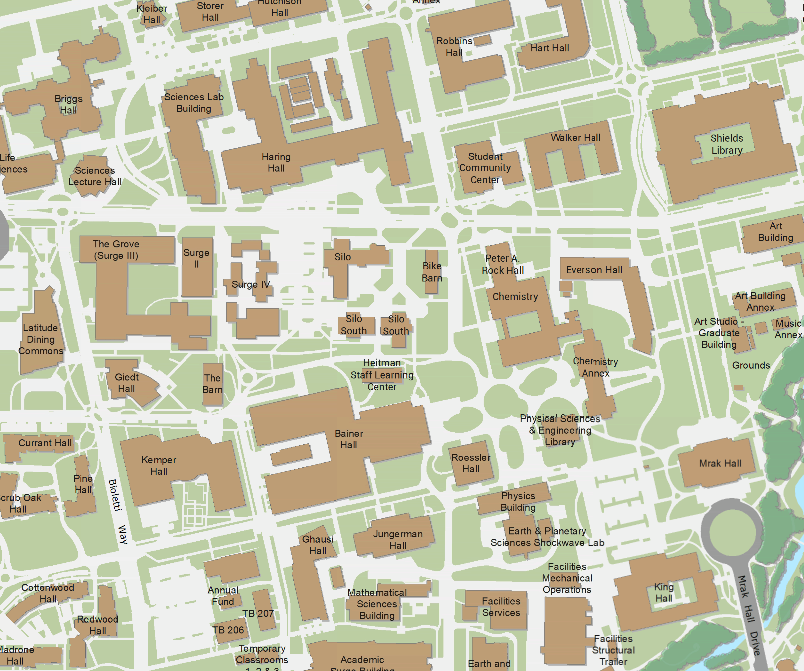
For the Mini Project: 1.) Using the scatter() function (you could use any plotting function) make a mark on the point that the user enters in the xl and yl fields. The user enters the following (xl, yl) values and after each pair (xl, yl) press the "mark the image" button. All the points (Ex: (200,200),(400,400),(700,700),(900,900)) that the user enters have to marked separately and held on map until the program is exited. The value of an xl EditField can be read using app.xlEditField.Value. Similarly, the value entered in the yl field can be accessed. 2.) Create the startupFcn() call back from the code Browser section and set initial value of "100" for the Editfields xl and yl. Note that the input to these fields could be string and you can use the num 2 str/str2num function if necessary. (Make sure to check command window for errors if any)
Step by Step Solution
There are 3 Steps involved in it

Get step-by-step solutions from verified subject matter experts
 Study Help