







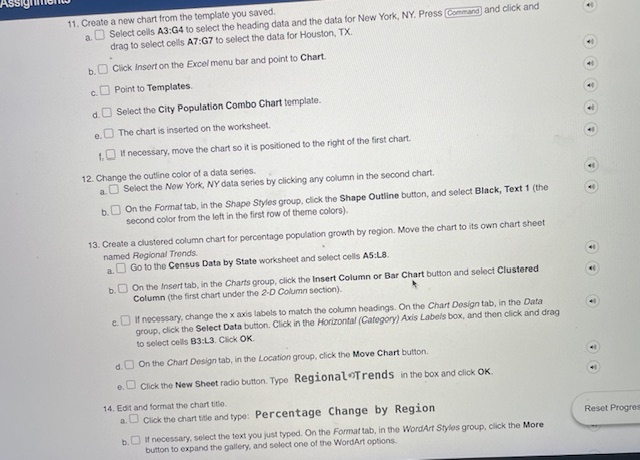
Question: Create a new chart from the template you saved. and click and a . b . Click Insert on the Excel menu bar and point
Create a new chart from the template you saved.
and click and
a
b
Click Insert on the Excel menu bar and point to Chart.
c
Point to Templates.
d
Select the City Population Combo Ghart template.
e
The chart is inserted on the worksheet.
f
If necessary, move the chart so it is positioned to the right of the first chart.
Change the outline color of a data series.
a
Select the Now York, NY data series by clicking any column in the second chart.
b
On the Format tab, in the Shape Styles group, click the Shape Outline button, and select Black, Text the
second color from the left in the first row of theme colors
Create a clustered column chart for percentage population growth by region. Move the chart to its own chart sheet
named Rogional Trends.
a
Go to the Census Data by State worksheet and solect cells A:L
b
On the Insert tab, in the Charts group, click the Insert Column or Bar Chart button and seloct Clustered
Column the first chart under the D Column section
e
If necessary, change the axis labels to match the column headings. On the Chart Dosign tab, in the Data
group, click the Select Data bution. Click in the Horizontal Gategery Axis Labols box, and then click and drag
to select cells B:L Click OK
d
On the Chart Design tab, in the Location group, click the Move Chart button.
e
Click the New Sheet radio button. Type RegionalnTrends in the box and click OK
Edt and format the chart titte.
a
Click the chant tole and type: Percentage Change by Region
b
If necessary, solect the text you just typed. On the Format tab, in the WordArt Styles group, click the More
button to expand the gallery, and select one of the WordArt options.
Please answer step by step very detailed thank you!
Step by Step Solution
There are 3 Steps involved in it
1 Expert Approved Answer
Step: 1 Unlock

Question Has Been Solved by an Expert!
Get step-by-step solutions from verified subject matter experts
Step: 2 Unlock
Step: 3 Unlock
 Study Help