







Question: Create a Standard Named ACL Recap Standard Named ACL - identify the access control list by name and not by number Place Standard ACL
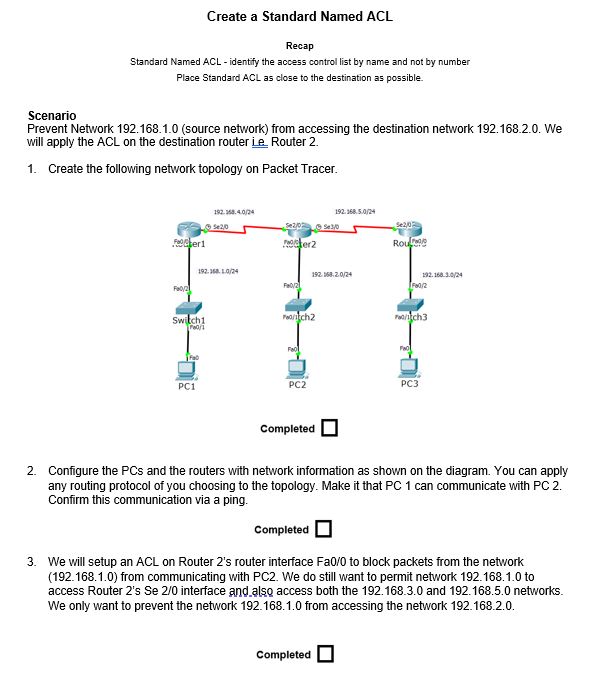
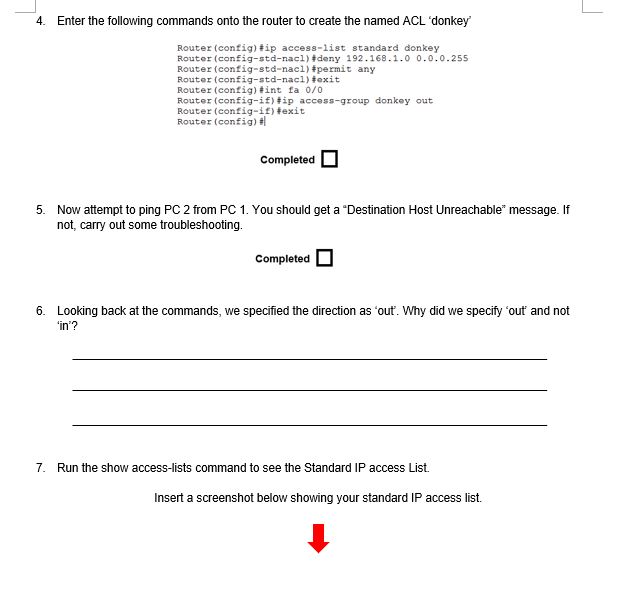
Create a Standard Named ACL Recap Standard Named ACL - identify the access control list by name and not by number Place Standard ACL as close to the destination as possible. Scenario Prevent Network 192.168.1.0 (source network) from accessing the destination network 192.168.2.0. We will apply the ACL on the destination router Le Router 2. 1. Create the following network topology on Packet Tracer. 192.168.4.0/24 192.168.5.0/24 L+2/0 Se2/03/0 Se2/0 Ferl Rou 192.168.1.0/24 192.168.2.0/24 192.168.1.0/24 Fa0/2 Fa0/2 Fa0/2 Switch1 Peo/1tch2 Fch3 Fa Fa PC1 PC2 PC3 Completed 2. Configure the PCs and the routers with network information as shown on the diagram. You can apply any routing protocol of you choosing to the topology. Make it that PC 1 can communicate with PC 2. Confirm this communication via a ping. Completed 3. We will setup an ACL on Router 2's router interface Fa0/0 to block packets from the network (192.168.1.0) from communicating with PC2. We do still want to permit network 192.168.1.0 to access Router 2's Se 2/0 interface and also access both the 192.168.3.0 and 192.168.5.0 networks. We only want to prevent the network 192.168.1.0 from accessing the network 192.168.2.0. Completed 4. Enter the following commands onto the router to create the named ACL 'donkey Router (config)#ip access-list standard donkey Router (config-std-nacl) #deny 192.168.1.0 0.0.0.255 Router (config-std-nacl) #permit any Router (config-std-nacl) texit Router (config) #int fa 0/0 Router (config-if)#ip access-group donkey out Router (config-if)#exit Router (config)# Completed 5. Now attempt to ping PC 2 from PC 1. You should get a "Destination Host Unreachable message. If not, carry out some troubleshooting. Completed 6. Looking back at the commands, we specified the direction as 'out'. Why did we specify 'out' and not 'in'? 7. Run the show access-lists command to see the Standard IP access List. Insert a screenshot below showing your standard IP access list.
Step by Step Solution
There are 3 Steps involved in it

Get step-by-step solutions from verified subject matter experts
 Study Help