







Question: Create a Test Score Application using Arrays Write a method(or event handler) for the click event of the Add to Array button that adds the
Create a Test Score Application using Arrays
- Write a method(or event handler) for the click event of the Add to Array button that
- adds the user entries for name and score to the names and scores arrays, clears the entries from the text boxes, and then move the focus to Name textbox.
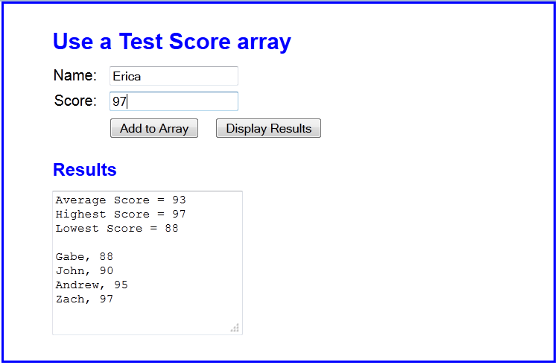
- Write a method for the click event of the Display Results button that uses a loop to calculate the average, highest, and lowest score for the elements in the scores array. The method should then display the scores in the textarea element as shown above.
- Enhance the code for the method so it displays the names and scores of the elements in the arrays, as shown above.
- Add data validation to the method for the Add to Array button. The Name entry must not be empty and the Score entry must be a positive number from 0 through 100. If either entry is invalid, use the alert method to display an error message like Must enter a name and/or a valid score
This is the code that I'm currently working on:
var $ = function (id) { return document.getElementById(id); }
var addToArray = function() { //input var name = $("name").value; var score = parseInt($("score").value); names [names.length] = name; scores [scores.length] = score; $("name").value = ""; $("score").value = ""; $("name").focus(); }
var displayResult = function() { var highestScore = 0; var lowestScore = 0; var scoreTotal = 0; var averageScore = 0; var textDisplay = ""; for (var i in scores) { //highest score if (scores[i] > highestScore) { highestScore = scores[i]; } //lowest score if (scores[i]
window.onload = function () { $("add").onclick = addToArray; $("display").onclick = displayResult; }
Use a Test Score array Name: Erica Score: 97 Add to Array Display Results Results Average Score = 93 Highest Score = 97 Lowest Score = 88 Gabe, 88 John, 90 Andrew, 95 zach, 97
Step by Step Solution
There are 3 Steps involved in it

Get step-by-step solutions from verified subject matter experts
 Study Help