







Question: Create a VBA array function flip(array) that will take any array and flip it upside down, placing the flipped array in a new block of
Create a VBA array function
flip(array)
that will take any array and flip it upside down, placing
the flipped array in a new block of cells.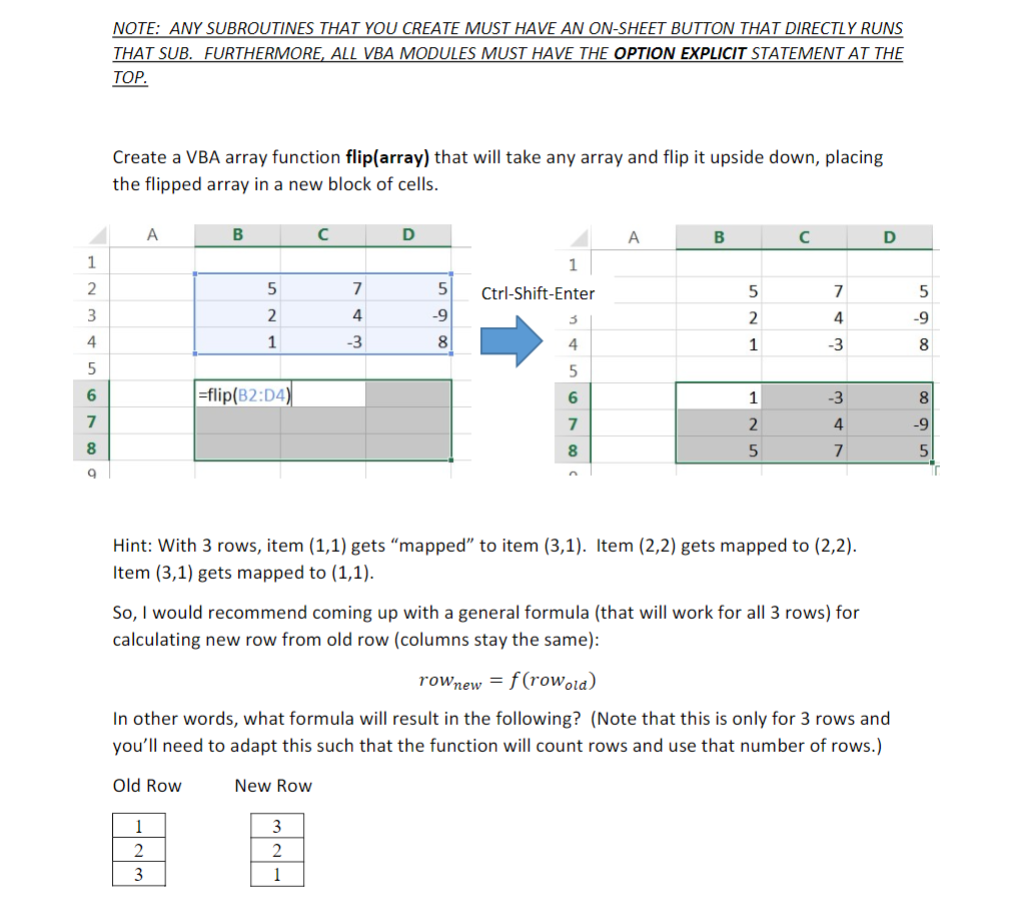
NOTE: ANY SUBROUTINES THAT YOU CREATE MUST HAVE AN ON-SHEET BUTTON THAT DIRECTLY RUNS RTHERMORE ALL VBA MODULES MUST HAVE THE OPTION EXPLICIT STATEMENT AT TH TOP Create a VBA array function flip(array) that will take any array and flip it upside down, placing the flipped array in a new block of cells 5 Ctrl-Shift-Enter 9 4 4 -flip(82:D4 Hint: With 3 rows, item (1,1) gets "mapped" to item (3,1). Item (2,2) gets mapped to (2,2) Item (3,1) gets mapped to (1,1) So,I would recommend coming up with a general formula (that will work for all 3 rows) for calculating new row from old row (columns stay the same) new- f(rowold) In other words, what formula will result in the following? (Note that this is only for 3 rows and you'll need to adapt this such that the function will count rows and use that number of rows.) Old Row New Row NOTE: ANY SUBROUTINES THAT YOU CREATE MUST HAVE AN ON-SHEET BUTTON THAT DIRECTLY RUNS RTHERMORE ALL VBA MODULES MUST HAVE THE OPTION EXPLICIT STATEMENT AT TH TOP Create a VBA array function flip(array) that will take any array and flip it upside down, placing the flipped array in a new block of cells 5 Ctrl-Shift-Enter 9 4 4 -flip(82:D4 Hint: With 3 rows, item (1,1) gets "mapped" to item (3,1). Item (2,2) gets mapped to (2,2) Item (3,1) gets mapped to (1,1) So,I would recommend coming up with a general formula (that will work for all 3 rows) for calculating new row from old row (columns stay the same) new- f(rowold) In other words, what formula will result in the following? (Note that this is only for 3 rows and you'll need to adapt this such that the function will count rows and use that number of rows.) Old Row New Row
Step by Step Solution
There are 3 Steps involved in it

Get step-by-step solutions from verified subject matter experts
 Study Help